What causes a stuck pixel on your laptop and can it be fixed?

If a pixel is stuck on a single color, all hope may not be lost.

fizkes/Shutterstock
When a mysterious dot on your laptop screen turns out to be something internal rather than just run-of-the-mill gunk, it can be easy to panic. Though it's not as severe as something like screen burn-in, it can be a major distraction, and depending on the root cause, it may not be fixable. Thankfully, if your errant pixel still has light emanating from behind it — appearing blue, green, red or a combination of the three instead of just consistently black — chances are its a stuck pixel, and there's still hope for your screen.
Unlike a dead pixel, stuck pixels still have the potential to be fixed, as they've still got power flowing through them. In fact, the root of the problem essentially comes down to too much power, making the pixel unable to change color as the transistor controlling it is stuck on. There are several different methods which you can try at home to fix a stuck pixel, though the physical methods do require a hefty dose of caution.
What causes stuck pixels?
There are several different factors that can cause stuck pixels, and not even the best laptops are immune. One of the most common is physical damage — a device being dropped can damage transistors, for example, or pressing too hard on a panel can disturb an LCD screen's liquid crystal. Incidents like power surges can also damage internal components and cause issues, as can exposure to extreme temperatures. Of course, sometimes the cause is simply aging equipment. The longer you've had a device, the more likely it is that something will go wrong internally.
Thankfully, stuck pixels don't spread like an infection. Just because one of your pixels has an issue, doesn't mean your whole screen will soon face the same fate. However, if the stuck pixel was caused by a broader manufacturing defect, like faulty transistors or improper component sealing, you might start to see more pixels having issues. Whether or not the manufacturer will replace the device can sometimes be dependent upon if it's a recurring issue or not — a single stuck pixel might not qualify for warranty, but a cluster of them might meet the threshold.
How to fix a stuck pixel
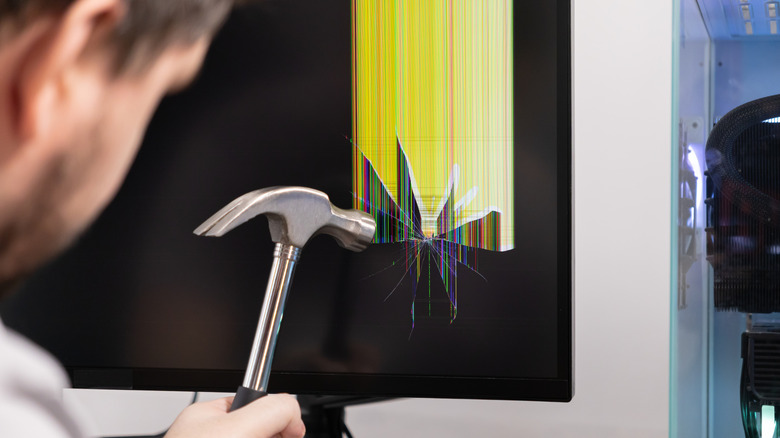
aileenchik/Shutterstock
There are three main methods you can try to fix a stuck pixel before investigating your warranty: software, pressure, and heat. However, it should be noted that the latter two options have the potential to cause more damage to your machine, so exercising caution is very important. Before you try any of these methods, it's also worth turning off your device for a day or so, which might be enough to reset the pixel.
Fixing a stuck pixel with software
The easiest and safest way to fix a stuck pixel is through software designed to unstick them. If you don't feel like downloading a program for it, JScreenFix is a popular option. Alternatively, you can utilize programs like PixelHealer, though it's only available for Windows. The rapid color cycling of these tools is designed to help cycle the pixel's transistor and unstick it. If you or someone in the room with you has photosensitive epilepsy or a similar condition, please be cautious when using pixel-healing software.
Fixing a stuck pixel with pressure
To attempt a fix with pressure, you'll need a pointed (but not sharp!) tool like the cap of a pen, a stylus or your own finger, as well as a soft protective barrier, ideally a microfiber cloth. Cover your tool with the barrier, then with the screen off, locate the area with the dead pixel and apply light pressure. Then, while still applying pressure, turn the device back on and check to see if the pixel has unstuck. If not, you can repeat this cycle a few more times.
Fixing a stuck pixel with heat
For this final method, first turn your device off, then warm a cloth — you don't want it to be hot, just warmed — and place it on the stuck pixel area for a few minutes, then power the device back on. Like the pressure technique, this can be repeated a few times if it doesn't work on the first attempt, but taking longer breaks between sessions is advisable to avoid heating up other internal components too much.
KioskNews shows a cleaned-up reading view extracted from the publisher’s page — the original always lives on their site, not ours.