One terminal command gave my forgotten Android device a desk job
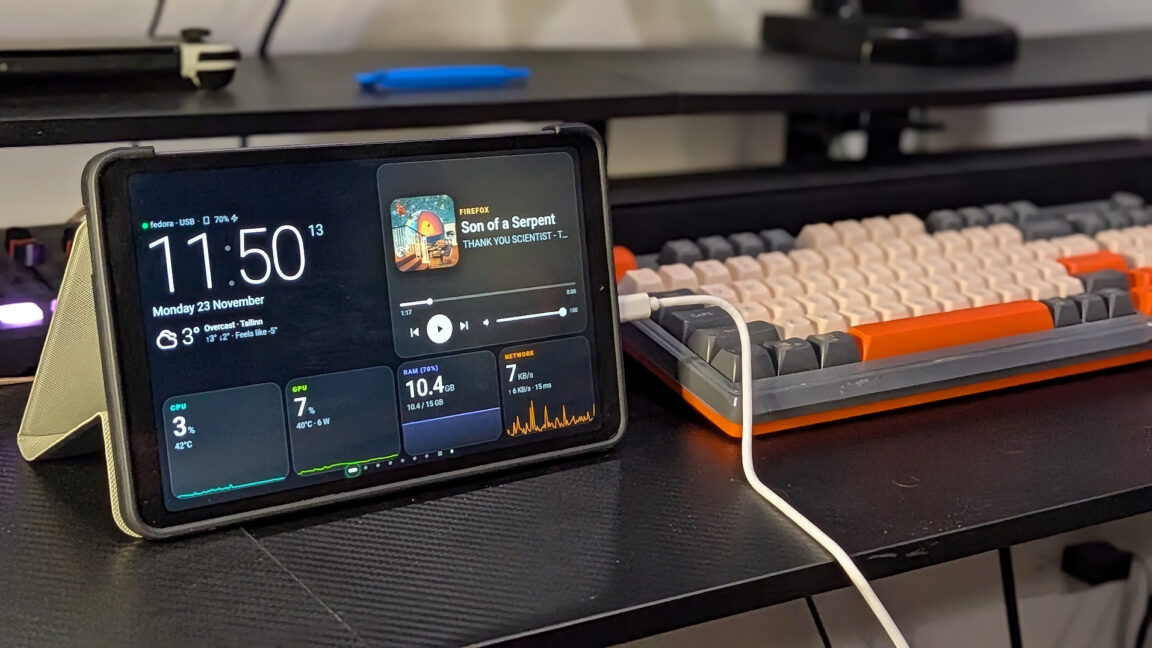
My kitchen junk drawer used to hold takeout menus and coupons, but it has since become a storage spot for old tablets or phones. Like me, you probably have a few devices lying around that are perfectly functional, but might not meet your daily driving needs. It’s tucked away out of view, meant to live out the rest of its life in a drawer before finally being cleaned out and donated the next time someone opens the drawer and asks why you’re holding on to outdated, unused devices. Thankfully, PhoneBox has a solution. You weren’t hoarding old tech; you were waiting for the proper use.
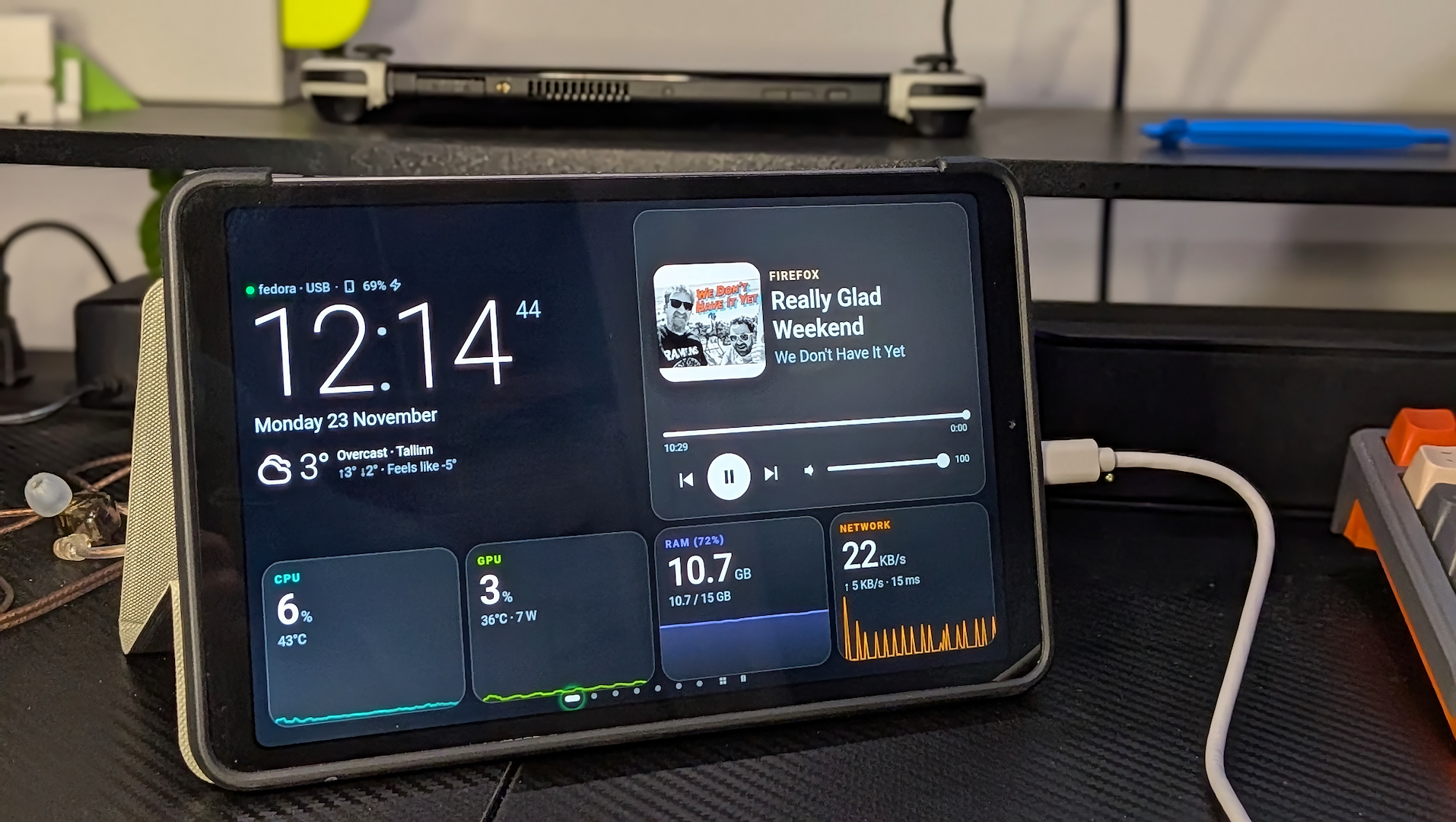
The PhoneBox home screen displays useful stats and what’s currently playing in your browser.
Credit: Nick Indge
The PhoneBox home screen displays useful stats and what’s currently playing in your browser. Credit: Nick Indge
I had an old AllDoCube iPlay 50 mini Pro 8.4-inch tablet that seemed like the perfect candidate. I bought the tablet second-hand as a possible big-screen gaming and emulation tablet to use with a telescopic control deck, but I quickly found I vastly preferred just using a dedicated device. Since that realization, this decent little unit has lived its life like so many other forgotten devices in a drawer.
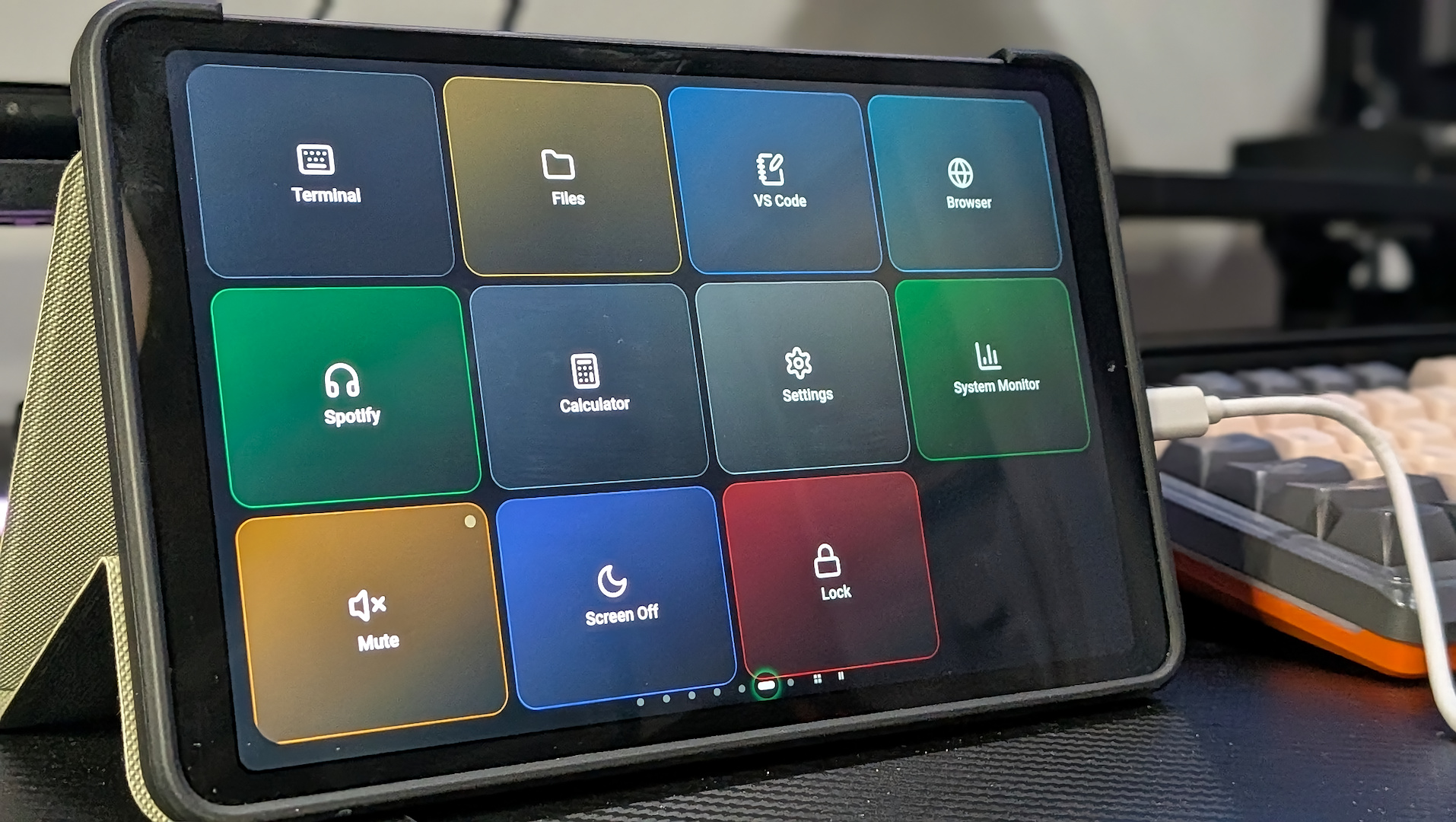
Launch applications on your PC from the connected Android device.
Credit: Nick Indge
Launch applications on your PC from the connected Android device. Credit: Nick Indge
Installation is a doddle
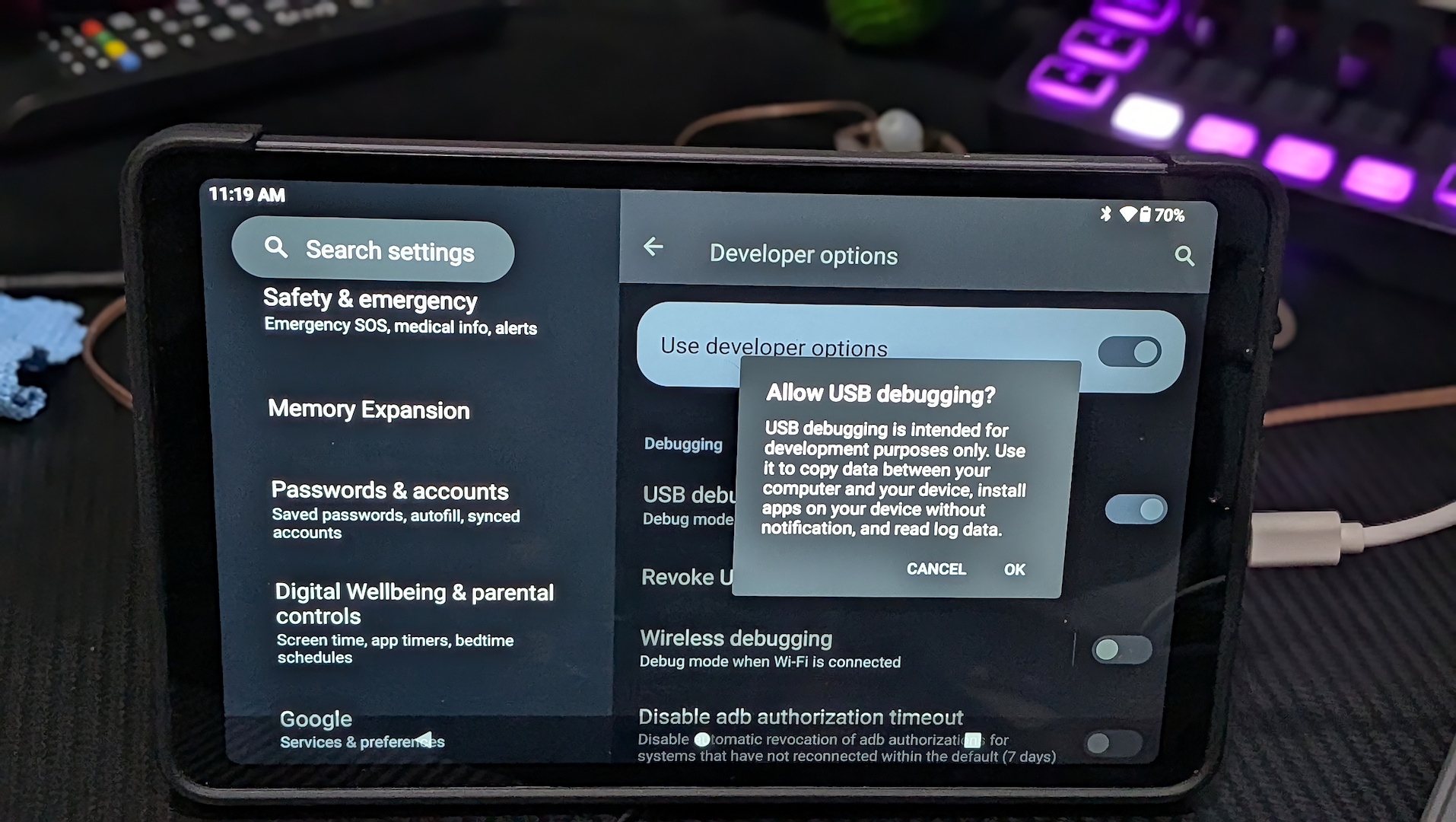
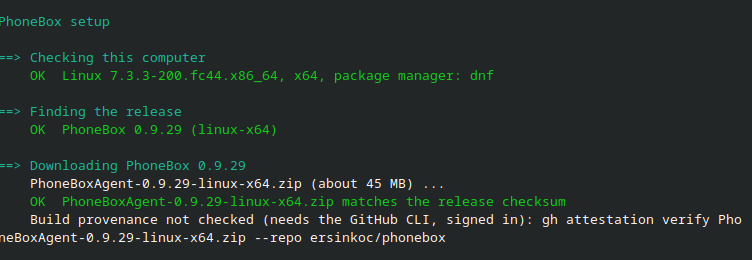
Getting PhoneBox up and running on my tablet and PC couldn’t have been any simpler. After making sure that the Android tablet was in developer mode, the process was as simple as plugging the tablet into my PC via USB and executing a single copied command in my Linux terminal. The script downloaded the PhoneBox 0.9.29 software for my PC, verified the downloaded checksum against the release, and walked me through a few quick Y/N installation questions. The script offers to create a systemd user service so the desktop agent launches after initial login, and even asks if you’d like it to install the PhoneBox APK to your connected Android device.
Developer options and ADB are required for USB setup.
Credit: Nick Indge
Developer options and ADB are required for USB setup. Credit: Nick Indge
I already had developer mode initialized on the tablet, but had to go back and allow ADB over USB in settings. The total installation time from copying the script from the project website to everything running on my PC and tablet was less than a minute. The app is MIT-licensed, works on Android 5.0 or later, and requires sideloading since it is not available on the Google Play Store.
Credit: Nick Indge
Credit: Nick Indge
The installation script also prints its own uninstall script before it finishes. So often these days, getting rid of an unwanted app feels more difficult than installing it, so I appreciate the straightforward approach the developer has implemented.
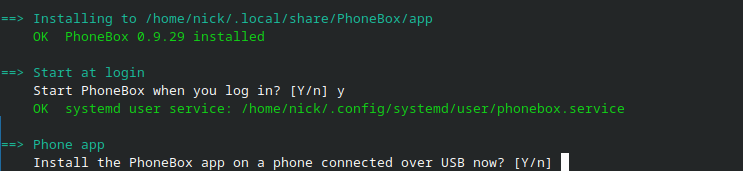
The script can install the APK directly to your device.
Credit: Nick Indge
The script can install the APK directly to your device. Credit: Nick Indge
What your device becomes
The first time you fire PhoneBox up, you get live performance and diagnostic information from your PC, along with several pages of optional content that can be tweaked for your local setup to display information that’s pertinent to your uses.
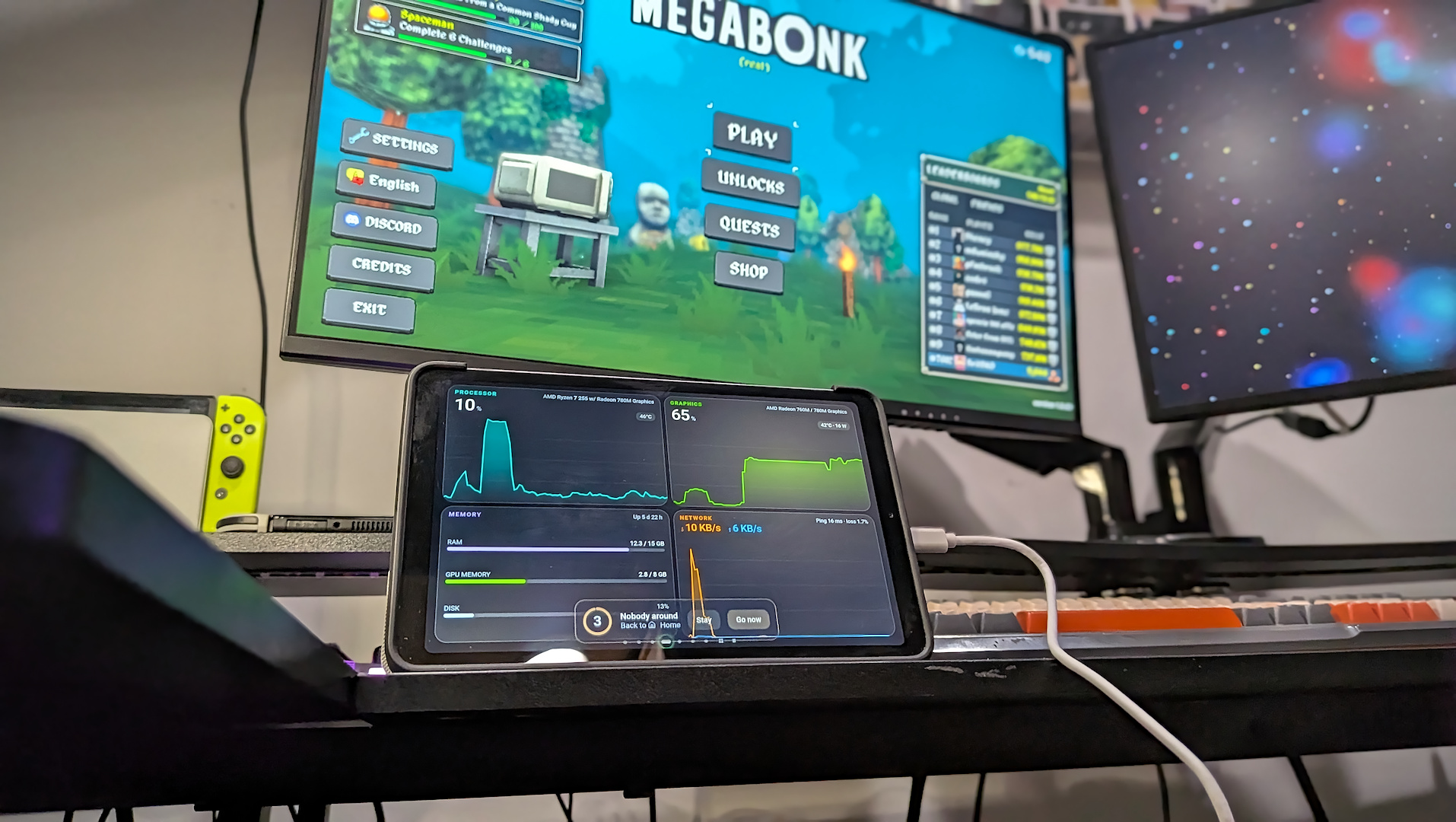
Want to check on your system resources in-game?
Credit: Nick Indge
Want to check on your system resources in-game? Credit: Nick Indge
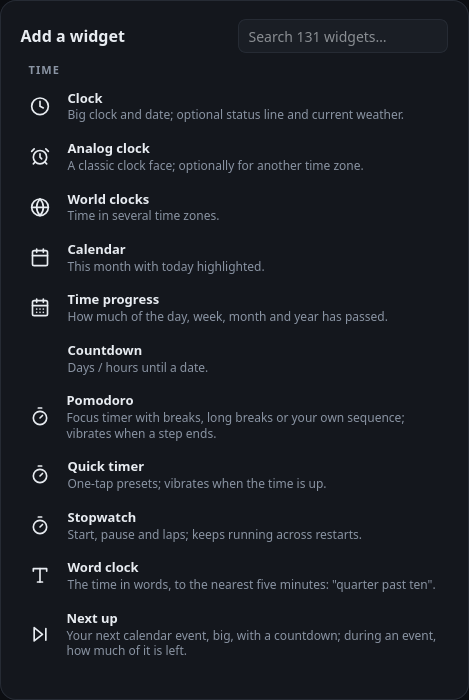
Where PhoneBox really starts to shine is the widget catalog. A collection of free add-ons that can be added as pages to the tablet’s cycling page layouts. There are more general widgets like RSS feeds that display news highlights from your chosen sources, or simple displays like timers or world clocks.
No shortage of available add-ons.
Credit: Nick Indge
No shortage of available add-ons. Credit: Nick Indge
I opted for a few different widgets that caught my eye. One let me view my library of installed Steam titles and launch them on my PC with a simple tap of the tablet screen. Another allows me to control smart home entities hosted by my Home Assistant server. I was controlling the lights in my office from my tablet within seconds of adding the widget. It’s brilliant.
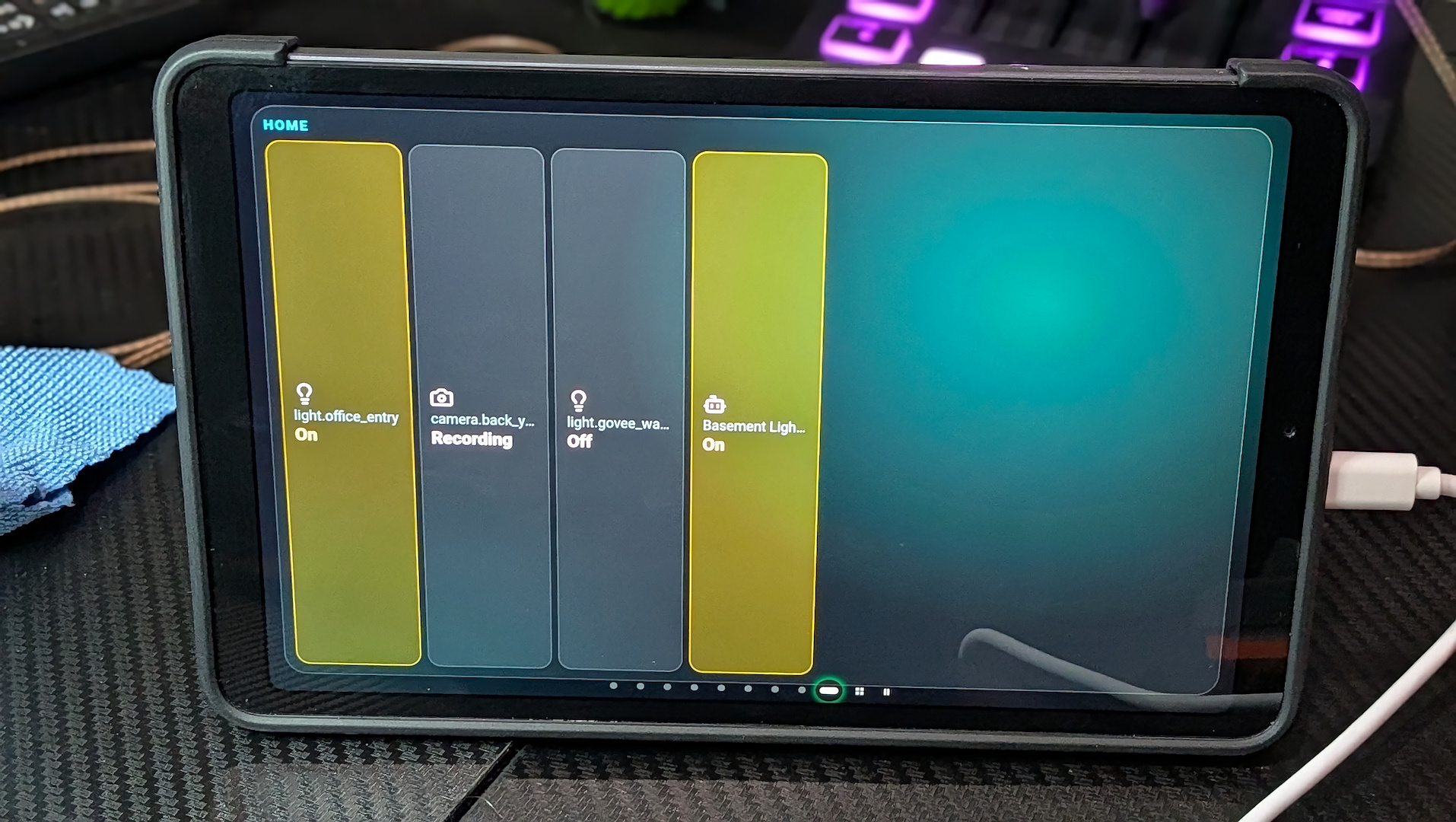
Home Assistant connected device controls on PhoneBox
Credit: Nick Indge
Home Assistant connected device controls on PhoneBox Credit: Nick Indge
Setting up additional widgets is as simple as adding them to the page layout from the PC’s web interface and hitting save. As soon as I updated things from the PC, the connected tablet immediately began reflecting the changes. I haven’t had the chance to test most of the 131 current options in the widget catalog, but the ones I did were simple to modify and worked on the first try.
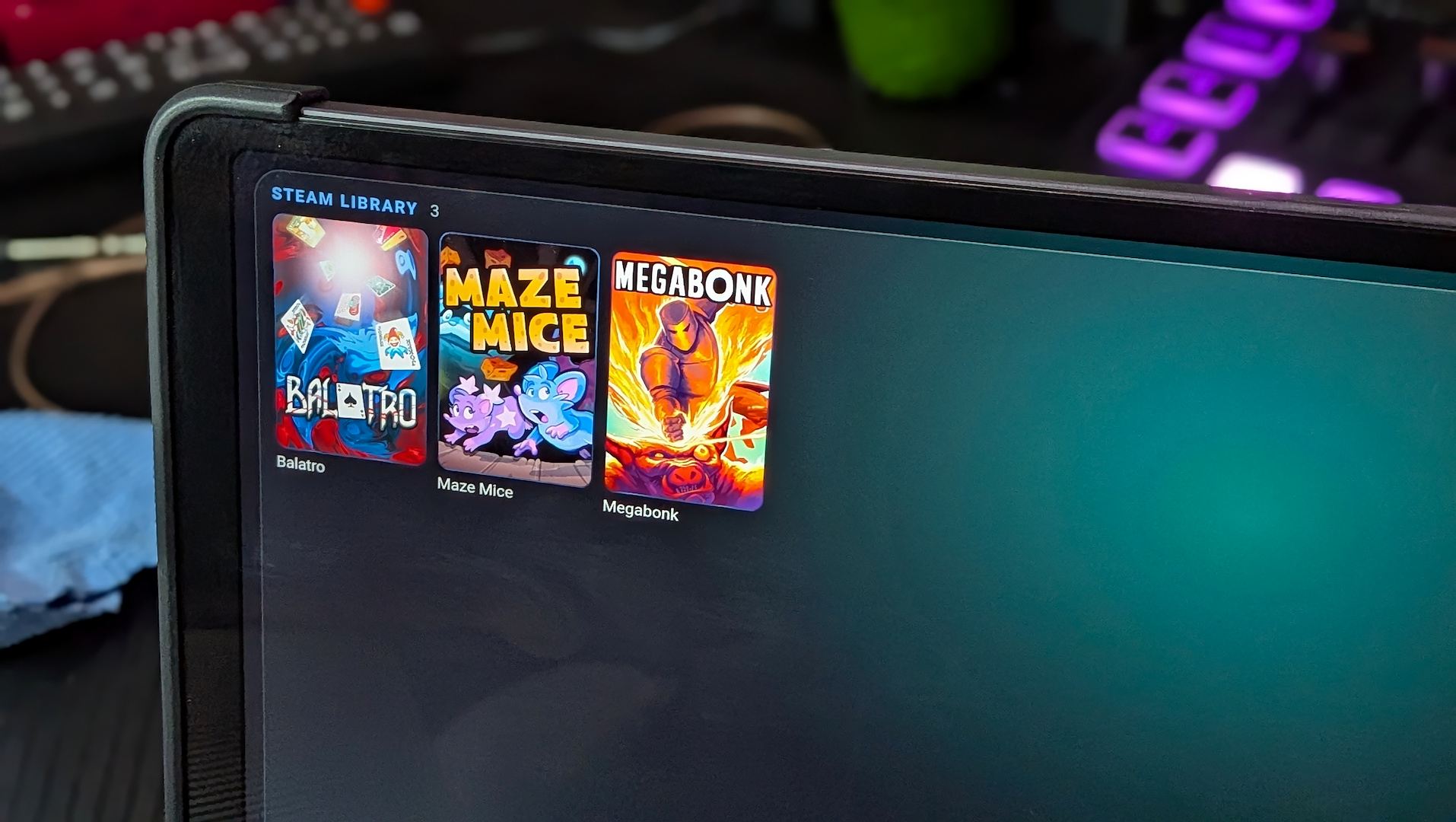
I can launch installed Steam Library titles from the tablet controls.
Credit: Nick Indge
I can launch installed Steam Library titles from the tablet controls. Credit: Nick Indge
Some frictions
While I didn’t have any major issues with PhoneBox, I did notice a couple of early annoyances along the way. Windows users should be aware that the PC companion app on that OS is currently unsigned, and they should expect a SmartScreen notification when attempting to install the software.
All control settings live in the web interface rather than the phone or tablet you’re connecting. When I first started messing with PhoneBox, I noticed it displayed my weather location as Tallinn. Nothing against the capital of Estonia, but that’s not weather information that does me much good here in the US Midwest. When I went into the widget settings to change the report location, there was nothing to be found. It turns out that you have to change those settings from the general user preferences section rather than within the widget itself. Not a deal-breaker by any means, but a slight hiccup for someone who was new to the software.
Connecting the Android tablet with my PC over USB was totally painless, but I never got the wireless route to work in my testing. Users are meant to generate a QR code from the PhoneBox web interface on their PC, and connect it to their device by scanning the code with their phone/tablet. Every time I tried to scan the code from my device’s camera app, the tablet refused. There’s no QR scanner built into the PhoneBox app, so if your camera app won’t cooperate, the documented path dead-ends. USB was my intended route anyway and works great, but if you’re planning a wireless-only setup, be prepared for possible friction. The documented flow depends on your device camera opening the pairing link, and mine wasn’t in the mood.
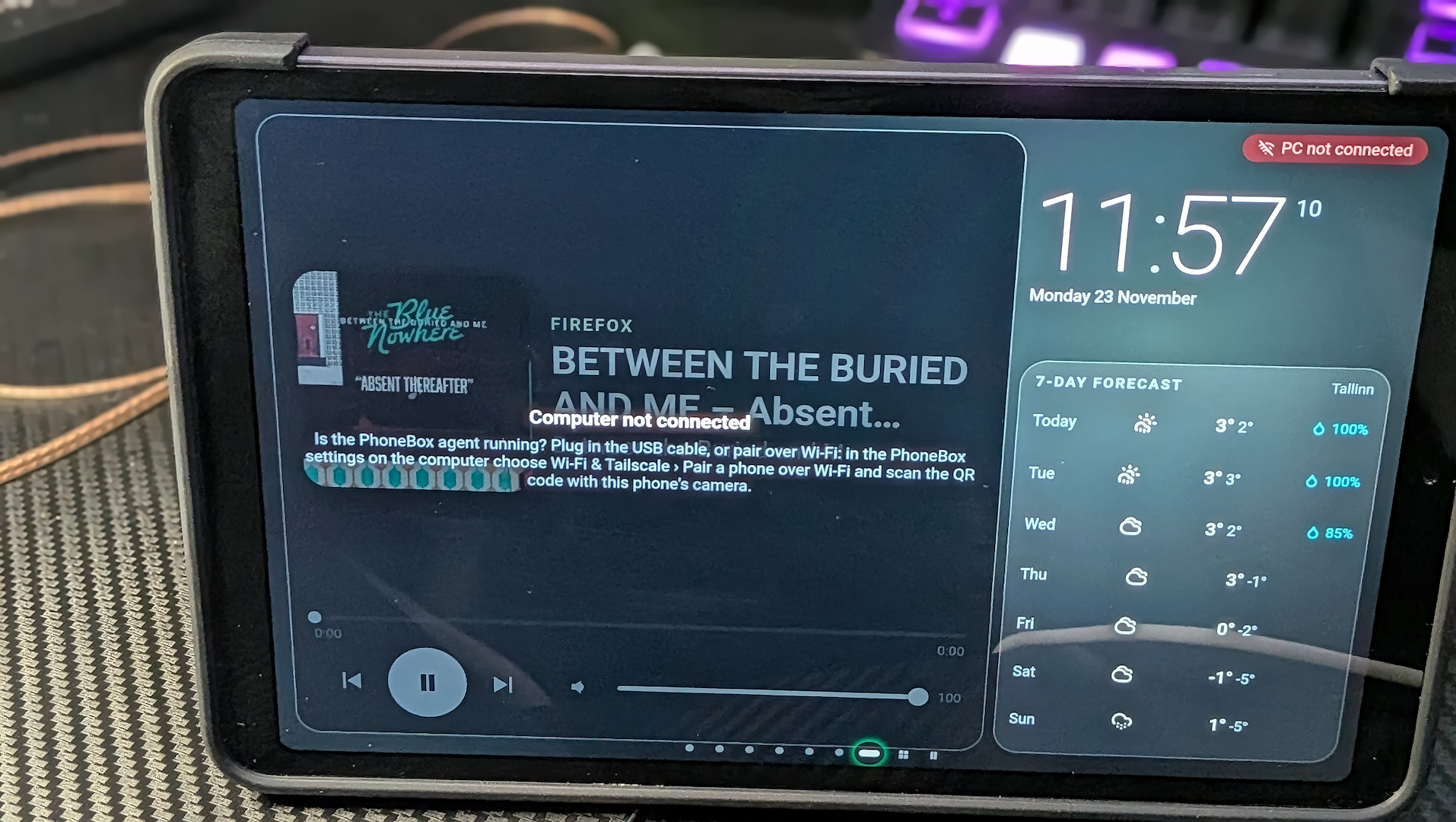
I may have to go back and try the wireless mode again.
I may have to go back and try the wireless mode again.
These minor gripes should be smoothed over before the release of 1.0. The project is early, but it seems to be moving quickly. I tested and installed PhoneBox version 0.9.29, which was one of several releases pushed to the project’s GitHub in as many days. One item of history worth knowing: On November 20, the project published a high-severity security advisory covering versions 0.9.23 and earlier. The vulnerability potentially allowed another app running on the connected Android device to execute commands or receive stored credentials from the host PC. The flaw no longer existed by the time I tested the package in version 0.9.29, but it’s a good reminder that you’re installing something with deep system access and should exercise appropriate caution.
Is it worth trying?
As long as you’re part of the group that has an old phone or tablet lying around somewhere, and these days I expect that most of us are, then it’s an emphatic yes. Repurposing old devices to find new lives is one of the things that keeps me a tech hobbyist. I love finding genuinely useful and practical applications for devices that may have been pushed aside by their manufacturers in favor of the latest and greatest in the lineup.
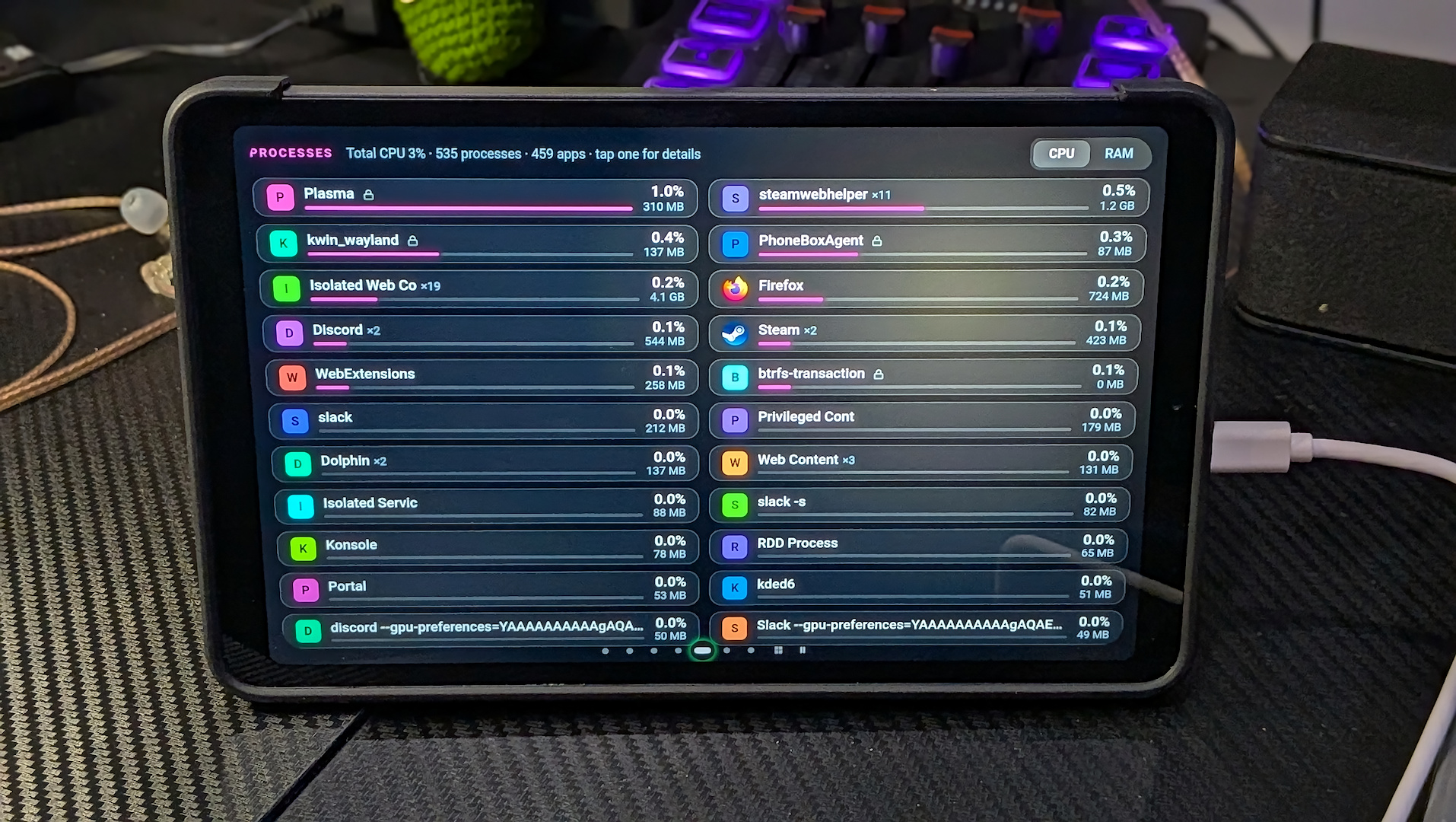
Monitor all your system processes live.
Credit: Nick Indge
Monitor all your system processes live. Credit: Nick Indge
PhoneBox took a tablet that was destined to live in a junk drawer before being gathered up for a spring donation run, and gave it a new lease on life. I haven’t spent a single penny, and now I have a useful secondary display on my desk. The tablet is powered via a dedicated USB port on my PC, and only goes to sleep when my main monitor displays do. Go dig through those mystery drawers, because this one is worthwhile.

Nick Indge is a Senior Technology Reporter at Ars Technica covering hardware, embedded systems, and self-hosted infrastructure. A former security investigator turned tech writer, he writes to help readers escape subscription traps and regain ownership of their digital lives. He lives in Chicagoland with his family and a goofball husky.
KioskNews shows a cleaned-up reading view extracted from the publisher’s page — the original always lives on their site, not ours.