I tested Cricut’s desktop sticker printer, and it makes creating custom stickers almost too easy
We may earn revenue from the products available on this page and participate in affiliate programs. Learn more ›
My desk drawer contains a small stack of stickers that I have collected over the years. I like all of them, but I lack the commitment required to actually stick them on anything. After all, what if I stick them somewhere now and then find a more perfect place later? I’m working through those commitment issues with some help from the new StickerPix Print + Cutl, which makes high-quality stickers from whatever graphic I choose, then cuts out custom shapes without the need for an extra tool or time spent with a pair of scissors.
Cricut built its reputation on cutting machines that turn sheets of vinyl and cardstock into crafts. The StickerPix Print + Cut adds a printer to that formula. It’s a compact dye-sublimation machine that prints a full-color sheet and then cuts your designs into custom-shaped stickers as simply as printing a document. I’ve been using it for the past week and I’m impressed with the output quality, especially compared to the extremely shallow learning curve.
Design and setup
This product has earned a Popular Science Proven award from our editors. For more information on what that means, read our explainer.
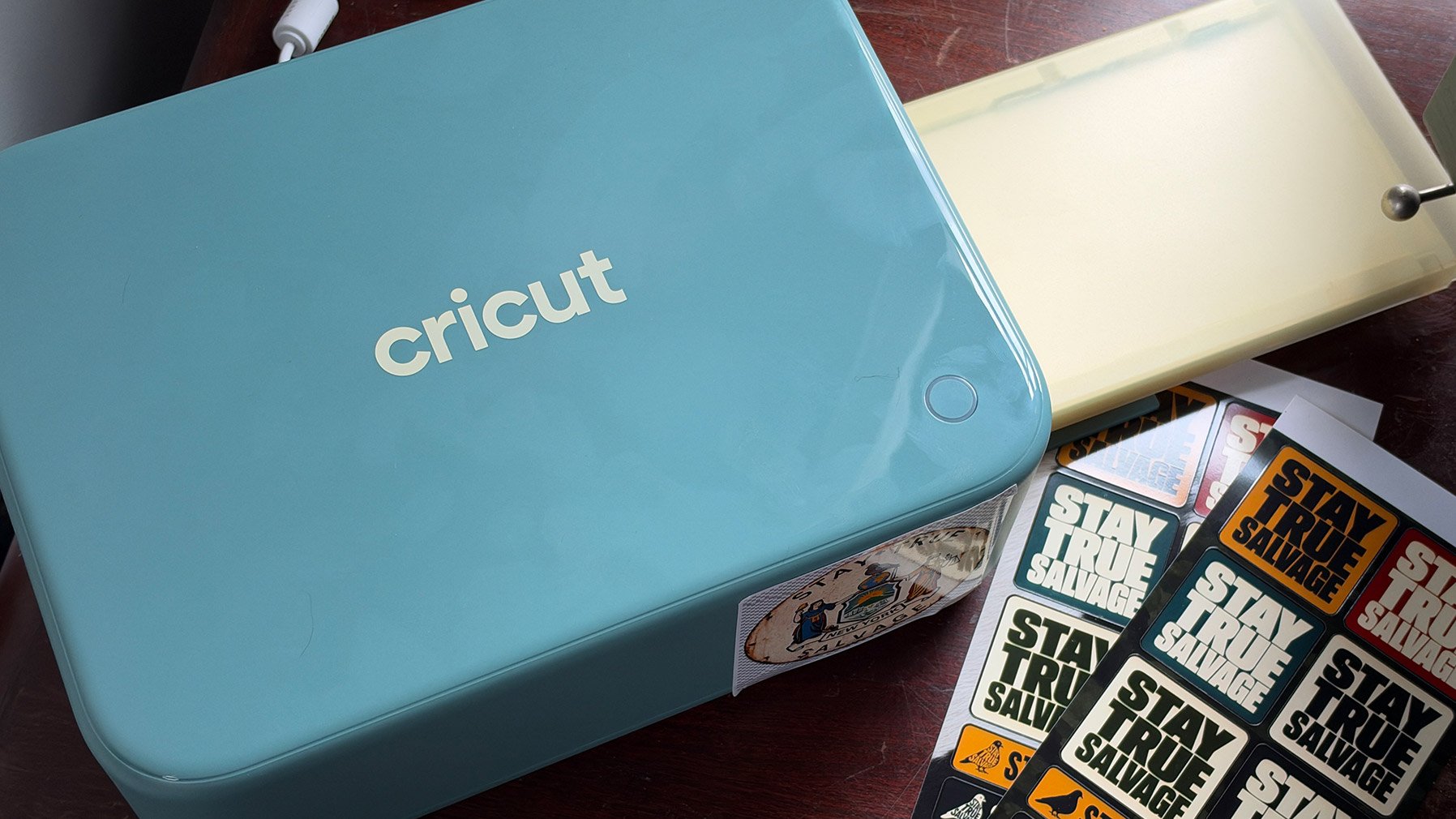
The StickerPix is small enough to live on a desk full time, and it looks nice sitting there. It measures 8 by 11.3 by 4.1 inches and weighs 6.6 pounds. The paper tray stows away when you’re not printing, so it doesn’t jut out into your workspace between jobs. You will need roughly 6 inches to either side of the machine during use as the paper actually sticks out during the process. Because the machine is so compact and only requires a power cord for connection, I have been storing the printer itself in a drawer and taking it out when it’s time to print.
There’s only a single button on the machine itself, which tells you how much of the experience lives in the software.
Setup took me less than 10 minutes from the moment I opened the box. You drop in the ink cartridge, download and install Cricut’s Design Space software, load paper into the tray, and you’re basically ready to go. The printer connects over Bluetooth, and the software requires an internet connection.
Design Space runs on iOS, Android, macOS, and Windows, so printing from a phone or a computer is easy. I prefer working from my computer because it gives me more control over sizing and placement. The software is friendly to casual users, and it offers tons of backgrounds, layouts, and designs to get users started.
Cricut has also built in a batch of AI-powered creative tools. I overwhelmingly prefer to add my own graphics, so I only dabbled in the actual AI creation tools and they work as promised. If that’s your thing, you’ll almost certainly feel satisfied with the depth of options. If you’re staunchly anti-AI, you’ll appreciate that you can avoid it entirely if you want. Some of the image library sits behind Cricut Access, a subscription that starts at $9.99 per month, though you can print your own photos and artwork without it.
Printing and cutting
The StickerPix prints like a standard dye-sub photo printer. The sheet moves back and forth through the machine as it lays down each color layer, and you can watch the image build up as it goes. It’s actually fun to watch, which is good if you plan to use this with kids or at events.
Once the print finishes, the machine cuts the shapes. Cutting is Cricut’s specialty, and it shows here. The blade kiss-cuts through the sticker layer and leaves the backing intact, so each sticker peels away cleanly. It did a great job following my designs, even when I didn’t give it any border to work with. I fed it the bird logo for my vintage clothing business and it cut precision shapes every time, even around the pigeon’s toes.
Print quality depends on what you feed it. When I gave it a high-res image, the stickers came out bright and sharp. If you upload lower-res images, the software does what it can to mitigate the lack of resolution or bad quality, but it can only do so much to help. When in doubt, give it the best version of the images you have.
Applying the stickers is simple. Peel them off the sheet and slap them onto a flat surface. The adhesive isn’t particularly thick, so they’ll work much better on a flat, smooth surface than anything with texture. I got one to stick to the back of my textured iPhone case, but it took a bit of careful smoothing to make sure it was fully adhered.
The prints are tougher than I expected. Cricut says the stickers resist water, scratches, and fading, but running one through the dishwasher isn’t something you’re supposed to do. I did it anyway by accident when a mug with one of my stickers on it went through a full cycle, and the sticker came out looking just fine.
Getting them off is a different story. The stickers can be tricky to peel away cleanly, and they tend to leave some white residue behind. That’s common with stickers in general, but it’s worth knowing if you’re making them for kids who might put them on furniture or walls.
You have to buy Cricut’s materials
The StickerPix only works with Cricut’s own materials. Each pack pairs an ink cartridge with a matching number of sheets, so the dye and the paper run out at the same time. The Essential bundle that ships with the machine covers 18 sticker sheets measuring 4 by 7 inches and 18 sheets of 4-by-6-inch glossy photo paper. A replacement Essential pack costs about $25, which works out to roughly 70 cents per sheet with the ink included.
If you just want to print photos, you can buy a package with two cartridges and 72 sheets of photo paper for $37.99. It’s cheaper, obviously, because it doesn’t have to be sticky.
For now, the material choices stop at white glossy sticker sheets and photo paper. I hope Cricut adds foil or metallic sheets so there are more creative options. I’d also like to see larger refill packs for people who want to print in volume. Cricut does sell the machine with a bigger Ultimate Plus bundle for $379, but heavy users will want bulk packs they can reorder on their own.
StickerPix Print + Cut vs. StickerPix Print
Cricut also sells the StickerPix Print for $169. It uses the same dye-sub printing, but it relies on pre-cut sticker sheets, so you’re limited to the shapes Cricut has already punched out. The Print + Cut costs $130 more and adds the blade that cuts whatever outline you design. The two machines use different materials, so you can’t share packs between them.
In my opinion, the custom cutting is worth the upgrade. It’s the feature that makes the stickers feel like your own designs rather than photos dropped into a template.
Should you buy the Cricut StickerPix Print + Cut?
The StickerPix Print + Cut is extremely fun and easy to use. Setup takes minutes, and the cutting is precise enough that I stopped worrying about borders. If you want custom stickers on demand in shapes you designed yourself, this is the one to get.
KioskNews shows a cleaned-up reading view extracted from the publisher’s page — the original always lives on their site, not ours.