How to force quit on your Windows PC

When an app gets stuck, there are a number of ways to terminate it.

Rayahristova/Getty Images
If you're a long-time Mac user moving to Windows, you'll be familiar with the option to force quit apps. When an app is unresponsive and doesn't listen to normal close requests, a force quit does exactly what it says: stop an app no matter what.
On Windows, app management works a bit differently. As you might know, clicking the X icon in an app closes its window, though this won't always end the process. You can forcefully end a process on Windows, which is not actually called "force quitting" but is functionally the same. There are a few different ways to do this, depending on how stuck the app is.
How to gently quit programs on Windows
The basic way to close most Windows apps is by clicking the X icon at the top-right of the window. This sends the standard close command, which gives the program a chance to finish what it's doing before closing out. For instance, if you have unsaved changes in a Word document or a download running in your browser, those programs will usually ask you to confirm the closure and mention that doing so could lose work.
Using the keyboard shortcut Alt + F4 does the same as clicking the X icon. While this saves time compared to mousing around, be careful while using it. This closes the active app window (the last one you clicked inside), which often doesn't have a clear visual cue. It's particularly easy to mix up if you're using multiple monitors or have numerous apps open.
Depending on the program, using this base method will either fully end the process or relegate the app to the system tray (the row of icons to the right of the taskbar). Generally, tools that you'd typically want running in the background won't fully close; examples can include Discord, Spotify, Slack and Telegram. You'll still get notifications, can listen in the background, et cetera, but the icon won't appear in your taskbar as active. Other apps like Word, File Explorer, Notepad and Paint properly close as you'd expect. Some apps provide a toggle for this in their settings, so take a look around if you want to change how it behaves.
Apps that don't fully close with the standard method usually offer another option. You'll often find this under File > Quit or File > Exit, with an associated keyboard shortcut like Ctrl + Q. Right-clicking their icon in the system tray (click the small arrow to see them all) and choosing Quit or Close usually works too.
Of course, if an app freezes and doesn't respond to the friendly close request, that's when force becomes necessary.
How to forcefully close Windows programs
Ben Stegner for Engadget
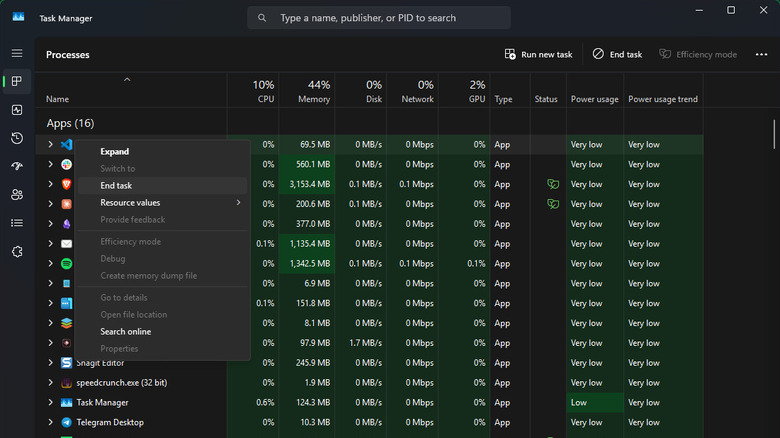
In Windows, the closest equivalent to force-quitting on Mac is using the Task Manager, which is also where you control startup apps. Press Ctrl + Shift + Esc or right-click an empty spot on the taskbar and choose Task Manager to open it. On the left side, click the Processes tab to show everything running on your computer.
Usually, the most convenient way to sort these entries is by clicking Name and scrolling through them in ABC order. This separates active Apps from Background processes and Windows processes. You can also search using the box at the top. If you're looking to close apps that are using too many resources, click a header like Memory to sort by what's using the most. A number next to an app name indicates multiple grouped processes.
To force a process to close, click it and hit End task in the top-right, or right-click it and select the same text from the menu. This forcefully terminates the process without giving it a chance to properly shut down, so you'll lose any unsaved work. Once a frozen program properly closes, you can open it again.
The Windows Explorer entry (under Windows process) is particularly important. Because the Explorer process controls File Explorer, as well as many visual elements of Windows like the taskbar, ending it will cause trouble. Thus, it shows a Restart task option instead of just ending it. If you end the Explorer process using another method, click Run new task in the Task Manager and enter "explorer.exe" to restart it.
Other methods for closing unresponsive programs
Ben Stegner for Engadget
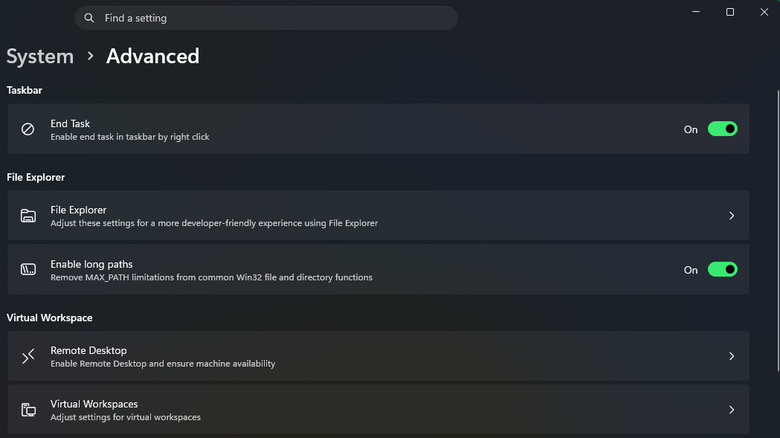
The Task Manager is great for occasional process management, but there are quicker ways for ending processes. One of the best is buried in the Settings app. To open it, press Win + I, then go to System > Advanced. Enable the slider next to End Task, and a new option will appear when you right-click an open app on the taskbar.
This prevents you from having to dig into the Task Manager, but be careful to select the right command. End task destroys the process without asking, while Close window sends the normal shutdown request.
If these methods don't work for closing a frozen app, switch to the Details tab on the left side of the Task Manager. There, find the stuck process, right-click it and choose End process tree to attempt a more forceful closure that ends all related processes.
Command-line prompts are another way to end unresponsive processes, but they're clumsy. A more convenient way is creating a shortcut that kills all frozen apps so you don't have to fetch process names. To do this:
- Right-click a blank spot on your desktop and pick New > shortcut.
- In the box, enter taskkill /f /fi "status eq not responding" — the /f flag forcefully ends the process, while /fi filters the command to only run on processes that match the following parameter (in this case, those that are stuck).
- Click Next, then give the shortcut a clear name. Press Finish when you're done.
- If you like, you can assign a custom keyboard shortcut for this command. Right-click the item you just created and choose Properties. Click inside the Shortcut box and enter what you want to use. Change the Run box to Minimized, so you don't see a window every time you run it, then click OK.
Finally, an app like SuperF4 can help. This adds a Ctrl + Alt + F4 shortcut for forcefully closing the current app, as well as a Win + F4 command where you can kill any app's process by clicking its window. This and the command line tool are great for ending full-screen processes or in situations where you can't even open Task Manager.
When all else fails, restarting your PC will fix any stuck programs. Rebooting your PC regularly can reduce the chance of apps freezing, as well. If a certain app keeps freezing all the time, try installing any available updates for it. In case that doesn't work, uninstalling and reinstalling it can clear up any issues.
KioskNews shows a cleaned-up reading view extracted from the publisher’s page — the original always lives on their site, not ours.