What the orange light on your PlayStation 5 is actually telling you
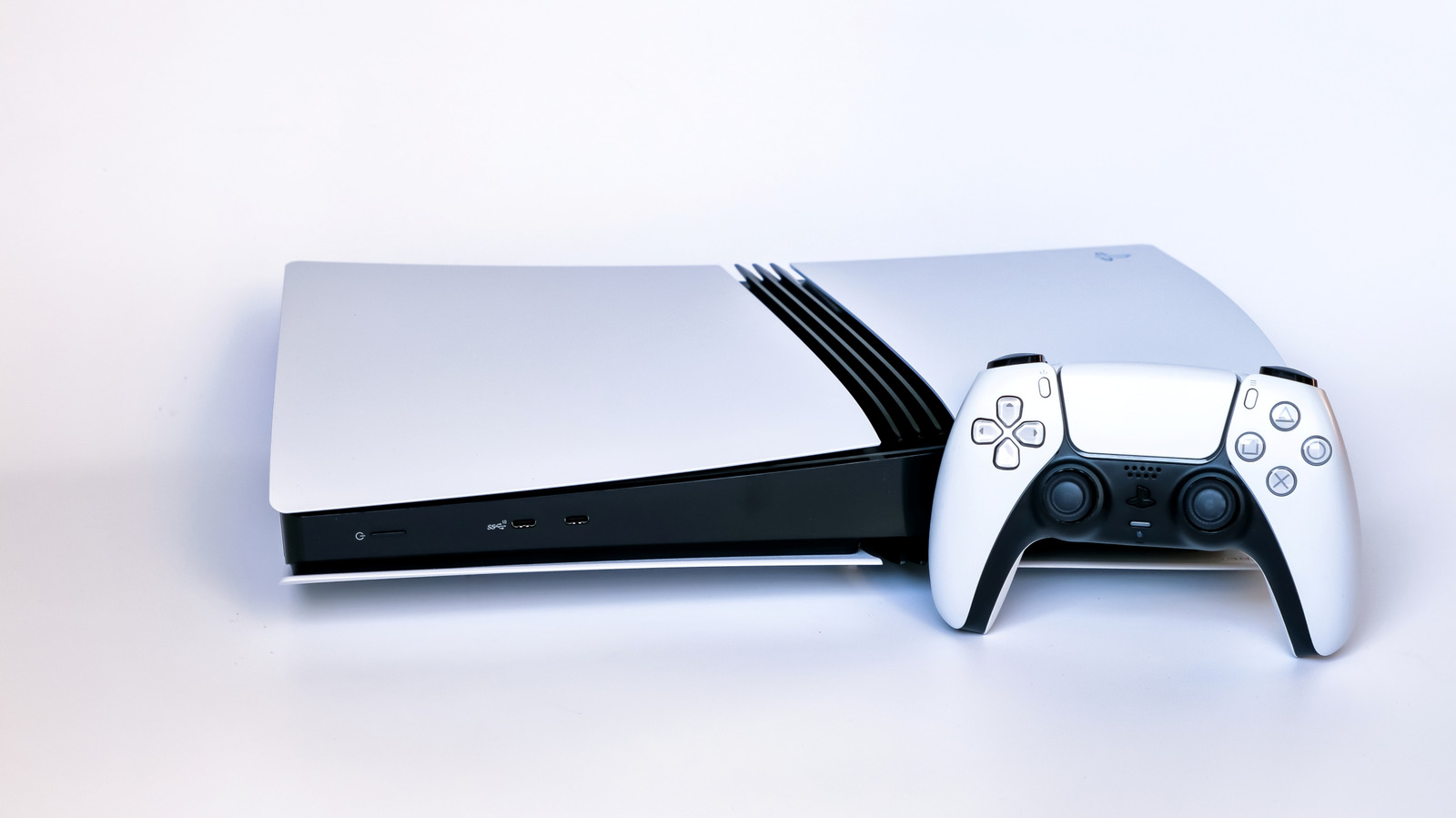
Unlike many orange icons and lights, this one isn't a warning sign.
agencies/Shutterstock
Orange isn't the most reassuring color to see displayed on a device. It's something that can trigger a visceral reaction of panic, given its use for elements like check engine lights in a car and faulty power supplies for past consoles. Thankfully, on a PlayStation 5 it's nothing to worry about; it just means the console has entered Rest Mode. An unrelated orange light on your PS5 controller below the PS button indicates that your mic is muted — press that button to unmute.
Rest Mode is an incredibly handy feature that saves power while still allowing your console to perform basic tasks. Depending on your PS5's settings, it can work to charge your controllers and download games while consuming only a few watts. Entering Rest Mode after a set period of inactivity is part of the console's factory settings, but you can easily adjust this or disable it entirely.
To enter Rest Mode when you're done playing, simply press the power button on the front of the console for a moment. Alternatively, hit the PS button on your controller to open the control center, then go to Power > Enter Rest Mode. Never unplug your PS5 when you see the orange light, as it's not fully powered off in that state. Select Turn Off PS5 from the Power menu and wait for the system lights to go out before unplugging it.
How to change your PlayStation 5's Rest Mode settings
If your PS5 is entering Rest Mode from inactivity faster than you want, you can change the timer for this in its settings:
-
From the home screen, select Settings at the top-right.
-
Select System, then Power Saving.
-
Select Set Time Until PS5 Enters Rest Mode.
From here, you can set how long the console will remain inactive before entering Rest Mode, with separate settings for media playback and while playing games. If you'd like, you can also choose to have your PS5 never enter Rest Mode, even after prolonged inactivity.
Also in the Power Saving section of system settings, select Features Available in Rest Mode to determine how much your PS5 will do while resting. This is where you can choose to power the USB ports, update games, upload saves to the cloud or play games remotely using a PlayStation Portal or other device via remote play.
PlayStation 5 hardware warning signs

Milan Markovic/Getty Images
While an orange light on your PS5 is nothing to worry about, there are other signs when your console is having trouble and might need repair. The console has been around for nearly six years, and there's no clear timeline for how long a PS5 should be expected to last. Sony's track record of continuing to support the PS4 with updates bodes well for the firmware side as the PS5 gets on in years, but it's smart to keep an eye on your hardware. Considering how the PS5 has gone up in price since release, the earlier you can address and fix problems (and in turn avoid having to purchase a new console), the better.
One of the most common PS5 issues is overheating, which can either be a product of the environment it's in (like blocked or dusty exhaust vents) or the cooling system naturally degrading over time. Possible signs of overheating include the console shutting down unexpectedly, extremely hot or loud air flow coming from its vents or even an on-screen warning about the console's temperature. If it continues to be a problem even after you've cleaned out dust and placed it in a well-ventilated area, it might be worth bringing it to a professional to have the thermal paste replaced. Repeated overheating can damage internal components and lead to more problems later on.
Another one of the most frequent PS5 problems is GPU failure, which presents as visual glitches like screen flickering, static or multicolored lines. These can also be caused by HDMI issues, however, so it's worth trying another high-quality HDMI cable and HDMI port on your TV before assuming your GPU is failing. Plugging your PS5 into another monitor or TV is also a good step to rule out the display as the root cause.
If problems persist, it's likely that your GPU is failing. Unfortunately, because of the specific parts a PS5 uses, the solution for this is to either send the console to Sony for repair or take it to a specialized repair shop.
KioskNews shows a cleaned-up reading view extracted from the publisher’s page — the original always lives on their site, not ours.