You should probably have the "Improve Siri & Dictation" setting off — here's why
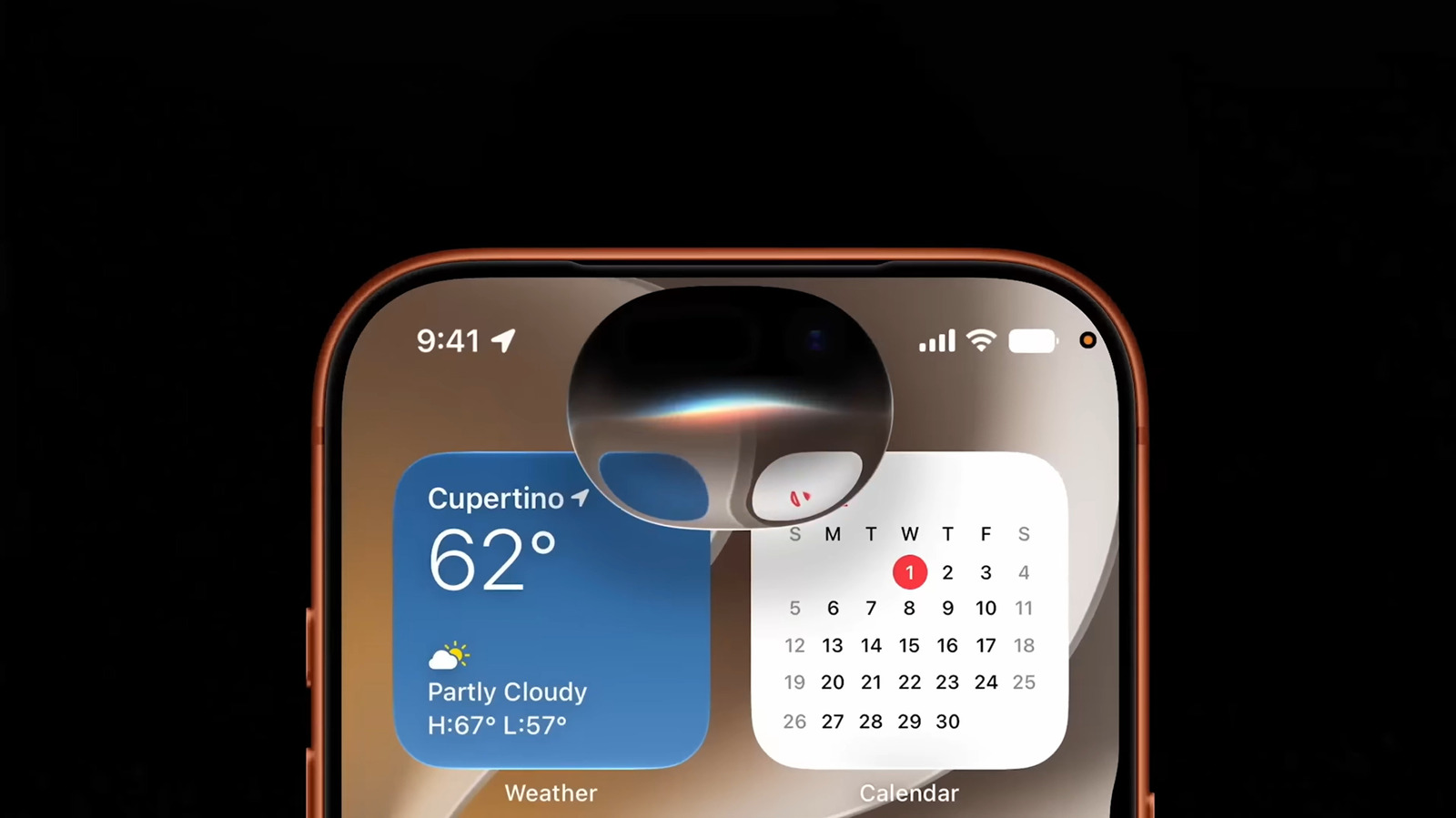
You might not realize that your Apple devices are sharing your audio recordings and transcripts with Apple.
An innocuous setting allows Apple to analyze your conversations with Siri and other built-in voice features like translations and dictation. If the Improve Siri & Dictation toggle is enabled, you're giving the company permission to store and review the transcripts and audio of your interactions with Siri, as well as translation or dictation requests.
You'll be asked if you want to enable this when setting up a Apple device, but you might have done that a long time ago and forgot. If you've already turned it on, you might have done so without knowing the extent of Apple's data processing and retention policies.
The speech processing models supported by this data are essential to Apple's AI initiatives, which are even more relevant now with the arrival of the new AI-powered Siri in iOS 27. The new OS is also adding several advanced dictation features, further underscoring the importance of audio datasets for Apple devices.
Whether you'd like your voice and data to contribute to Apple's development of Siri is up to you. If you enable the dictation improvement setting, Apple can analyze the content of requests and incorporate them into its language models. And although the company takes pains to protect your identity in the process, you may not feel comfortable with gifting Apple yet another slice of your privacy pie.
Understanding Apple's privacy policy
Apple's Improve Siri & Dictation setting allows employees to review the audio, transcripts, and related request data of your voice command requests. This auxiliary information includes when and where you made the request, your device's specifications, performance statistics and the category of the interaction. Apple may also review contextual information such as your contact list or downloaded apps. According to Apple's legal page concerning the setting, employees review these transcripts in order to "fine-tune Siri, Search, Voice Control, Translate, and automatic speech recognition models." These manual reviews largely function as quality control tests.
Notably, only a select group of interactions is selected for review. However, depending on your device and uses, the information could be expansive. Consider how the latest Apple Watch models add an Apple Intelligence feature called Live Rewind, in which your watch will listen to your conversations and generate transcripts. And while this too is an optional feature, the underlying implication is clear: as dictation functionalities expand further into our daily lives, so do the potential privacy violations.
Typically, Apple will retain voice data for up to two years, although the company admits that some data may remain beyond this window. This is separate from the record on your physical device, where your Siri and dictation interactions are kept to "personalize your Siri experience." However, Apple doesn't sell your request history to marketers.
To Apple's credit, the company takes steps to protect your privacy. According to the company's policy, your Siri, Dictation and Translation request history is not tied directly to your Apple Account or email address. Instead, the audio recordings are associated with a "random, device-generated identifier that rotates multiple times per hour."
Moreover, this information is reviewed only by Apple employees that are "subject to strict confidentiality obligations," though the terms also mention that "a subset may be reviewed by graders." Apple also states that it "may process and store this information with trusted third-party service providers," so your data doesn't necessarily remain fully in-house.
How to change your Siri & Dictation settings
Your iPhone, iPad or Mac will ask you to enable the Improve Siri & Dictation toggle when you set it up. If you skip Siri during setup, you'll have to decide this the first time you use translation, dictation, or Siri features. For an Apple Watch or HomePod speaker, the setting will mirror what you have on your iPhone or iPad by default. It's similar for an Apple TV if you walk through setup using your iPhone or iPad, though manual opt-in is also an option.
To change this setting on your iPhone or iPad later, open Settings and enter the Privacy & Security section. There, scroll down and tap Analytics & Improvements. Disable the Improve Siri & Dictation slider, along with any other types of information you don't want to share. If you wish, you can also delete the local voice data from your device by going to Settings > Apple Intelligence & Siri > Siri & Dictation History > Delete Siri & Dictation history.
On a Mac, click the Apple menu and choose System Settings. In the sidebar, select the Privacy & Security tab. Then choose Analytics & Improvements to disable Improve Siri & Dictation.
For your Apple Watch, open the Settings app, then visit General > Analytics & Improvements to find the Improve Siri & Dictation slider.
If you own a HomePod, you can adjust this setting in the HomePod app on your iPhone or iPad. After opening the app, touch and hold your HomePod icon, then tap Accessory Settings. From there, tap Analytics & Improvements, then adjust the Improve Siri & Dictation setting accordingly.
Apple TV owners should navigate to the Settings app, then select General > Privacy > Analytics & Improvements to find Improve Siri & Dictation.
If you happen to own an Apple Vison Pro, open the Settings app on the device, choose Privacy & Security, select Analytics & Improvements and deselect Improve Siri & Dictation.
KioskNews shows a cleaned-up reading view extracted from the publisher’s page — the original always lives on their site, not ours.