How to clear the cache on your Fire TV
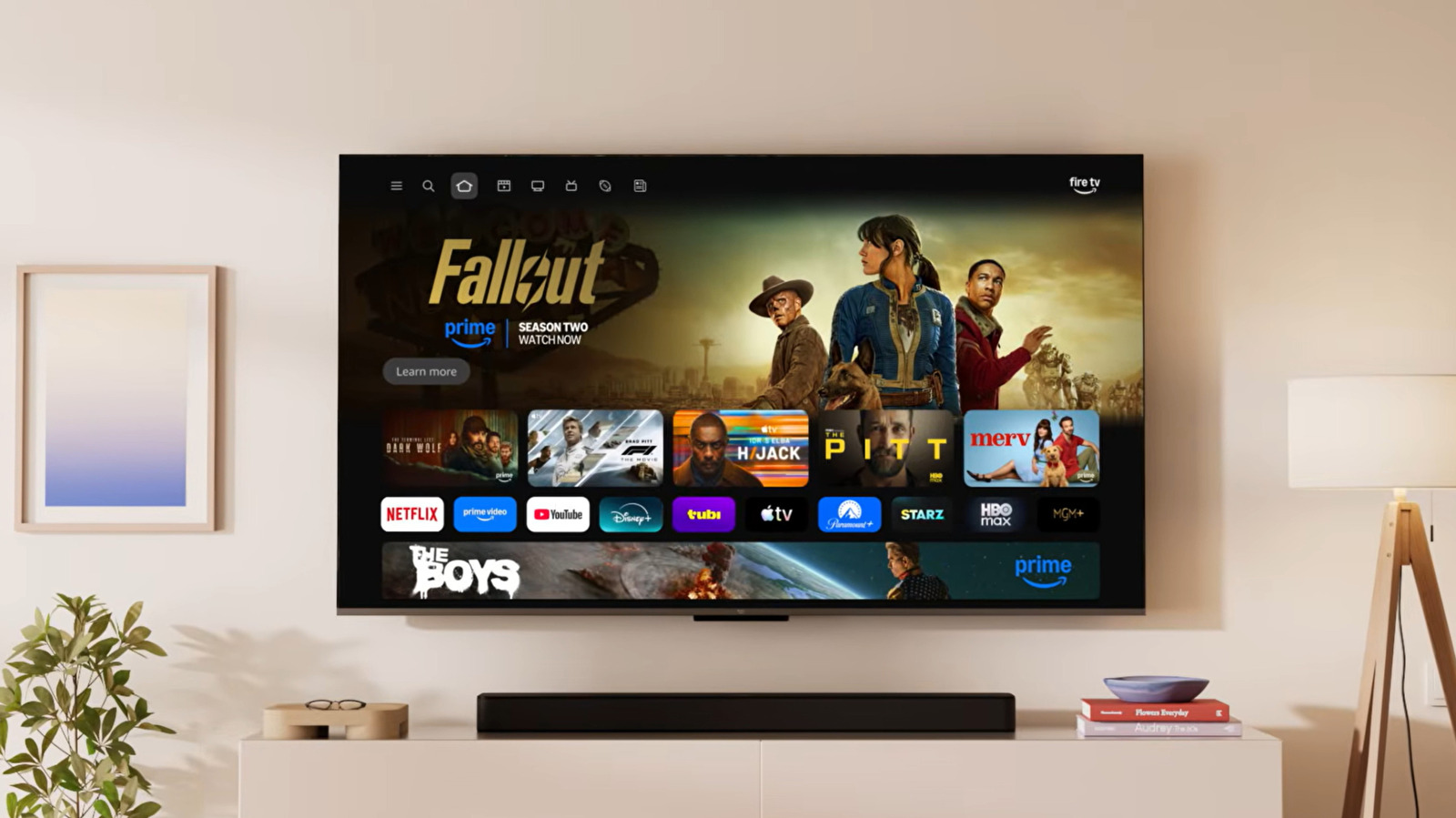
Your Fire TV does this automatically, but you can force it if you're facing issues.
We may receive a commission on purchases made from links.
Sometimes all you want is to sit down and decompress with a horrifyingly comic trip to Widow's Bay, but end up getting frustrated by a slow, buggy or unresponsive TV. If you're using an Amazon Fire TV or Amazon Fire TV Stick, that doesn't necessarily mean it's time to upgrade your device. Instead, you may simply be suffering from a storage issue.
Your Amazon Fire TV and Fire TV Stick may be slow because your cache is taking up too much storage. Essentially, these devices store information like your watch history and thumbnails in temporary files to make it easier and quicker to access when needed. Much like the web browser cache on your computer, this data is essential to keeping load times short and sweet.
Unfortunately, your Amazon Fire TV can suffer from too much of a good thing. Too many apps and shows can cause the cache to balloon, turning from a help into a hindrance. Unfortunately, you likely won't know you have crossed that threshold until it's too late. The solution isn't to limit your TV consumption, even if your health and attention span may thank you. Instead, dive into your Amazon Fire device's settings and clear its cache. The process is so easy that you should do it on all your streaming devices whenever you notice them slowing down.
A guide to clearing your cache
If your device is running low on storage, Amazon may clear your cache for you. When your Fire TV is low on storage, it automatically clears the cache of apps you haven't used in the past 30 days. The feature is on by default and cannot be deactivated. But if you don't want to wait that long, you can force it by diving into your Fire TV's settings.
Luckily, clearing your cache manually is easy. To do so, open your Fire TV menu, go to Settings and select Applications. Next, choose Manage Installed Applications. From there, you can clear all your app caches by selecting Clear All Application Caches and then confirming your selection. If you would rather limit the action to a particular app, select the app and choose Clear Cache. If you
You can also clear your Fire TV's cache by visiting Amazon's website. First, visit Amazon's Manage Your Content and Devices page and log in to your Amazon account. Next, visit Devices and select your Fire TV. Then, choose Clear Your Fire TV Cache.
While clearing your cache can help, note that it isn't guaranteed to speed up your Fire TV immediately. Typically, it's a medium- to long-term solution, as your device will need to rebuild all the "shortcuts" that the cache provides. Thus, it may be a while before you see the full benefits of a cleared cache.
Speeding up your Fire TV
Beyond cache buildup, your device may also suffer from running outdated software. And while your Fire TV device should automatically download these updates when connected to the internet, it is always best to double-check that everything's up to date. To update your Fire TV, return to your Fire TV menu and go to Settings. Next, navigate to My Fire TV or Device & Software > About > Check for System Update. This applies to apps as well.
You may also consider removing unused apps. Your Fire TV device has an Auto Offload feature that removes apps you haven't used in 30 days — crucially, without removing settings and login information, so you can easily pick up where you left off if you redownload. Although enabled by default, you may want to confirm Auto Offload is on by going to Settings > Applications > Auto Offload. You can also remove apps yourself by going to Settings > Manage Installed Applications. Once there, choose the app you want to offload, then press the Menu button. This can help if you want to fix app issues by uninstalling and then redownloading the app.
Another way to troubleshoot a slow Fire TV is the tried-and-true classic of turning it off and back on again. If even that doesn't help, you can go for the nuclear option and perform a factory reset.
KioskNews shows a cleaned-up reading view extracted from the publisher’s page — the original always lives on their site, not ours.