The easiest way to set up CarPlay for the first time
Here’s how to set up CarPlay with a cable or wirelessly, and what to do when it won’t connect.
DenPhotos/Shutterstock
There are currently more than 800 vehicle models compatible with Apple CarPlay. Chances are that if you buy a new car today, it will have the feature built-in, although some automakers have been phasing CarPlay out of their cars. Upon your first time using Apple's in-car system, you'll need to pair your iPhone with it.
The good news is that setup is easy and only takes a minute. But before you begin, there are a few points you should check, such as whether your vehicle is CarPlay-compatible and if it works with a cable or wirelessly (or both).
How to set up CarPlay with a cable or wirelessly
Filipe Espósito for Engadget
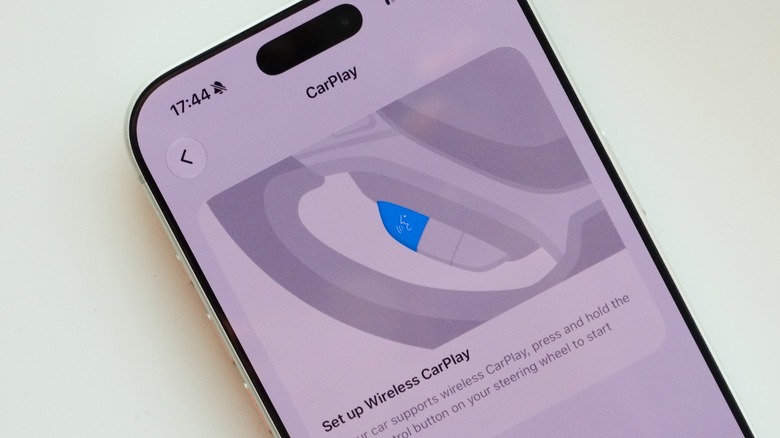
There are two different ways to use CarPlay: wired and wirelessly. Overall, they work in pretty much the same way, and you'll have access to the same features. Wired CarPlay is usually the easiest way — just start the car and plug your iPhone into the USB port, which is sometimes marked with a CarPlay or phone symbol.
Your iPhone will ask for permission to use CarPlay, so tap Connect and the interface should then appear on your car's dashboard screen. If your car supports both wired and wireless CarPlay, your iPhone will prompt to connect wirelessly the next time you start your car; you won't need to go into any settings to enable wireless CarPlay.
Some vehicles only support wireless CarPlay, and if that's the case for your car, setting it up for the first time requires a few extra steps. With your car running, hold the voice command button on the steering wheel or dashboard and make sure Bluetooth is turned on in your car. Then, on your iPhone, open the Settings app, go to Wi-Fi and connect to the CarPlay network.
After that, go back to the main Settings screen on your iPhone and head to General > CarPlay. If everything worked out, you'll see your car in the list and must tap it to finish pairing. The exact steps to put a car into pairing mode vary by brand, so it's worth checking your car's manual if something seems off.
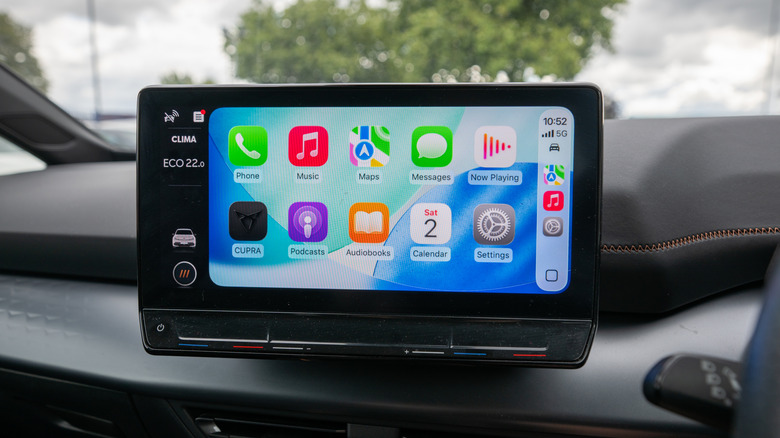
Some car models launch CarPlay automatically when you connect your iPhone, while others require you to tap the CarPlay icon on the dashboard each time. By default, CarPlay's dashboard view will show all compatible apps on your iPhone. If something is missing, go to Settings > General > CarPlay, then tap your car and choose Customize. Here, you're able to add and remove apps, as well as rearrange them. You'll also find other CarPlay settings worth changing, such as Driving Focus and widgets.
Common CarPlay setup issues and how to fix them
Harry Howitt/Shutterstock
Usually, when CarPlay isn't working, it's because of connection issues between your iPhone and your car. Start by swapping out the USB cable or trying a different USB port if your car has two or more. Certain adapters can also mess up the connection, so plugging the USB cable directly into your car's port might fix the problem.
For wireless CarPlay, make sure both Wi-Fi and Bluetooth are enabled on your iPhone. Also, turn on Auto-Join for the CarPlay network in your phone's Wi-Fi settings. You can also try connecting your iPhone by cable if your car supports both wired and wireless CarPlay.
Screen Time restrictions can hide CarPlay from your iPhone, so go to Settings > Screen Time > Content & Privacy Restrictions, then open Allowed Apps to check this. If CarPlay is turned off, make sure to enable it. If nothing else has worked, restart both your iPhone and the car's dashboard. Re-pairing CarPlay may also help: open Settings > General > CarPlay, then tap your car in the list and select Forget This Car.
If you haven't already, confirm whether your car is actually compatible with CarPlay. Apple provides a list of vehicles with CarPlay built-in, so make sure yours is on it. If not, buying a portable CarPlay screen might be worth the investment.
KioskNews shows a cleaned-up reading view extracted from the publisher’s page — the original always lives on their site, not ours.