This setting change can make your Android phone feel instantly faster
Adnan Ahmed for Engadget
With how powerful the chips inside our smartphones have gotten, lags and stutters have become something you generally shouldn't experience anymore. Staying up-to-date with the latest Android version and making sure all your apps are updated can help keep things running smoothly. Clearing cache may help with performance, but only in situations where an app's files have become corrupted or bloated. There is, however, a neat trick buried inside Android's settings app that can make your phone feel noticeably snappier.
All Android phones, regardless of brand or price, let you tweak the speed of system animations. This option has actually been around at least since Android 4.0 Ice Cream Sandwich and is one of the first things I change whenever I set up a new Android phone. You'll find this inside Android's developer options menu, which is hidden by default.
Navigate to Settings > About, and look for the "Build Number" option. Depending on your phone's model, it may sometimes be located under a submenu like "Software Version." Tap the label seven times, and you should see a toast message saying "You are now a developer!" Head back to the main settings page. You may find the Developer Options menu right there, but if not, navigate to System, and you should now see it.
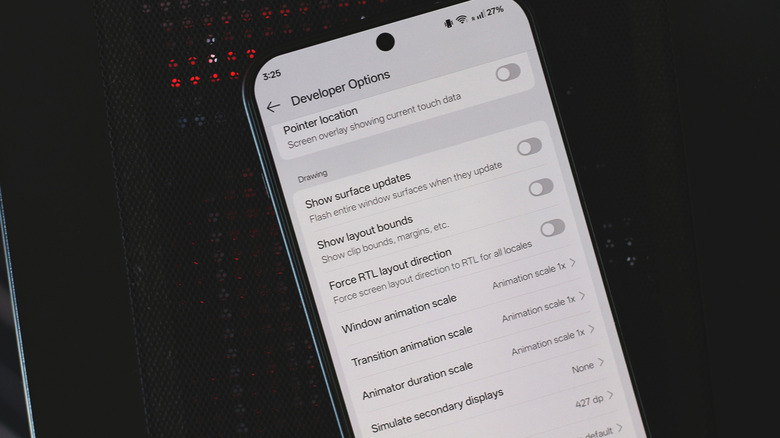
You'll find a seemingly endless list of options inside. It's strongly recommended you do not change any options here unless you know exactly what they do. What we're looking for are the animation scale settings under the Drawing section. Set the Window animation scale, Transition animation scale and Animator duration scale values to 0.5x. This will make most animations on your Android phone play twice as fast.
How effective is this trick?
Adnan Ahmed for Engadget
Cutting your phone's animation speeds in half doesn't actually make it perform any better. However, I've been using this trick for over a decade and can confirm that it definitely makes everything feel snappier. Unlocking your phone and launching an app feels faster, and so does quickly switching between different apps. I got accustomed to this snappier feel over the years, so not being able to change the animation speed on iOS was one of the first things I noticed when I switched to an iPhone.
That said, animations do serve another purpose besides just making the interface feel more lively — they mask brief loading times and make transitions between different menus and screens feel smoother. There have been instances, especially with budget-oriented phones, where I've cut the animation speed in half only for the experience to feel worse because apps and menus weren't loading quickly enough to keep up.
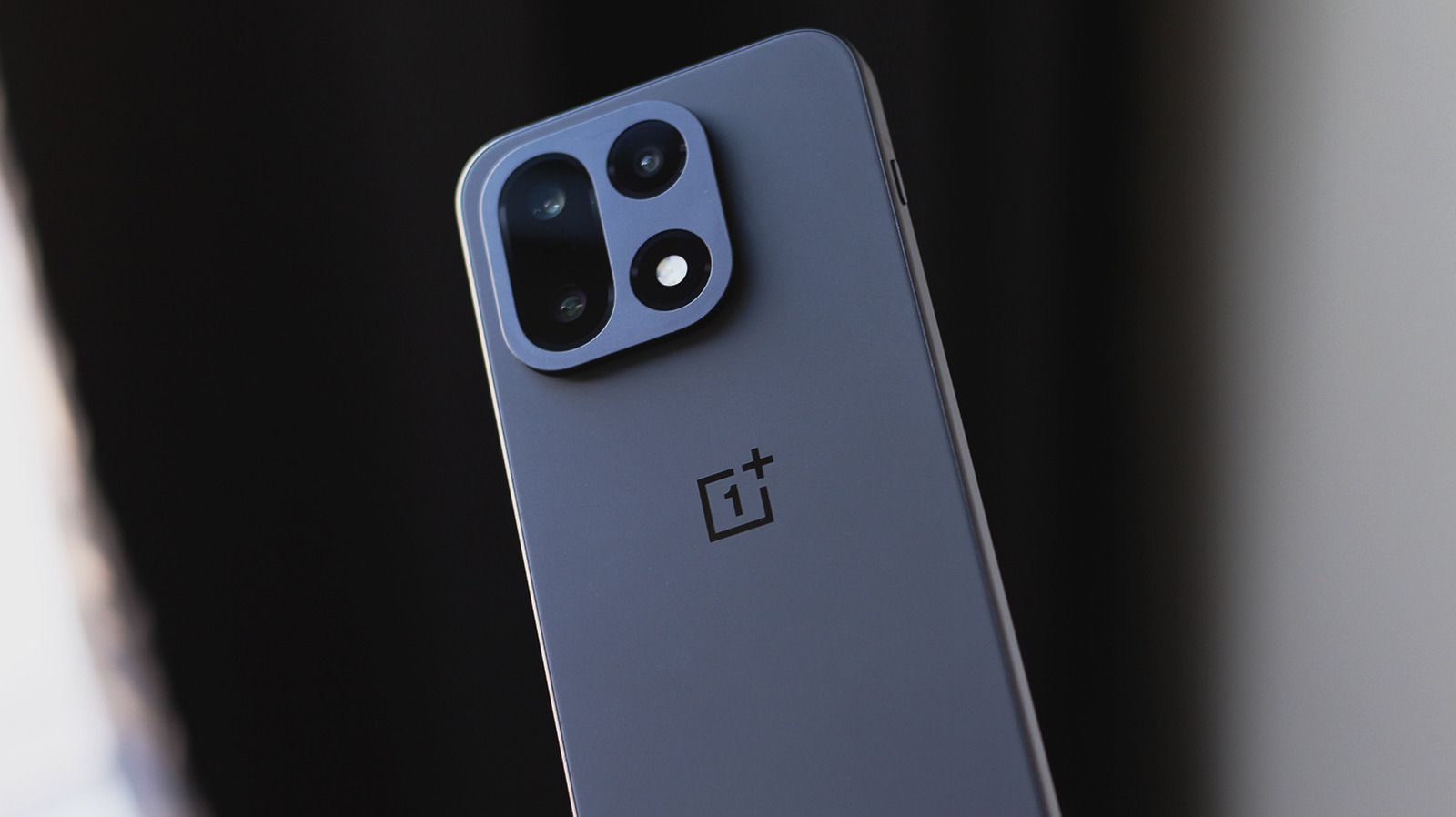
Some Android skins like Google's Pixel UI have more drawn-out animations than others, so using this trick to speed things up can make a noticeable difference. In contrast, OxygenOS on OnePlus devices has slightly faster animations by default, so you may not want to cut their duration in half. In my experience, however, OnePlus' flagship phones operate on a different level with this tweak enabled.
Nobody's stopping you from slowing down system animations either — there's something soothing about watching every transition play out slowly and seeing where each element comes from or disappears to as you use your phone. One thing to note here is that turning off the Developer Options toggle resets the animation scale settings back to their default values.
KioskNews shows a cleaned-up reading view extracted from the publisher’s page — the original always lives on their site, not ours.