How to clean up your iCloud storage to free up space
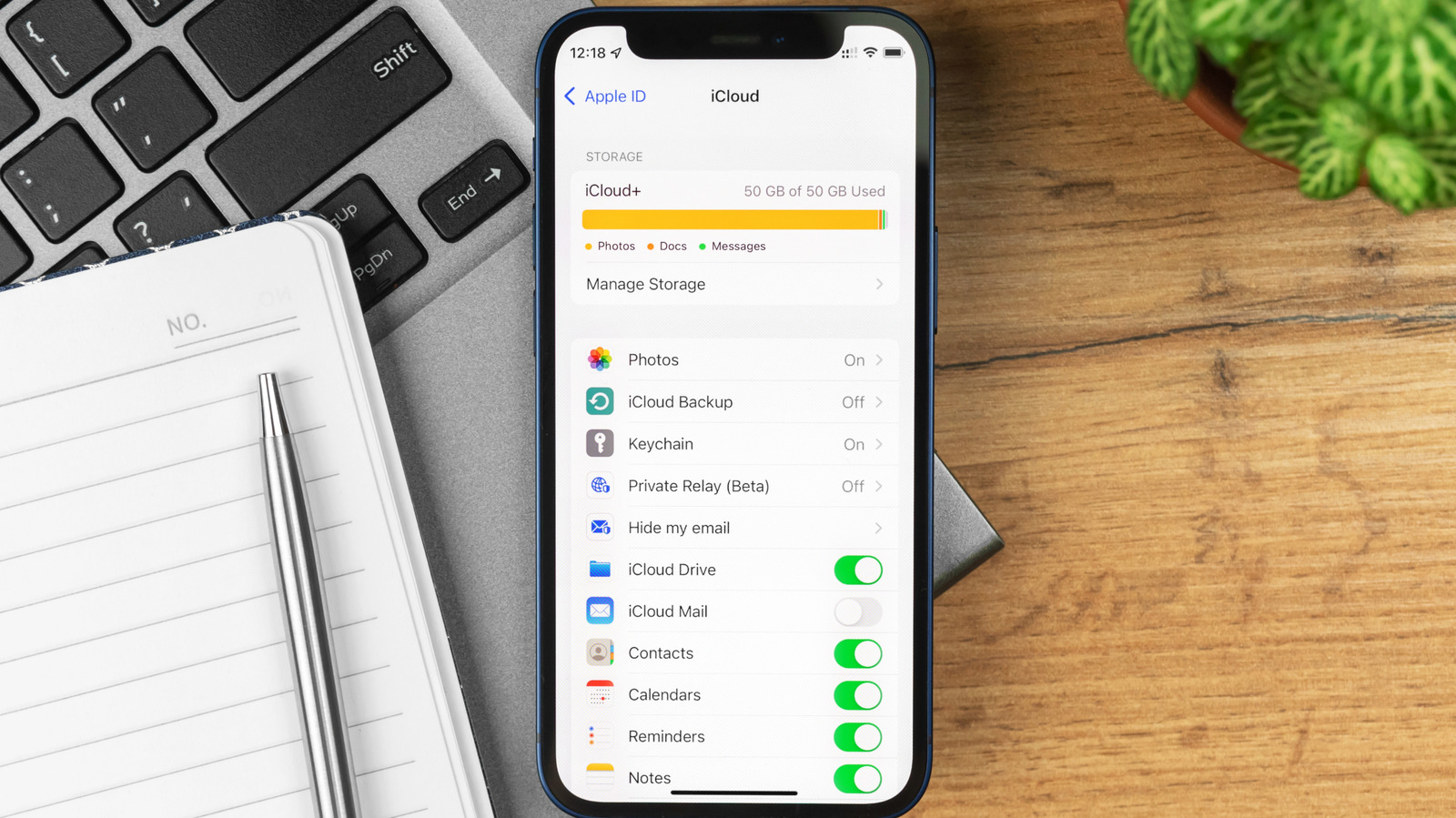
A few settings changes can stop your iCloud from filling up again.
FellowNeko/Shutterstock
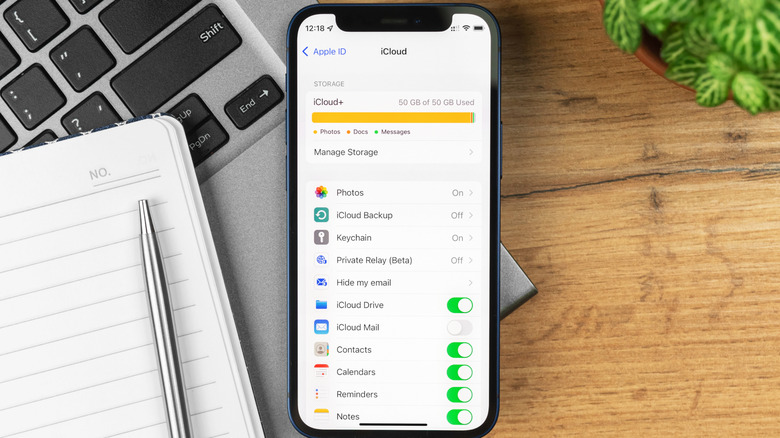
Apple doesn't give you very much iCloud storage when you purchase one of its products, and no matter how many of its devices you buy, you never get more than a stingy 5GB. Since almost everything you sync or back up with Apple shares that space, how do you free up space once iCloud gets full?
That space is occupied by all your photos, videos, backups, mail, mail attachments, data from apps like Messages and Notes, the contents of your iCloud Drive and some third-party app data — even images stored in Shared Albums, which began to count against your storage with iOS 27.
You can upgrade your iCloud subscription from just $0.99 a month for 50GB, but deleting costs nothing. You can delete data held in files, photos, app backups, voice memos and everything else, either on your Apple device or via the iCloud website. However, anything you delete will be gone after a 30-day delay. Keep in mind that anything you remove from any of your apps, including photos and videos, will disappear across all your devices.
The fastest ways to free up iCloud storage
Tada Images/Shutterstock
You can check how much storage is being used and by what in iCloud Settings on your device or on the iCloud website. Go to Settings > [Your Name] > iCloud. Then click Manage (on Mac) or tap Storage (on iOS) to reach the storage management section. Note that on a Mac, Settings is called System Settings.
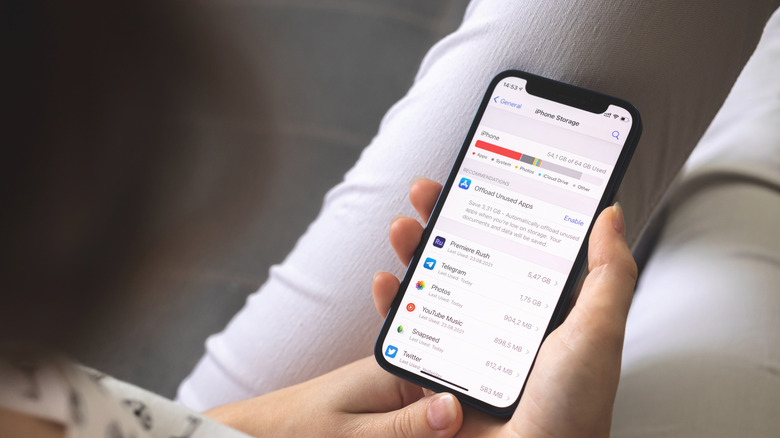
Here you can review a list of all the apps taking up storage space, ranked by size. You'll usually find Photos, Mail, Backups, iCloud Drive and Messages at the top of the list. It is also worth scrolling down to see if there are any apps you no longer use, taking up this precious space.
Here are five of the fastest ways to free up iCloud storage:
- Open Settings > [Your Name] > iCloud > Storage > Recommended for You for suggestions to manage your storage.
- Open Photos and explore your video collection, deleting those you don't need, as video takes up more space than still images.
- Open Messages Settings and change Keep Messages to 30 Days or 1 Year. Your devices will delete older messages and shared video to save space.
- Open Settings > [Your Name] > iCloud > Storage > Backups and delete old backups for devices you no longer own or use.
- Tap See All beside the Saved to iCloud item in Settings to toggle apps you don't use to Off. This may affect how the apps work, so check before you try this.
Managing the real space invaders in iCloud
FellowNeko/Shutterstock
Photos and Mail are usually the biggest space hogs, so start there. To manage your Photos, tap Photos in iCloud Settings, then Manage Storage. You'll see how many photos and videos you have synced with iCloud and find tools Apple provides to get rid of duplicates.
Another option is to transfer your iCloud photos to Google for image archiving or use an external HDD or SSD drive. iCloud Mail also counts toward your storage, so delete large attachments and empty your Trash, Junk and Deleted messages frequently.
One final step: check the Recently Deleted folders in Photos, Mail, iCloud Drive and Notes frequently, as these hold items for about 30 days once you delete them. This lets you rescue items you deleted by mistake, but also means your storage remains full.
If you find items you want to delete in those folders, select them and tap Delete to override the delay.
KioskNews shows a cleaned-up reading view extracted from the publisher’s page — the original always lives on their site, not ours.