How to stream Twitch on your TV
Samuel Boivin/Shutterstock
Twitch is one of the largest streaming platforms for gamers and content creators alike. Millions watch their favorite creators across PCs, laptops and mobile devices. It's the perfect platform for streaming on a larger screen, yet many TVs don't have Twitch built in. Thankfully, several methods let you stream Twitch to your television, from video casting to third-party streaming devices.
But before you go through the hassle of fishing out a Chromecast or a gaming console, make sure your TV doesn't already have Twitch as an available app. Most modern smart TVs have an app library where you can download apps like Twitch. If you haven't already, check your TV's app store to see whether you can install Twitch. If your TV doesn't have an app store, fret not. Casting your device to your television is a great alternative that nearly every TV supports, though you might need a streaming device to begin casting.
Cast Twitch to your television
Twitch offers support for cross-device streaming. You'll need a TV that supports streaming or a device that enables it, such as Google's TV Streamer. Casting to your television varies slightly depending on how you're using Twitch. If you're using the Twitch app on your mobile device, casting Twitch to your television is as easy as tapping the cast button on your favorite stream. If you don't see the option, make sure your phone and television are on the same Wi-Fi network and that both devices have the latest firmware. It's also worth checking your Twitch settings to ensure that you don't have any unwanted security settings, such as AI training, enabled.
Streaming Twitch from your computer is a little different but still fairly easy. Use Google Chrome as your web browser, since it lets you stream your screen to another device. Once you've loaded Twitch, click on the three dots on the top-right of your browser to bring up an options menu. Select the "Cast, Save and Share" ribbon and click on "Cast." Select your television to begin casting. As with the mobile device method, make sure your computer and television are set up on the same Wi-Fi network or the option won't appear. If casting the specific window doesn't work, you can also try casting your entire screen.
Use streaming devices
Joeri Mostmans/Shutterstock
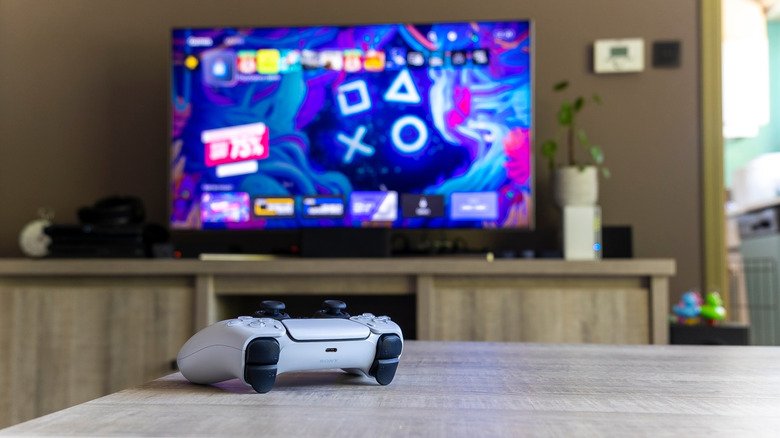
If casting content doesn't work, you can always use a streaming device. Gaming consoles are the best option here since most have a Twitch app you can install. Boot up the Twitch app from your preferred console and watch your favorite streams. Previous-generation and modern-gen PlayStation and Xbox consoles include a Twitch app; the Switch and Switch 2 do not.
Consoles aren't the only devices that can stream. You can also use an Amazon Fire Stick, a Roku device or Apple TV 4K to watch Twitch on your TV. The Fire Stick has an official Twitch app you can install; the Roku doesn't, but it does support casting and screen mirroring. If all else fails, you can also connect your laptop or desktop directly to your TV via HDMI or DisplayPort. Play Twitch on the connected device, then switch your TV's input to that device to enjoy the stream. Remember, you'll need to switch streams on the connected device, not on your TV.
KioskNews shows a cleaned-up reading view extracted from the publisher’s page — the original always lives on their site, not ours.