The reason your laptop can get hot after extended use
Laptops can sometimes run hot, but there are ways to keep them cool.
Rawf8/Getty Images
It's not uncommon to notice your laptop suddenly getting hot, especially after long periods of use. The reason? There are many components inside — such as the processor and battery — packed into a relatively thin chassis, and all that heat has to go somewhere. This heat is often completely normal and caused by things like demanding tasks or background tabs. In these cases, the laptop usually returns to its normal state after a while.
However, if the temperatures get considerably hot and cause your laptop to freeze and restart, there may be something wrong. Luckily, there are ways to figure out the main causes and prevent your laptop from getting too hot.
What makes a laptop run hot
Birdlkportfolio/Getty Images
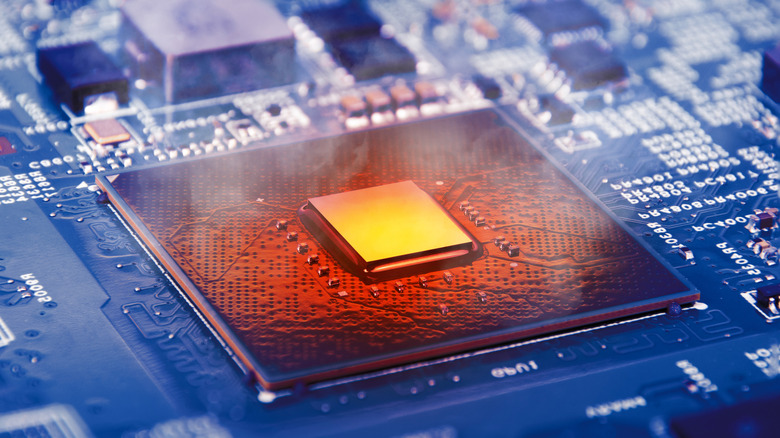
Every component inside your laptop generates heat, and when you're running more demanding workflows, that heat tends to build up quickly. Playing 3D games or editing videos are just a couple examples of workflows that place greater demands on the hardware. But sometimes, even background processes and startup programs can quietly keep the CPU and memory busy, too. Not only that, but ordinary tasks like installing Windows or macOS updates also increase the load on the hardware, leading to high temperatures and causing the fans to spin faster.
The thing is, these are all completely normal situations. When you close these resource-intensive programs, the laptop tends to cool down within a few minutes. Internal sensors monitor the temperature of the laptop's components to determine when to make the fans spin faster or when to turn them off. Depending on the temperatures, these sensors can also trigger other built-in safeguards to force the laptop to cool down, such as temporarily reducing the speed of the CPU and GPU — a process known as throttling.
Airflow is important for keeping your laptop running at normal temperatures. Most laptop makers don't recommend using them in bed or on a pillow, since the fabric can block the air vents. High external temperatures can also have a major impact on your laptop's heat. Apple, for example, recommends keeping your MacBook between 50 and 95 degrees Fahrenheit, while Microsoft says the Surface's fans will run at a higher speed in environments above 77 degrees Fahrenheit.
How to cool down an overheating laptop and when to get help
Nature/Getty Images
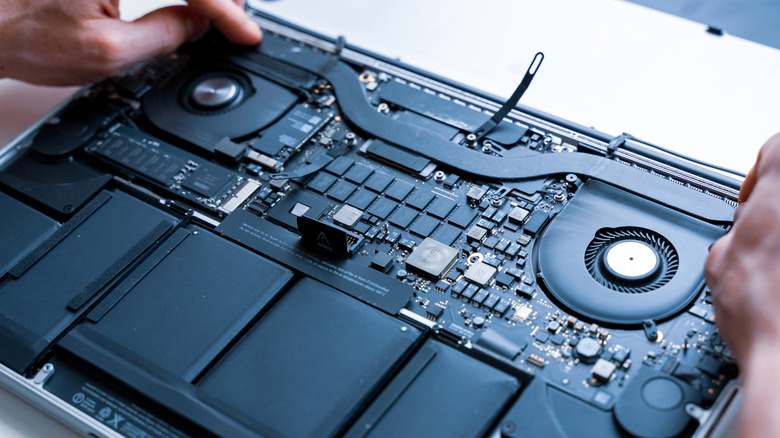
Start by checking to see if anything is blocking your laptop's air vents — using it on a flat surface is always the best choice when it comes to preventing overheating. If you're constantly working with resource-intensive software, it might be worth looking into cooling pads, which are trays with fans that sit under your laptop to keep it cooler. If the air vents look dirty, gently clean them with a soft cloth, a brush or compressed air, but never poke anything directly into the vents.
Another way to cool down your laptop is to check for any background processes that are using a lot of CPU power. In Windows, press Ctrl + Shift + Esc to open Task Manager and sort the list by CPU usage to find what's slowing down the processor. There's also a Startup tab that lets you prevent programs from opening automatically when you turn on your laptop. For MacBook users, use Spotlight to open the Activity Monitor app and click the CPU tab. If there are any programs using a lot of CPU resources, try closing them to see if your laptop cools down. Also, there are third-party apps that help you monitor the temperature of your computer's CPU and other components.
If none of this helps, you may need technical support to see if there's something wrong with your laptop. Something might be blocking the fans from working, or the CPU thermal paste might have dried out completely. Another thing to keep in mind is that older laptops tend to overheat more quickly, since they can no longer keep up with the latest software. In that case, your best options are to downgrade to older software or start thinking about getting a new laptop.
KioskNews shows a cleaned-up reading view extracted from the publisher’s page — the original always lives on their site, not ours.