Change these PlayStation 5 settings before GTA 6 comes out
Miguel Lagoa/Shutterstock
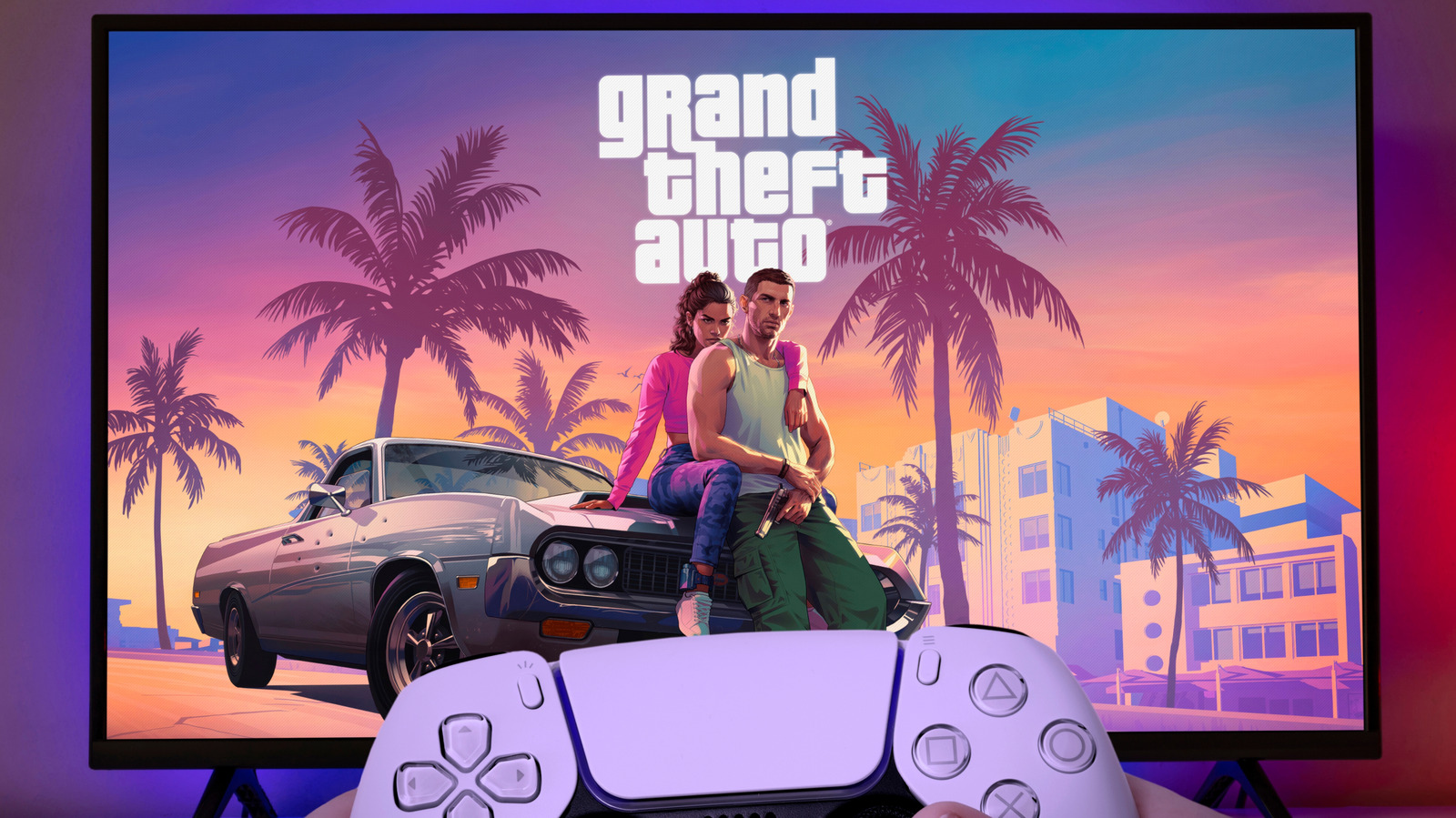
After more than 13 long years, the wait is nearly over: Grand Theft Auto VI is almost here. Judging by the trailers, photos and Rockstar's past catalog, this game is set to be one of the most demanding and best-looking GTA iterations ever made. Much like the previous game in the series, which came out at the tail end of the PlayStation 3's lifecycle, GTA 6 is expected to demand every bit of juice your console can provide, even if you own a PlayStation 5 Pro.
If you're planning to jump into the world of Leonida and start a second life as a criminal, now is a good time to head into the PlayStation 5's menus and change a few settings that will enable the game to look as good as it possibly can.
Match your refresh rate with VRR and 120Hz output
VRR, or variable refresh rate, lets your TV change its refresh rate on the fly to match the frames your PlayStation 5 is actually producing. In a game as big as GTA 6, that matters because frame rates rarely stay flat. When the game dips during a busy chase or on a crowded street, a fixed-rate display shows torn frames or stutter; with VRR, the screen follows the console and motion looks smoother. Your TV has to support it, and VRR usually comes with HDMI 2.1. To switch it on, go to Settings > Screen and Video > Video Output > VRR. In the same menu, turn on Apply to Unsupported Games, which Sony says can stabilize the frame rate in games that don't support VRR natively. If a game or your display starts acting up, switch it off again. While you're in that menu, check ALLM, or auto low-latency mode, which switches a supported TV into its low-latency game mode automatically. Sony says it does so whenever you use VRR, even with ALLM set to Off.
The second setting is 120Hz output, which lets the PS5 send a 120Hz signal to TVs and games that can use it. Be sure to plug the console into an HDMI 2.1 input, because not every HDMI port on a TV supports a 120Hz signal. Even if GTA 6 ends up capped at 30fps on consoles, as many expect, it's still worth turning on. This setting controls what the console sends to your TV, not how fast the game runs, and 30fps fits into a 120Hz signal exactly, with each frame held for four refreshes. That keeps the pacing even, and it means the PS5 is ready for any game that offers a higher frame rate. To enable it, go to Settings > Screen and Video > Video Output > 120 Hz Output.
Set HDR the right way
Stanislav Gvozd/Getty Images
GTA 6 is set to take you from dark, neon-soaked nightclubs to the bright Florida sun, sometimes within the same mission. A properly set HDR signal means more detail in both the very dark and the very bright scenes, and colors that stay true instead of looking washed out or crushed. First, make sure your TV has HDR turned on for the HDMI input your PS5 uses. Then, on the console, go to Settings > Screen and Video > Video Output > HDR. Sony says Always On converts even games and apps that aren't HDR-compatible to HDR output, while On When Supported shows them in standard dynamic range. Either works, but Always On means you won't have to think about it again.
The step that matters most is calibration. Go to Settings > Screen and Video > Video Output > Adjust HDR and follow the prompts. If your TV has an HGIG mode, turn it on so the set doesn't apply its own tone mapping on top of the console's. Run the calibration in the room lighting you actually play in, and you only have to do it once.
Try 3D Audio
Sutthiphorn Phanchart/Getty Images
The PS5 doesn't only improve how a game looks. It also has audio settings that change how you experience it, and one of the most interesting is 3D Audio. A chaotic, immersive game like GTA 6 stands to gain a lot from it. Sony says 3D Audio gives you immersive surround sound, such as hearing footsteps from the direction someone is approaching, so the game sounds fuller, and you get a better sense of what's around you, whether that's traffic closing in or a crowd on a busy street.
To turn it on, plug in a pair of headphones and go to Settings > Sound > 3D Audio (Headphones). Select Create Personalized 3D Audio Profile and follow the prompts, which have you listen to sounds from different positions and answer questions about where it sounded like they came from. Once the profile exists, turn on Apply Personalized 3D Audio Profile. If you'd rather skip that step, Sony also offers five presets, and the console will use the preset profile whenever the personalized one is off. Then make sure to turn on Enable 3D Audio for Headphones, which switches the console from stereo to 3D Audio.
Any pair of wired headphones will work, but the PS5 doesn't support Bluetooth audio directly, so wireless Bluetooth models need a USB adapter. If you're buying a new pair, pick a headset that supports the console's 3D Audio, such as Sony's own Pulse 3D wireless headset, which was tuned specifically for it.
Once GTA 6 is out, be sure to head into its own settings to get the best picture and sound possible. But with these system settings changed, your PlayStation 5 is ready for the best experience the game can offer.
KioskNews shows a cleaned-up reading view extracted from the publisher’s page — the original always lives on their site, not ours.