USB-A vs. USB-C: What's the difference between them?
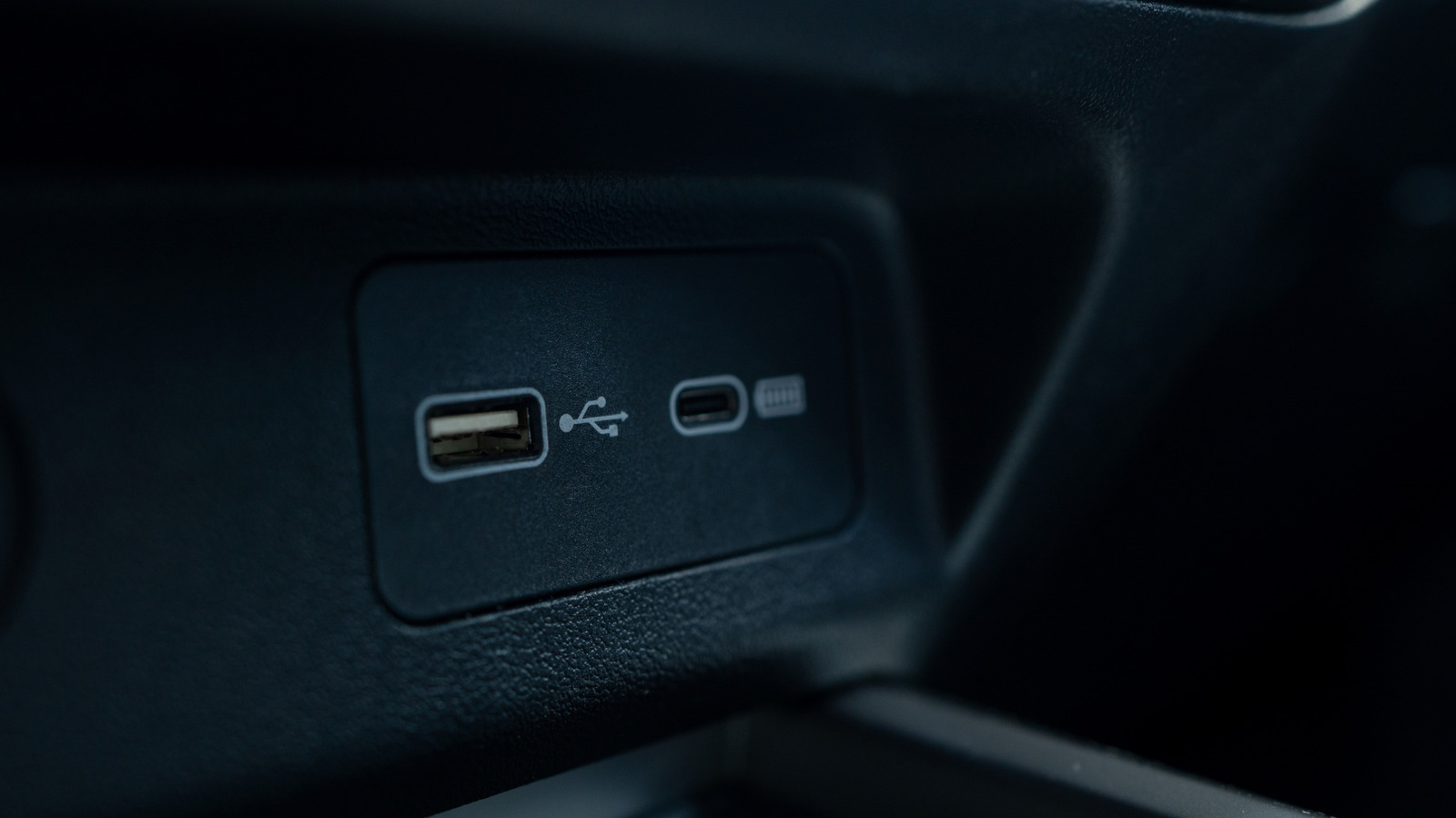
These two connector types are visually distinct, but looks aren’t their only differences.
Sankai/Getty Images
You likely use USB every day to charge your phone, connect peripherals to your computer and much more. And for everything USB can do, it's only used a handful of connector types since its introduction in the mid-1990s. While these are identifiable from just a look, what each connection is capable of isn't always clear from the outside.
USB-C is newer than USB-A, but the older standard is still commonly used today. Understanding all the ways they differ helps you make better use of your tech and follow what's happening inside it.
USB-A: The longtime standard
Chayjitti Hongmanee/Shutterstock
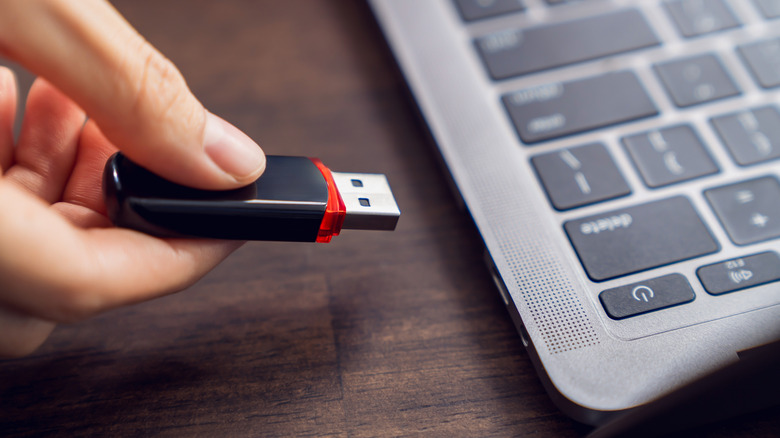
USB-A (officially USB Type-A) is one of the two original connectors defined in the USB 1 standard. It uses a rectangular connector with all its pins on one side, so it will only connect to a port in one way — everyone has had to flip a USB-A plug multiple times to get it aligned correctly.
USB was created to simplify computer peripherals by providing one straightforward connection for accessories. Before it came around, plugging a device into your computer meant dealing with a mess of different cables and port compatibility. Early versions of USB designated one device as the host (usually the computer) and the second as the connected device; they weren't reversible. This is why you don't see USB-A to USB-A cables; plugging one of those into two computers would cause problems when both try to act as the host.
USB-B was the companion connector type in the early days, used for peripherals. You'll occasionally still see USB-B used for devices like printers, but it's much less common now. Mini-B and Micro-B (usually called Mini-USB and Micro-USB) served the same purpose, but were smaller so they could fit on mobile devices like MP3 players, phones and game controllers. These two were much more frequently used than standard USB-B until USB-C started replacing them.
USB-A is still used today and has wide compatibility across devices given how long it's been around. You'll see it on desktops and laptops, routers, game consoles, cars and device chargers (including various charging spots like clock radios, plane seats and couches).
USB-C: The modern connector
Pawel Kacperek/Getty Images
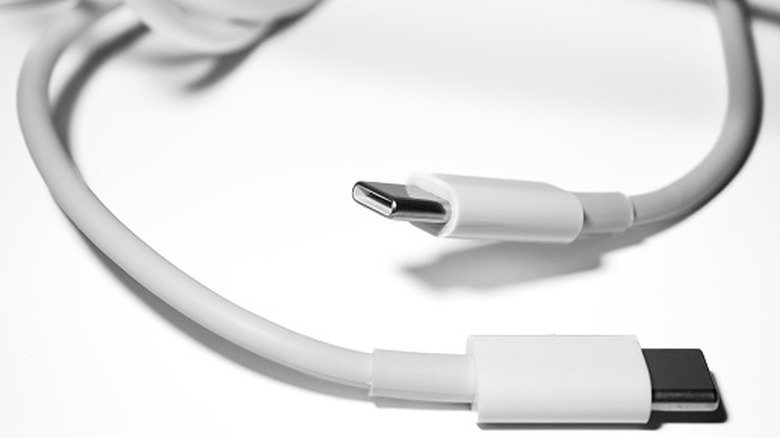
USB-C (officially USB Type-C) debuted in 2014, though devices using it didn't properly roll out until 2015. Unlike USB-A, USB-C is a reversible oval, so you only have to attempt plugging it in once. USB-C also sidesteps the host-device distinction from earlier USB standards; when you connect two devices, they figure out which is which.
When USB-C arrived, older connections were designated as "legacy," and USB-C has slowly taken over since. You'll now usually find at least one USB-C port on most laptops and desktops, and it's the standard for smaller devices like smartphones, tablets, headphones and controllers. In many places where you would use USB-A ports in years past (like in your car, on your router, on a power bank or similar), it's common to see USB-C now. Micro-USB is still used for some cheaper devices or those that haven't seen updates in years.
Adding to its universal nature is how versatile USB-C is. In addition to transferring data, USB-C can be capable of charging larger devices like laptops, outputting video and audio, and connecting all sorts of peripherals. What used to require a half-dozen various connections on your laptop (charging, connecting an external SSD, hooking up a monitor, adding a microphone, et cetera) can now be achieved with just a few USB-C ports.
USB-A and USB-C protocols differ
Octavian Lazar/Shutterstock
Everything we've talked about so far only pertains to the physical connection types of cables and device ports. The data transfer, charging speed and other capabilities of both USB-A and USB-C depend on the standards for a specific cable and port. For example, USB-A has limited charging speeds, whereas USB-C supports modern fast-charging standards.
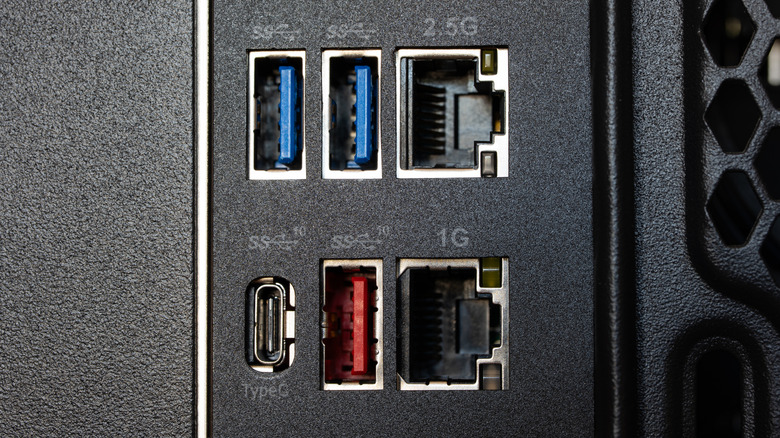
The oldest standard still in general use is USB 2.0; these ports and cable connectors are usually black or white. Its theoretical max speed is 480 Mbps. That's in comparison to USB 3.0, which is usually marked with blue and has a max speed of 5 Gbps. The following standards are confusing; they were originally called USB 3.1 and USB 3.2, but as they arrived, the prior ones were retroactively renamed (multiple times) with "generation" titles. Nowadays, the standard names are USB 5 Gbps, USB 10 Gbps and USB 20 Gbps to designate their max speeds.
USB-A's speeds can range from USB 2.0 to USB 10 Gbps. USB-C can be as slow as USB 2.0, but it can also meet the USB 20 Gbps standard. USB4, which has a base speed of 20 Gbps but can go up to 40 Gbps (or 80 Gbps for USB 4 2.0 devices), is only supported with USB-C. To take advantage of these faster standards, all parts of the connection (the ports on both devices and the cable) must support it. If you plug a USB 20 Gbps cable into a port that caps at USB 5 Gbps, it will only transfer data at the lower speed.
That's not to mention Thunderbolt, which is another standard that guarantees performance beyond the various USB generations. Thunderbolt has never used USB-A; its first two generations used Mini DisplayPort, while Thunderbolt 3 and onward have used USB-C.
Similarly, not all USB-C ports and cables are capable of everything USB-C can do. Only one USB-C port on your laptop might work for charging, while another only supports data transfer. A USB-C port that can handle video output is usually marked by a DP symbol (for DisplayPort Alternate Mode). Understanding the various USB symbols can help you know what to expect.
This is why a blanket comparison of USB-A and USB-C doesn't tell you everything you need to know, other than which device physically fits into the port. You need to check the exact specs on the cable packaging or device manual to know what they're capable of.
KioskNews shows a cleaned-up reading view extracted from the publisher’s page — the original always lives on their site, not ours.