What causes screen tearing and how can you fix it?

Screen tearing is a nasty problem, but it's thankfully one that's been solved.

Kerkez/Getty Images
Most gamers have experienced the dreaded phenomenon of screen tearing. One moment, you're battling enemies in a fantasy world, and the next, you're looking at a jagged patchwork of imagery. Your in-game avatar's torso is separated from its legs and head, and the path in front of you is likewise torn asunder.
This is called screen tearing, which is among a collection of visual artifacts that can plague your gaming session. While far more commonly encountered with PC gaming, it can sometimes be an issue for console gamers, too. The good news is that we not only know exactly why screen tearing happens, but also how to fix it.
The issue is primarily caused by a mismatch between the speed at which your computer hardware renders frames of video and the rate at which your display can show them to you. But thanks to a combination of technologies that help coordinate frames between your graphics card and monitor, screen tearing is no longer the scourge it once was.
What causes screen tearing?
MEzairi/Shutterstock
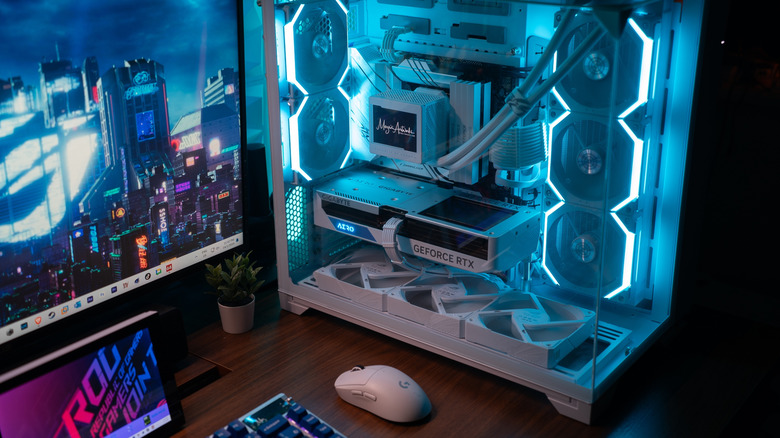
What causes screen tearing is pretty simple: your GPU renders frames at a different rate than your monitor displays them. Imagine the image rendering pipeline like a two-person assembly line, where your GPU "hands" video frames to your monitor. The problem is that many GPUs aren't tethered to the monitor's speed. Sometimes a GPU will outpace the monitor, rendering up to hundreds more frames each second than the monitor can display. Other times, your GPU may render very few frames if a game puts a heavy load on it.
Normally, a monitor must refresh itself on a fixed timetable, just as the person at the end of an assembly line must drop the last item they were handed before accepting a new one passed their way. The speed at which it can do this each second, measured in hertz, is referred to as refresh rate. The GPU's output is measured in frames per second (fps).
On basic monitors, refreshes happen 60 times each second. Gaming-focused monitors offer higher refresh rates like 144Hz or above — 240Hz is increasingly common on mid-rangers and even 1,000Hz monitors are now on the market. As refresh cycles become faster, they become increasingly imperceptible to the untrained eye.
But you can easily see what happens when the GPU renders a new frame into the buffer before the monitor has scanned the previous one. This can cause parts of both frames to show up on your screen at once, as the monitor scans the frame buffer top to bottom.
The incongruities between those frames are the dreaded screen tearing effect, where, for example, the top of a tree appears to the side of its trunk. These slices happen because two frames of video are taking up different horizontal bands of the screen at the same time.
Methods to prevent screen tearing
Gorodenkoff/Getty Images
The good news is that screen tearing is essentially a solved problem. Thanks to variable refresh rate technology, monitors can sync their refresh rates with a graphics card's frame rate, effectively eliminating the possibility that the monitor will show two frames at once. The major names in VRR are NVIDIA G-Sync and AMD FreeSync.
Neither of those should be confused with V-Sync, another widely available technology designed to thwart screen in video games. V-Sync forces the GPU to wait until the monitor is ready before handing over a new frame, Instead of shoveling new frames over as fast as it can produce them. To reuse the assembly line analogy, V-Sync tells the person at the start of the line the exact moment to pass items to the second worker.
But this can cause issues of its own. Because each frame now waits its turn, V-Sync can cause input lag. And if the frame rate drops for a moment, the monitor repeats frames, causing stutter, which is just as annoying as screen tearing. That doesn't mean you should avoid use V-Sync, though.
How variable refresh rates fix screen tearing
G-Sync and FreeSync take a different, more effective approach: variable refresh rates. With G-Sync, traditionally, a hardware module inside officially supported monitors coordinates with the GPU. It tethers the monitor's refresh rate to that of the GPU, waiting to draw the next frame until the GPU completes it. Meanwhile, newer "G-Sync Compatible" monitors can utilize this functionality without the dedicated hardware. (The next generation of G-Sync will also address motion blur through a feature called Pulsar.)
FreeSync accomplishes the same goal without a hardware module by using the VESA Adaptive-Sync protocol. In both cases, VRR is a bit like adding a foreman to the assembly line who makes sure the worker on the end of the line adjusts their pace to match what the one at the start is doing.
You might have noticed that VRR seems at odds with the exact problem it was designed to solve. If screen tearing is caused by desynchronization between a monitor and GPU, and if VRR simply tells the monitor how fast the GPU is working at any given moment, we still haven't accounted for what happens when the GPU exceeds the monitor's top refresh rate. And you're right; VRR can't make a monitor any faster than it already is. It only works well within that monitor's native refresh window, outside which visual tearing still occurs.
This is why it's recommended to use both V-Sync and G-Sync or FreeSync at the same time. While the VRR works to keep frame rates synced between the GPU and monitor, V-Sync ensures that the GPU's frame rate output can't exceed the monitor's capabilities by holding it within the VRR window. However, it's best to turn on V-Sync from your computer's global NVIDIA or AMD graphics settings, rather than using the in-game setting, and to set the in-game frame rate cap to just slightly below your monitor's top refresh rate. For instance, games on a 240Hz monitor should be capped at around 235 fps. In addition to preventing screen tear, this will also help stabilize your frame rates for smoother gaming.
KioskNews shows a cleaned-up reading view extracted from the publisher’s page — the original always lives on their site, not ours.