10 uses for NFC tags in and around your home
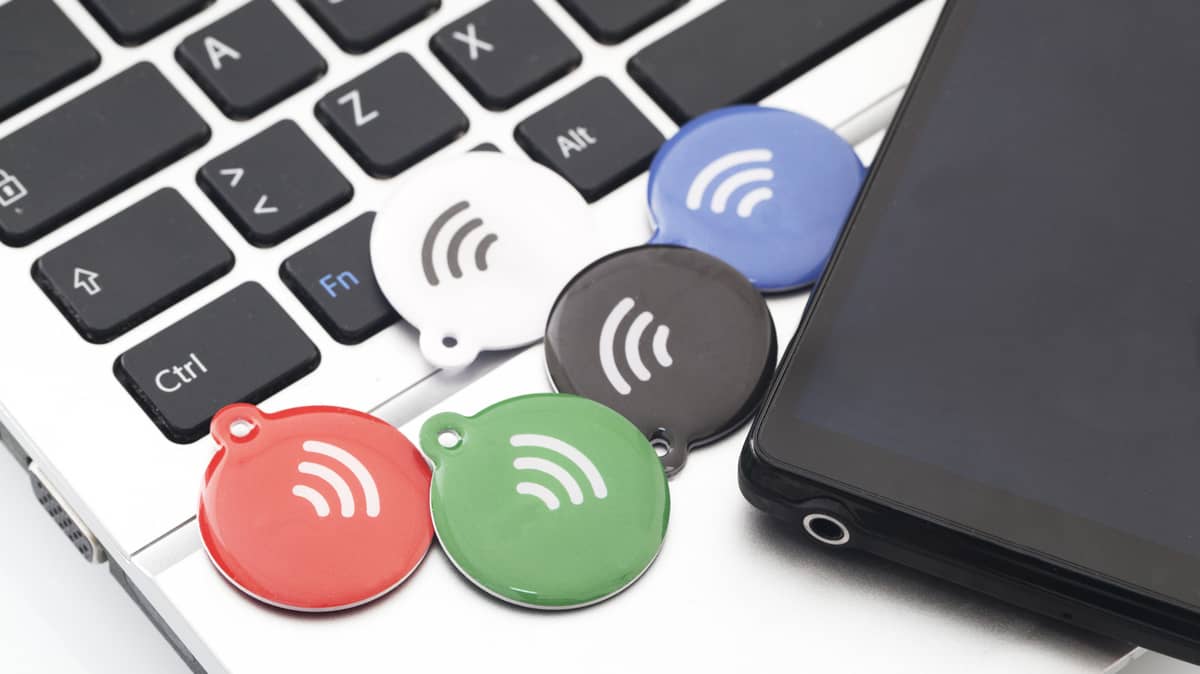
NFC tags are cheap and let you run all kinds of automations just by bringing your phone close by.
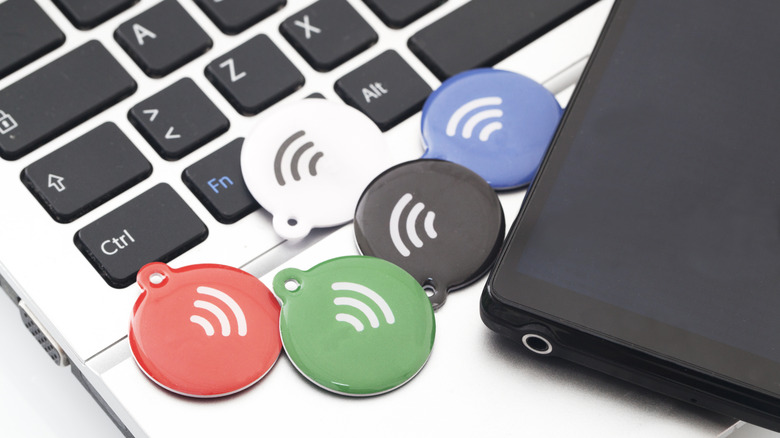
Bildagentur Zoonar GmbH/Shutterstock
We may receive a commission on purchases made from links.
NFC (Near Field Communication) is one of those technologies that's easy to use without realizing it. It's the driver behind contactless card payments, mobile wallets and tap-to-ride transit passes. You can also find NFC tags on some restaurant tables these days instead of QR codes: tapping the tag with your phone opens the menu website.
The neat part about the last example — the NFC tag — is that it doesn't require a power source. The stickers have embedded antennas that communicate with phones via low-intensity radio waves at a maximum range of ~1.5 inches. All you have to do is program them.
To do that, you need a smartphone, NFC stickers and an NFC-writing app. Behaviors vary between Android and iOS, which we'll get into below. Thankfully, the stickers are cheap. A 50-pack of rewritable NFC stickers can run as little as $6.79. For stickers you put on metal surfaces like your fridge or washing machine, you'll need anti-metal NFC tags because the signal of standard ones is blocked by metal surfaces. Anti-metal options like the Summerbrite 30-piece NTAG215 set are a little more expensive than standard tags.
Free apps like NFC Tools on Android and Apple Shortcuts on iPhone are all you need to get started. If you need more than the basics on iPhone, NFC Tools is also available for iOS.
1. Share your Wi-Fi network with guests
Modern versions of Android and iOS can easily share your home Wi-Fi credentials with others, but you've got to be around to share them. If your 10-year-old has a friend over or you've got a house full of guests, an NFC sticker near the router that's programmed to share the password for your guest Wi-Fi network might be useful.
For Android users, open NFC Tools. Tap the Write tab, then Add a record. Scroll down the list to Wi-Fi network; tap it, then add your Wi-Fi credentials. You'll be prompted to move near your sticker so you can write your Wi-Fi info onto it.
If you're on iOS, you can't connect to Wi-Fi via NFC. Further, automations created with the Shortcuts app are device-specific; they will only work for you, not your guests. The best you can do in this case — short of using a QR code — is creating a URL record that links to a Google Doc or Apple Note where you store your Wi-Fi credentials. Your iPhone-owning guests would tap the NFC tag, get your Wi-Fi info, then copy it onto their devices.
2. Activate bedtime routines with a tap
Ponywang/Getty Images
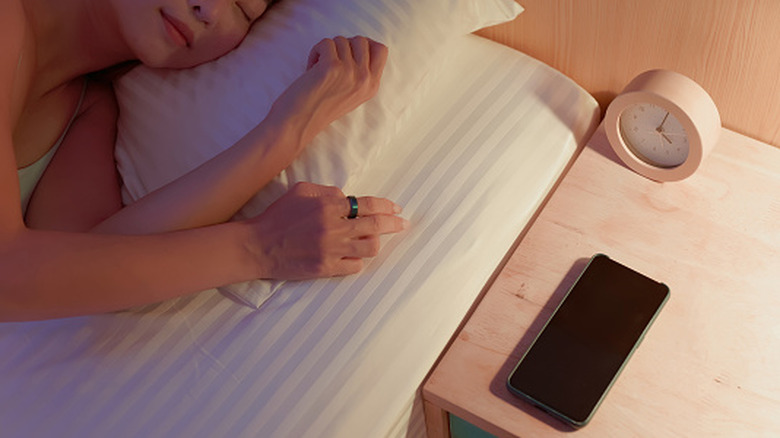
If you're building a smart home, there's a lot you can do by combining NFC tags and home automations via your home assistant of choice. This hack is for anyone who's crawled into bed, then wanted to watch one last video or answer one last text, but can't because of a pre-set bedtime routine.
For a more flexible bedtime, you can program an NFC sticker to activate Do Not Disturb mode (or the Sleep Focus on your iPhone) upon a tap. Newer Samsung devices like the Galaxy Z Fold 8 have an NFC tagged option for routines, so you can trigger your complete bedtime routine from a tag.
For Android phones without this option, you'll need a second app called NFC Tasks to run with NFC Tools. Install it, then return to NFC Tools and tap Tasks > Add a task > Configuration > Do not disturb. Select the "toggle" option so you can deactivate DND in the morning. You'll need to give NFC Tools the relevant permissions first.
On an iPhone using Shortcuts, combine the NFC option with the Set Focus action to achieve a similar result.
3. Supercharge your kitchen
Kitchens are ripe for NFC optimizations, as there's a lot to keep track of and various routines where automation saves time. Here are a few of our favorites (keep in mind where you'll need anti-metal tags):
Kitchen timers
Slap an NFC sticker near your oven. Configure a 25-minute kitchen timer (or whatever your most-used duration is) via NFC Tools (Tasks > Add a Task > Timer). Write it to your tag, then tap it with your phone to start the countdown quickly.
Shopping lists
You may already have a shared shopping list on Google Keep or Apple Reminders. For instant access when you need it, stick an NFC tag on your refrigerator that opens a link to your shopping list, then you can add or remove items based on what's in the fridge.
Recycling day reminder
Program a sticker to send you a reminder on recycling day. Tap the sticker to reset the timer after you've done your chore. However, note that resetting a recurring timer will require some advanced automations using an app like MacroDroid (Android) or Apple Shortcuts + Reminders (iOS).
4. Find your missing pet
Fotografixx/Getty Images
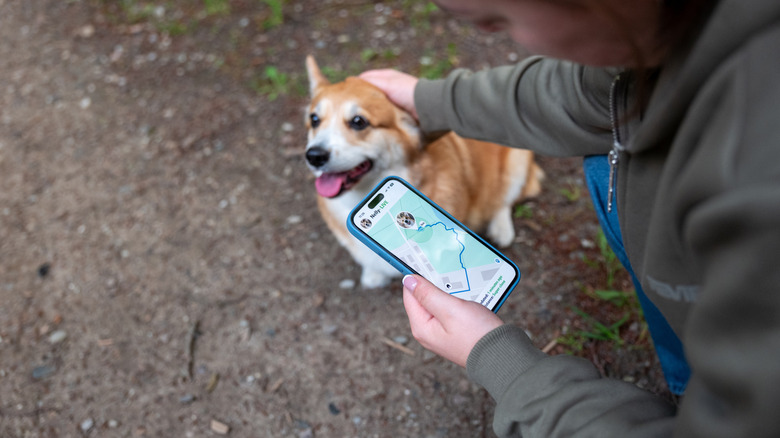
NFC tags are great for sharing bits of information like links, addresses and phone numbers, which may be all you need to locate your wayward pet. A setup would work like this: a good Samaritan finds your dog or cat, sees a "Tap your phone here to help me" instruction, and taps. Your contact info appears so you can arrange a safe return.
A few caveats. One, depending on how trusting you are, you might not want to share your home address with anyone who happens to find your pet. In that case, you can write your phone number and a GPS pin with a safe meet-up point (like a local park) onto your NFC tag, then handle the pick-up that way.
Two, a second-generation AirTag, though much more expensive at $29 a pop, can work in tandem with the NFC tag. With an AirTag, you don't have to rely on the kindness of strangers, and tracking has improved a lot with the new model's 50 percent wider Precise Finding range. Keep in mind that AirTags aren't intended to be real-time GPS trackers, though.
5. Set loan reminders
Unreturned items strain relationships, and even the most conscientious borrower can forget. A rewritable sticker with a calendar event is a simple and cheap solution to this thorny problem, and it works on both Android and iOS.
Just add an event to your calendar like "Pride and Prejudice due," set the date and save it. Then create a shareable calendar link and write that URL to a sticker on the cover of your book — or pruning shears, tagine pot or video game box. Have your friend tap the sticker to add the event to their calendar when you hand it over.
The nice part about this is that it works two ways, so you don't have to nag the other person. Unless they ignore the calendar reminder, in which case you're back to square one.
6. Never forget your medication
colnihko/Shutterstock
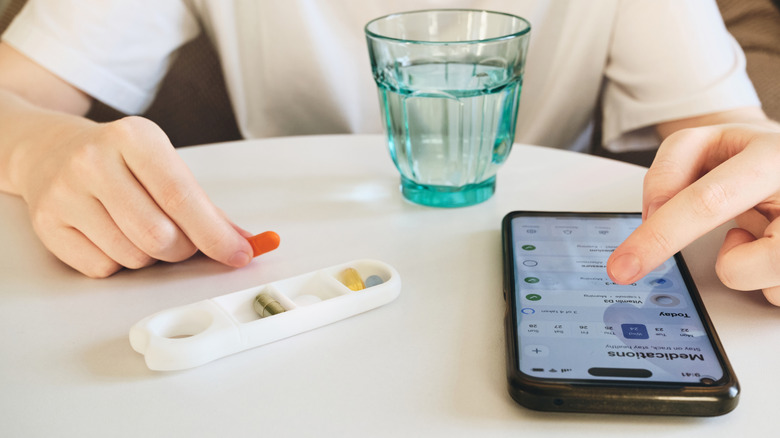
There are a few ways to do this, but the overall result is the same. You get a reminder if you're late taking your pill, supplement or vitamin — until you tap the NFC tag, at which point the process resets inside your medication app.
The easiest way for both iOS and Android users to make this work is combining either Apple Shortcuts or NFC Tools with an app like Medisafe.
If you're on Android, install Medisafe, then open NFC Tools. Under the Write tab, you'll see an option to Add a record. Scroll down to Application and find Medisafe, tap OK, then Write. In the future, when you tap your bottle of, say, creatine, Medisafe will open and you can stop the reminder you've set. iOS users can use Apple Shortcuts to open the Medisafe app.
The advantage of this setup is that it's easier than syncing automations across multiple apps, and all your medication-related reminders live in your medication app. The drawback is that it isn't fully automated. For that, you'll need Apple Shortcuts + Reminders (iOS) or MacroDroid (Android).
7. Auto-play your music with a tap
Setting up an NFC tag that plays your Saturday night playlist is fairly easy. We'll walk through the steps with Spotify in mind, since it's the most popular music streaming app. That said, the slop on Spotify is a real problem, so you might want to consider solid alternatives to Spotify that prioritize human creations.
With that out of the way, grab your playlist ID from Spotify by tapping the three dots to the right of the play button and selecting Share. Copy the playlist URL, removing "?si=" and everything after it. For auto-play, you'll also need to change "https://open.spotify.com" to just "spotify:" and "playlist/" to "playlist:". You should end up with spotify:playlist:PLAYLIST_CODE when done.
Open NFC Tools and tap Write > Add a record > URL/URI. Paste your modified playlist URL and add ":play" at the end. Tap OK > Write, holding your phone next to the tag.
If you're on an iPhone, to enable auto-play, open the Shortcuts app. Tap Automation > + > NFC. Scan your tag and tap Run Immediately > New Blank Automation. Then add your modified playlist link by tapping Add Action > Open URLs and pasting it. Tap Done. iOS won't open Spotify URIs without them being bound to a Shortcut for your specific iPhone, so this step is essential and the tag will not work for someone else's device.
8. Keep track of appliance maintenance
Koshiro K/Shutterstock
This idea is similar to how when you get the oil changed in your car, the mechanic puts a little sticker on the windshield telling you when you're next due for service. Instead of your car, you'd be logging critical maintenance data for your dryer, dishwasher, air conditioning units and similar with an NFC sticker.
Say you need to clean your washing machine drum once every month. You'd stick an anti-metal NFC tag on your washing machine and use NFC Tools to program it to open a Google Sheet with your maintenance records, where you'd create date cells for "last cleaning" and "next cleaning."
You can also use a Notion database for this. In fact, we'd recommend it since you can also set calendar reminders directly in Notion. The only hitch is that you'd need to reset those reminders as they come up. If you're not a fan of Notion, you'd have to keep separate calendar events in Google Calendar with reminders.
9. Arm and disarm your home alarm
Arming and disarming a home security system can be a pain, even if you have a decent app for it. Far faster is tapping an NFC tag on the wall near your door with your phone, so your tag communicates with your security app to activate or deactivate the alarm.
For this, you need a third-party app like Home Assistant Companion to handle the automation, as well as a compatible home security system like SimpliSafe or Abode. If you use SimpliSafe, for example, you'd connect to your home security app inside Home Assistant and set up your automation that way.
Home Assistant works with both Android and iOS, but you'll likely want two separate tags: one for arming and another for disarming. We'd recommend color-coding; this NTAG215 30-pack, for example, has both black and white tags. You can use a pair of "if-then" statements with a single tag, but going with two makes it easier to avoid mistakes.
10. Keep an eye on your kids
Mamun_Sheikh/Shutterstock
If your kids are out and about on bikes and public transportation, you probably check your location sharing app of choice constantly throughout the day. Here's a quick trick so you don't have to find your location app every time you have the urge to make sure they haven't been abducted by aliens.
Put an anti-metal NFC tag on your fridge. If you've already got a white shopping list tag (as above), consider a black tag for this to tell them apart. Using NFC Tools, tap Write > Add a record > URL/URI. Add a link to Find My, Google Maps, or whatever else you use, tap OK, then Write. This should work on both Android and iOS, though as before, with iOS you'll need a specific Shortcut tied to your iPhone to open an app rather than a website link.
Of course, this requires that your kids are always sharing their location with you. Our guide to location sharing on iPhone will help if you're not already familiar.
KioskNews shows a cleaned-up reading view extracted from the publisher’s page — the original always lives on their site, not ours.