How to use Android's Motion Assist feature to help with motion sickness

Google finally launched its answer to Apple's Vehicle Motion Cues.

Alvarez/Getty Images
If you're prone to getting carsick, looking at your phone while you're riding in a car definitely won't help. However, Google has been rolling out some interesting new features — and one of them is called Motion Assist. With this new option enabled, Android users have a better chance of scrolling without getting motion sick.
While the technology itself isn't necessarily groundbreaking, as Apple unveiled its version back in 2024 as part of iOS 18, the feature has finally made its way over to Android devices. It can only be found on Android devices running Android 17 or higher and updated Google Play Services, but those who can access it will find activating Motion Assist a breeze. So, if you just picked up any of the new Pixel 11 models, you can test it out anytime. Samsung phones must be running One UI 9.
This article will cover how to enable and customize Motion Assist on Pixel phones, so if your phone is another brand, the menus may vary. Searching "Motion Assist" in settings may be your most direct path to this feature.
How does Motion Assist help with motion sickness?

Pornpak Khunatorn/Getty Images
Motion sickness comes down to a battle of the senses. When you're in a car, your inner ear tracks every turn, stop and sudden burst, which tells your brain you're moving. So if your eyes are locked on a static screen, your brain gets conflicting signals, since your eyes are essentially telling it you are still.
That imbalance is what leaves people feeling nauseous, and it's the exact conflict Google's new feature is designed to resolve.
Using your device's motion sensors, the small shapes on your screen move around based on the car's every maneuver, which Google says helps "your brain synchronize what your eyes see with what your body feels." And while the shapes hover and shift in real time, they stick to the display's edges, so whatever you're reading or watching in the middle stays unobscured. Of course, Google asserts this feature is meant for passengers, so don't try to use it if you're the one driving.
How to set up Android's Motion Assist feature
Screenshots by Yoni Yardeni (Google)
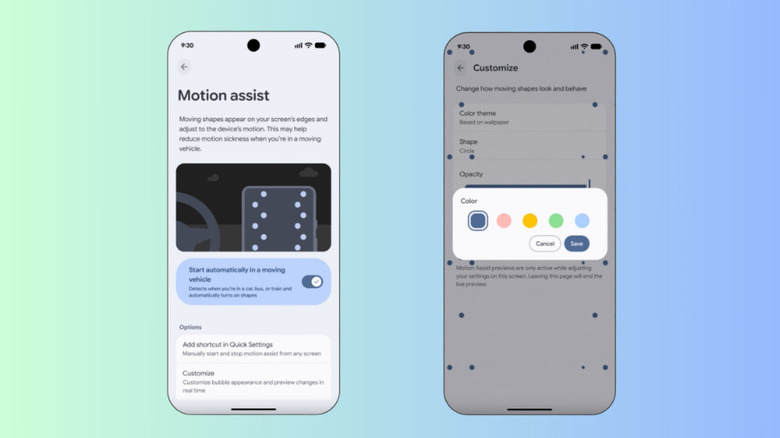
You can activate Motion Assist easily in your device's settings. On your Pixel, navigate to the Settings app, then tap your profile and select All services. From there, you can toggle Motion Assist on from the Personal & device safety menu.
To prevent motion sickness on future rides, you can also adjust your phone's settings to automatically activate Motion Assist when it senses you're in a moving vehicle. In the Motion Assist settings, simply turn on Start automatically in a moving vehicle. Even with this enabled, your phone's motion sensors may have a hard time knowing when you're in a moving car, so Google recommends adding it to your Quick Settings menu to ensure it's always just a couple of taps away.
Similar to Apple's Vehicle Motion Cues, Google allows you to customize the colors, opacity and shapes that appear when Motion Assist is activated, so you can fine-tune the details as you see fit. Access these options in the Customize menu, which you can tap into from the Motion Assist settings. There is also a Randomization option that changes the colors and shapes as you use it.
KioskNews shows a cleaned-up reading view extracted from the publisher’s page — the original always lives on their site, not ours.