Apple HomeView review: A versatile smart display and Siri-powered home hub
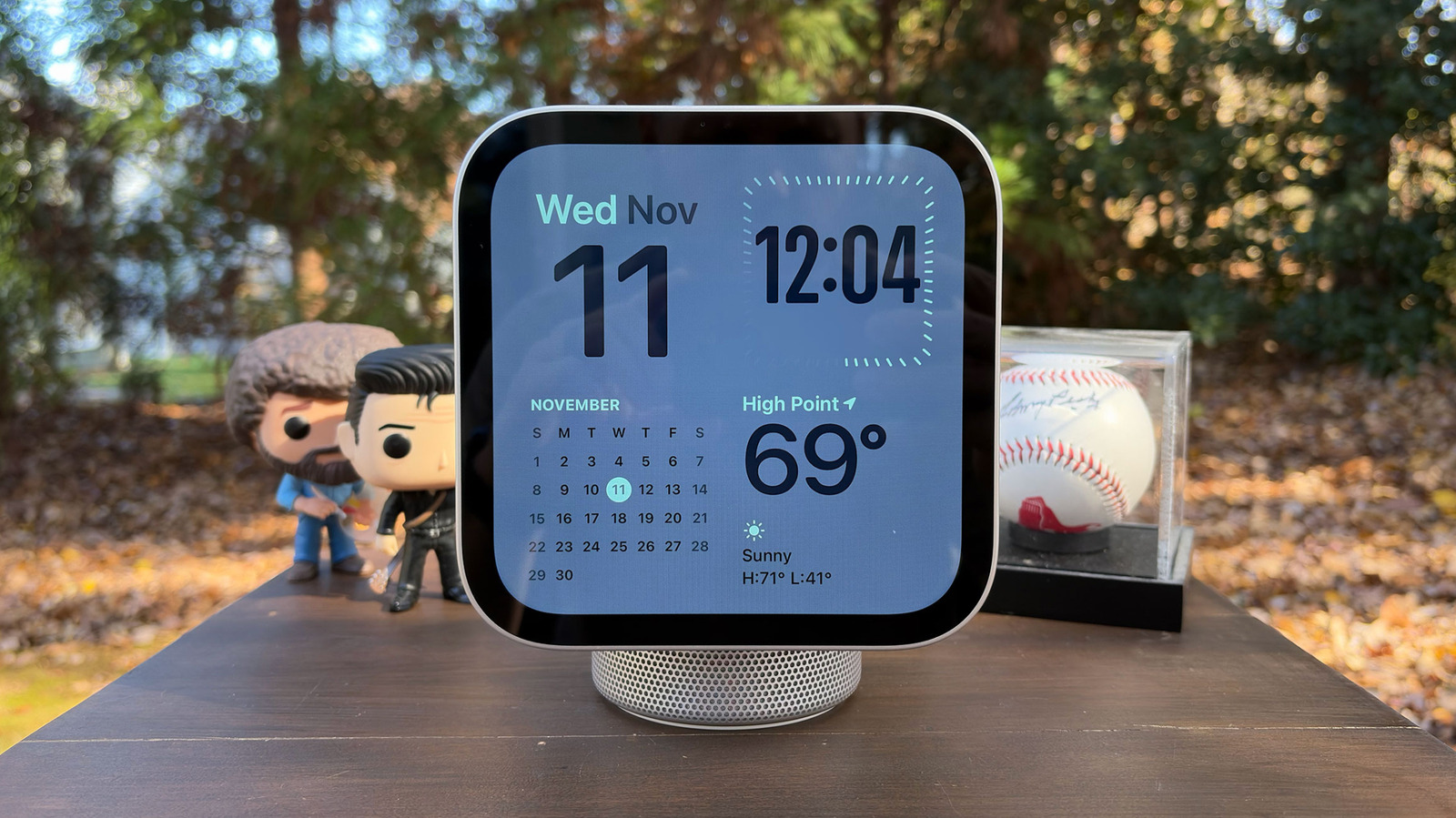
The company’s smart screen debut heavily relies on an iPhone or iPad — for better and for worse.
Billy Steele for Engadget
RATING : 8.4 / 10
- Great design
- Category-leading sound
- Useful for the whole family
- Crisp, colorful display
- Heavily reliant on an iPhone or iPad
- Not great for playing videos
- Third-party support is still a work in progress
Apple's entry into the smart display category was rumored for years. By the time its debut home hub device arrives this week, the company will be nearly a decade behind its main rivals in the space. In true Apple fashion, it refused to rush new products just because most of the competition was doing it. Now that the HomeView ($299) is here, Apple is hoping the iPhone faithful will like its mix of elevated design and newly expanded Siri capabilities.
Unlike smart displays from Amazon and Google, Apple's approach relies on a companion device. That means you'll need either an iPhone or an iPad to mirror apps using technology similar to CarPlay. As you'd imagine, that means the HomeView's usefulness, like CarPlay's, is directly tied to how much you use Apple's core apps — things like Messages, Calendar, Photos, Reminders and others. You'll also need to have some smart home devices to make the most of the smart display and be willing to use Safari as your recipe box. If all of that is OK to you, and if you're willing to give Siri access to personal data inside some of those apps, the HomeView can quickly become a very versatile device with something for your whole family.
Design and display
Billy Steele for Engadget
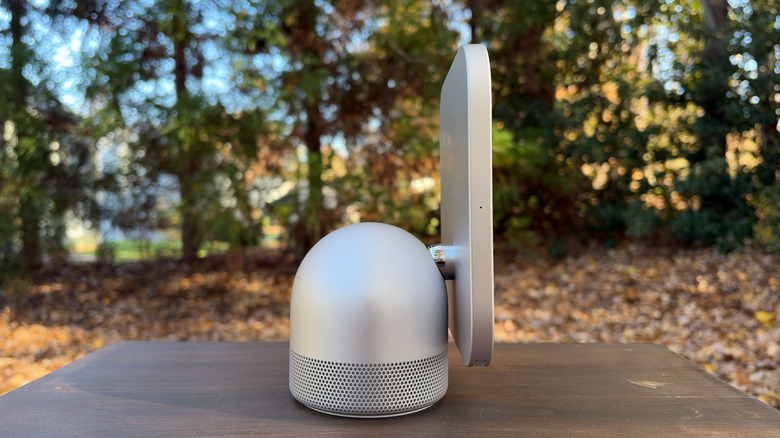
I have fond memories of the iMac G4. It was the first computer I used in a design lab in college, and I loved how I could reposition the display to suit the task at hand. The first time I saw the HomeView, those memories flooded back. Apple's smart home display doesn't exactly replicate the G4 styling, but it's close enough for a decent nostalgia hit for me.
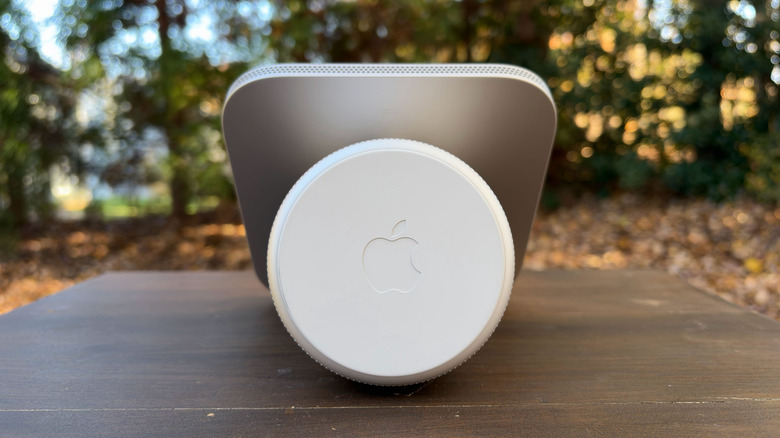
The HomeView essentially consists of two parts: a cylindrical, domed base and a 7-inch Liquid Retina display. At least, that's if you get the tabletop version. The wall-mounted option is just the screen, and you'll have to pay at least $59.95 for a mount. Every version of the HomeView has two full-range drivers in the display itself. The base houses additional components, like a down-firing woofer and a pair of force-canceling passive radiators for fuller sound with more bass than the wall-mounted models.
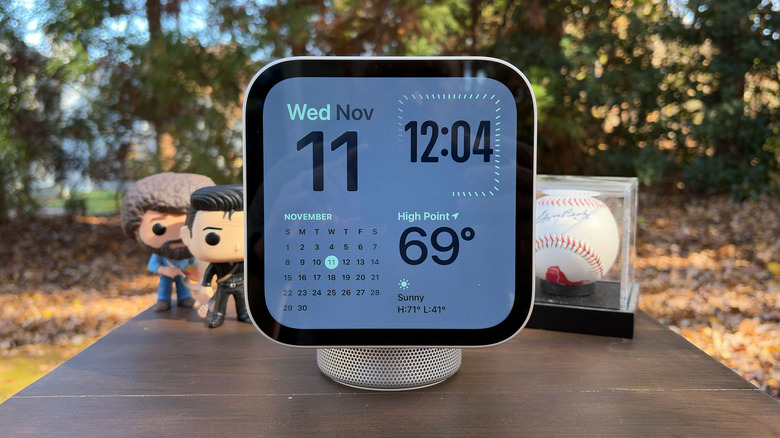
That display has an LED-backlit multi-touch IPS panel that offers a 1,088 x 1,088 resolution at 200 pixels per inch. Apple says it also added an oleophobic fingerprint-resistant coating to cut down on grime from everyday use. There's an ambient light sensor that enables the HomeView to adjust both brightness and warmth as needed. If it's in direct sunlight, you can expect the maximum 500 nits, but at night, it can dial things down to just 0.3 nits — the lowest brightness ever on an Apple display. The company believes this makes it perfect for a nightstand, if you're willing to have a camera pointed at or near your bed.
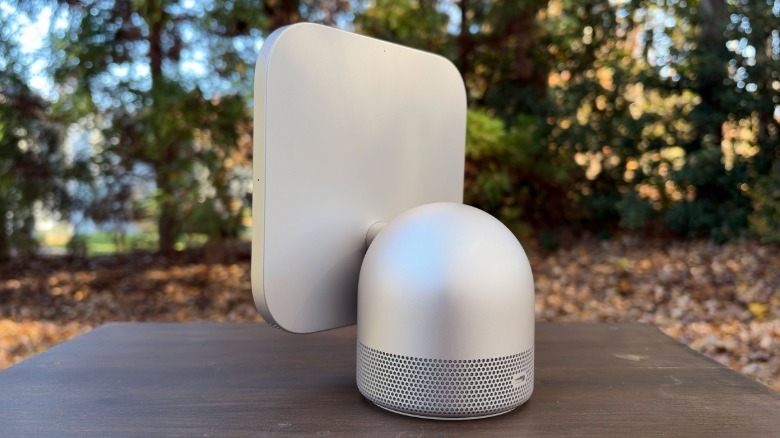
The HomeView's display has bezels like an iPad and the shape of a large Apple Watch. Unlike either of those devices, though, it has no physical buttons for controls. All of the interaction is done via swipes and taps on the touchscreen itself, or, as I'll elaborate on in a bit, with your voice. And unlike that iMac I'm nostalgic for, you can only tilt the display — you can't adjust its height. While that will suit most of your needs, I'm sure there are a lot of people who would've liked the ability to change the height or rotate the screen as well. Once you do adjust the way it tilts, a built-in accelerometer detects the new angle and alters the audio performance of the display's two drivers to match it.
Another item to discuss in terms of design is the HomeView's lone port. Around back, there's a single USB-C jack for power. Apple ships the standard version of the device with a USB-C to USB-C cable and a 30-watt power adapter. If you opt for the USB-C wall mount, which already costs $59.99, you'll need to purchase the power adapter separately. The company offers a 40W dynamic power adapter (up to 60W max) for $39 while the minimum required power supply (20W) will cost you $19. Obviously, the AC wired and PoE (power over Ethernet) wired mounts won't need a power adapter.
And lastly, there's the matter of color. For the standard (table or countertop) version of HomeView, you can choose from Silver, Starlight, Rose Pink or Space Gray options. On those, the sides and back of the display match the base. For the wall-mounted version, you can only pick between Silver and Space Gray. And, just in case you need the reminder, both HomeView models are the same price ($299).
A new home for Siri AI
Billy Steele for Engadget
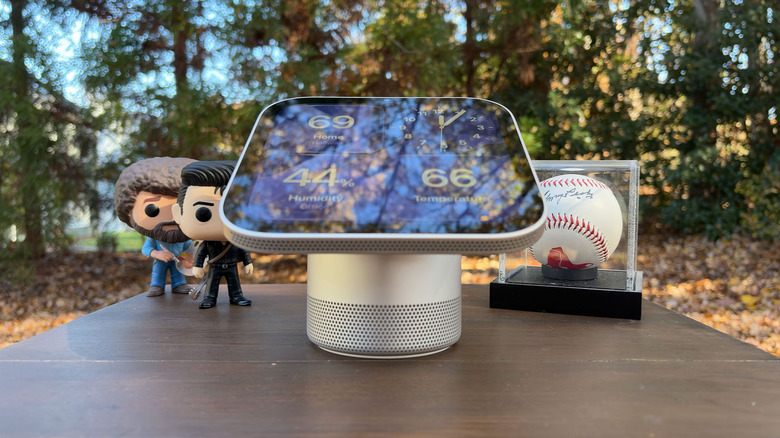
One of the HomeView's most helpful traits is its ability to put Siri AI front and center in your home. The smart device runs on Apple's A18 chip, the processor that debuted with the iPhone 16 line in 2024. The company is using it here for its Secure Exclaves which give it the ability to process camera and microphone feeds on-device in a manner that can't be accessed by Apple. The company explained that this enables the HomeView to recognize your face and voice, or that of other users in your home, without exposing any of the data to the operating system.
That's important, because Siri AI now has access to more of your personal data, like your conversations in Messages, info from your Calendar invites and other bits of "personal context" from various apps. Of course, you have to opt-in to all of this by enabling Apple Intelligence on your iPhone or iPad, and you can limit which apps Siri can index data from. If you do decide to use the system, I can attest that it works well on the HomeView, though it's merely another vessel for the larger AI system.
During a lengthy conversation about lighthouses in North Carolina, Siri gave me information about visiting a variety of locations in the state. It provided information that I didn't specifically ask for, like which ones were still active, and got more comprehensive when my follow-up query was a bit vague. For example, when I asked "Which lighthouse is the easiest to get to?" Siri responded with both a list of ones you can park close to and highlighted the one that requires the least amount of climbing.
Siri was able to check my calendar to see if I was free to take the trip on a certain date and provided travel time from my house (including follow-up questions about the cities I'd pass through). I was finally able to stump the AI when I asked about "good hotels" near the Currituck Beach Lighthouse in Corolla, but even still, things felt more natural and conversational than interactions I've had with Siri in the past.
At times, Siri showed text answers on the HomeView in addition to reciting the info. When I asked about driving time or my schedule, a preview of the best route and the specific day on my calendar popped up respectively. What's more, I got a notification on my phone from the Home app letting me know Siri responded to a request for personal content. But it's important to remember that HomeView is just a conduit for Siri AI and its newly expanded abilities. These same things can be done on an iPhone or other compatible Apple devices, meaning you don't really have to spend $300 on a dedicated display for these tools.
One final note on security: Since the HomeView is heavily reliant on an iPhone or iPad, those devices must be nearby and recently unlocked (and enrolled in the shared home) for Siri to access personal data. The HomeView uses facial and voice recognition to know who's speaking, and to know when they walk away, so prying eyes can't see your texts if they rush over after you've been looking at Messages or other potentially sensitive apps. Guests or family members who don't have an iPhone or iPad can still use basic functions (control smart home devices, check weather, play music, etc), including asking Siri rudimentary questions.
HomeView as a cooking assistant
Billy Steele for Engadget
When I first spent time with the HomeView last month, the feature I was most excited about was the recipe integration in Safari. I'm happy to report that feeling remains, for the most part, but there's one caveat that does impact the overall experience.
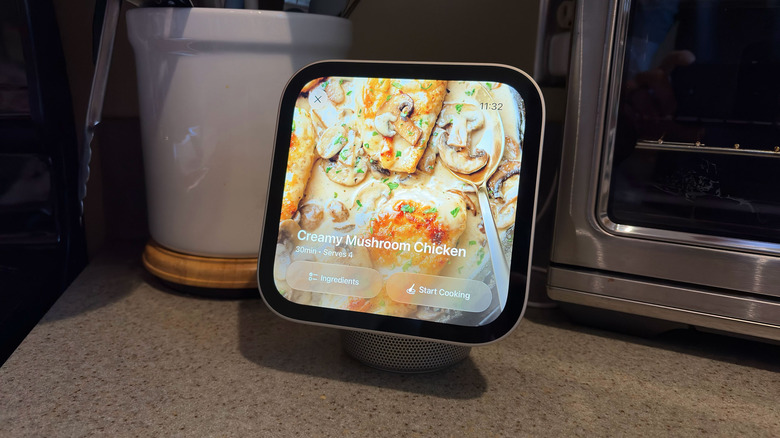
Let's back up for a second. On the HomeView, you can view a recipe link in Safari from your iPhone by holding it close to the display (just like you do to pass audio from your phone to a HomePod). Once the page loads, you'll see a cooking icon (a spoon and recipe card) in the bottom right corner. Tapping that will launch the HomeView's streamlined mode for the kitchen, which shows a recipe image with the dish's name, creator, cooking time and servings. There are two options underneath: Ingredients and Start Cooking.
The Ingredients option gives you a checklist-style collection of what you'll need for the recipe. If you need to add things to a shopping list in Reminders, Siri can do that for you. I had no trouble getting the AI assistant to add various ingredients to different shopping lists I have in that app (Costco, grocery store, etc). The HomeView will show its work by displaying the new entry in the Reminders app, and a Live Activities shortcut at the top allows you to quickly get back to the recipe with a tap.
Once you hit Start Cooking, the recipe's steps are divided into swipeable slides with inline shortcuts for any timers you need. Or, at least that's how it's supposed to be. While testing the HomeView, I pulled in recipes from my go-to cooks, and while some of them worked just like Apple advertised, others did not. This isn't a massive deal breaker, as you can still read the recipe's steps, but once you've experienced the correctly formatted version, it's hard to go back.
Going back means you'll get all of the steps on a single slide, requiring you to scroll instead of swipe. This is a long block of text, which can be overwhelming, especially compared to the short, easy-to-follow slides that alleviate some of the stress from following complicated instructions. And if you ever need to peek back at that ingredients list, the properly formatted versions have an always-present shortcut in the bottom right corner. To be clear, the formatting isn't an Apple problem; it's entirely up to the creator or publisher to present their recipes a certain way. I'm just pointing this all out to say Apple is advertising the ideal scenario, which is honestly an excellent experience, but you may not encounter it every time you cook with HomeView.
Smart home hub
Billy Steele for Engadget
Another big piece of the HomeView puzzle is its ability to act as a smart home hub. With the Home app and devices compatible with HomeKit and Matter, this display becomes the command center for your cameras, thermostat, lighting and more. There's a Home dashboard that shows everything you've connected to the system. You can then create scenes and automations, or ask Siri to handle those for you.
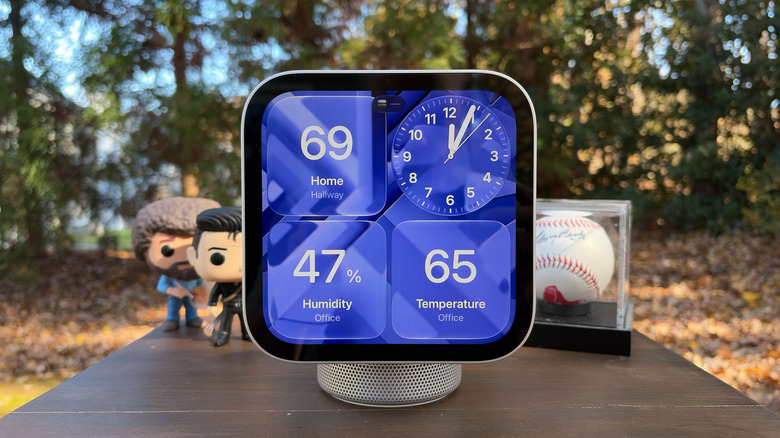
We'll get to HomeView customization in a bit, but it's important to mention two Home faces here. The Home Modular face puts your favorite smart home devices on the same screen thanks to customizable widgets. These give you control over each connected gadget, including the ability to check a camera feed, without opening any apps on your phone. Of course, you can always ask Siri to do things for you by summoning the assistant on the HomeView. I'm sure Apple's AI is tired of adjusting my thermostat at this point, as that's what I've primarily been doing during my testing.
There's also a Home Camera face that's all video, all the time. Here, you can livestream up to nine feeds at once, giving you the ability to keep tabs on things wherever you have cameras positioned. If a visitor is detected, you can just tap on the HomeView to unlock a smart door lock (provided you have one of those, of course). We are a Blink household, though, and those aren't yet compatible with HomeKit, so I wasn't able to test any of Apple's camera features.
If you have an iCloud+ subscription, HomeView works with compatible security cameras (again, HomeKit and Matter) to detect people, pets, packages and vehicles. When any of those are seen, you'll get a notification and a live feed on the display. HomeView can also detect smoke or carbon monoxide alarms and send alerts to your iPhone, iPad or Apple Watch — even when you're away from home. That feature, known as Sound Recognition, is also available on the HomePod and HomePod mini.
Music and entertainment
Billy Steele for Engadget
The HomeView's speakers make it a solid option for music, podcasts and other audio entertainment. But, despite its crisp, vivid display, the device is not well-suited for watching videos. That's OK though, because right now, the only video app that's available on HomeView is Apple TV. And unless you like watching your shows within a thin band that sits in the middle of a square display, flanked by thick black bars on the top and bottom, you, too, will find the video experience on HomeView underwhelming. I would love to see Apple bring F1 multiview to this display though, putting two small alternate feeds below the main broadcast. Yes, they'd be tiny, but at least that's a better use of the space and eliminates the awkward black bars.
The HomeView runs on the same platform as CarPlay, which is why the various video streaming apps you have on your iPhone don't show up on this device. Apple says third-party developers are welcome to enable their apps for use on the HomeView, but doing so would also mean optimizing them for CarPlay. Only time will tell if developers are going to go through the extra steps of making that happen.
When it comes to audio-only content though, the HomeView is great. I'd classify the sound quality here as the midpoint between the HomePod mini and the larger HomePod. I've been reviewing the tabletop HomeView with a base, so I've enjoyed the added woofer and passive radiators, which balance out full-range drivers with extra bass. Across a variety of genres, bass is tight and punchy, and vocals cut through the mix clearly. The system never loses other instruments either, as you can easily pick up the guitars in Anberlin's "Gravity." Switch to something more chill, like Sam Barber's "If I May," and the acoustic instruments lay a base for the singer's unique vocals. Drums are more subdued here, and the HomeView does well to keep them from overpowering the mix.
I should also note the HomeView can get pretty darn loud. I measured 87dB with my Apple Watch standing right in front of the device. But I should also warn you that it's not a comfortable listening volume if you're standing close to the display. It might be nice for a party, but you'll likely stay around 50 percent or less for the most part.
Spatial Audio with Dolby Atmos is available on the HomeView for compatible music, movies and shows. However, given the compact stature of the device and its limited sonic prowess, you're more likely to notice the excellent overall clarity and even-handed tuning more than any dimensional effects. While watching an episode of Masters of the Air, for example, I found the sound perfectly fine, but wouldn't classify it as very immersive.
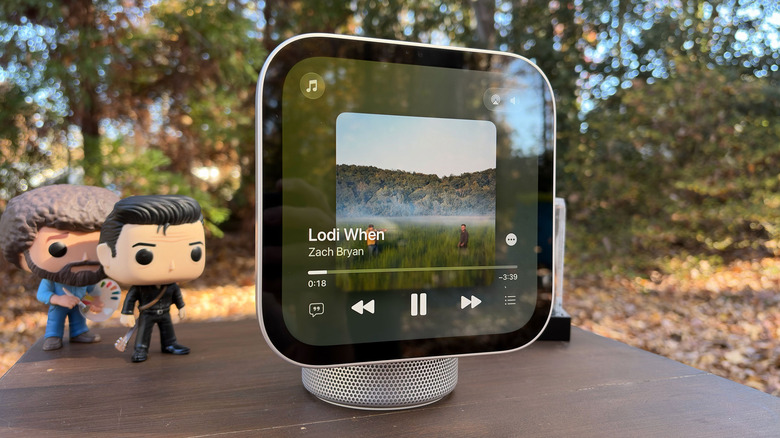
Apple included a few more entertainment-related conveniences on the HomeView that add utility. For one, it works with the HomePod, HomePod mini and AirPlay-compatible speakers for multiroom audio, which allows you to play the same thing everywhere or pick specific songs for each room. When listening to songs from Apple Music, you'll see animated album artwork if an artist has it, and lyrics are available with a single tap. And just like you can with your iPhone and HomePod speakers, you can handoff content from your phone to the HomeView just by placing your handset in front of the display.
Customization, FaceTime and other features
Billy Steele for Engadget
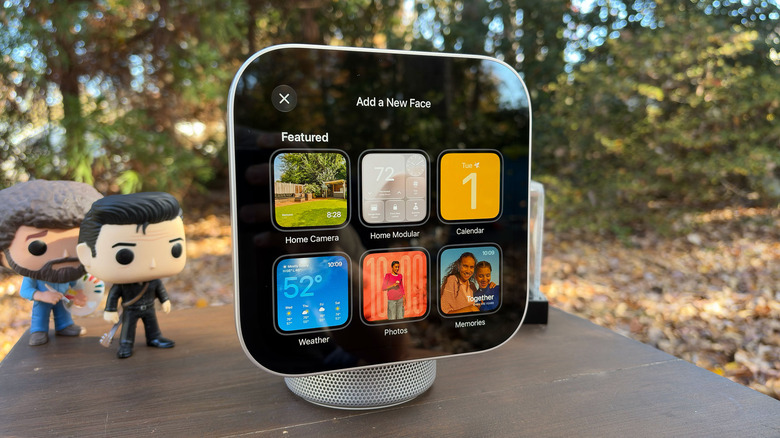
The HomeView may look like an enlarged Apple Watch's screen, but the two devices also overlap in another area: faces. These screens are what you see when the HomeView is in what I like to call rest mode, when it's just sitting there not being actively used. You can have it just be a clock, as there are three faces just for that purpose, or display your calendar or the weather. There's also an animated Snoopy face that updates based on the time of day, weather, holidays and sporting events. Then there are the two Home faces that work with smart home devices that I already mentioned.
Those all have their purpose, but my two favorites are the Photos and Modular faces. The former makes the HomeView a digital picture frame and you can get specific about what shows up there. You can opt for it to cycle through photos of specific events (Memories), people, pets or cities, for example, but you can also set up Shared Albums that it will source from. If you do that last one, new photos will automatically appear every time they're added to the collection. The Modular face is what I've used most, as its customizable collection of widgets puts the calendar, date, time and weather in one spot. Of course, you can pick and choose what shows up here based on your needs or preferences, you're not forced to use the same combination I do.
The best thing about faces is that you can easily switch between them by swiping horizontally on one. A long press brings up the face customization interface where you're free to fine-tune things like color and widgets (where available) to your heart's content.
One feature that Apple has spent a lot of time showing off on the HomeView is FaceTime. The smart display has a 12-megapixel Center Stage camera in its top bezel, which means you can conduct video chats without reaching for your iPhone. Of course, the Center Stage software will keep you centered in the frame as you move around, which will be handy if you need to take a call from the kitchen while you're cooking, for example. You can start FaceTime calls on the HomeView, or you can hand them off from your iPhone. I'll also note that you can take voice calls from the HomeView, and in general, the device works well for both types of chats.
Find My is also available on the HomeView, allowing you to locate everything from your iPhone to your AirPods, or anything that has an AirTag attached to it. Of course, you can also use this to find family and friends who are sharing their location with you. The intercom feature from HomePods is on the HomeView as well, which comes in handy if you have multiple Apple speakers spread throughout your house. It also works with the iPhone, iPad and Apple Watch, plus you can send and receive intercom messages from anywhere — not just inside your home.
Lastly, Live Activities displays real-time info for a variety of tasks on HomeView. Like it does on your iPhone, the feature puts your progress at the top of the display on a floating, tappable button. Live Activities on the HomeView are a bit limited though, only capable of showing active timers/alarms, FaceTime calls, Safari media playback and Now Playing controls for Apple Music or Apple TV. I found it also surfaced audio controls for my go-to podcast app Pocket Casts as well. One thing that doesn't show up there that I wish it did is Live Activities from the Sports app. It would be great if the live scores for my favorite teams or an update on who's leading the F1 grand prix were available at a glance.
The competition
Billy Steele for Engadget
Apple is years behind the competition when it comes to smart displays. The company's two main rivals in this category, Amazon and Google, have been honing their products since 2017 and 2018 respectively. The premise has always been similar to Apple's: a combination display and speaker that's a conduit for each company's virtual assistant — or in 2026 terms, each company's AI.
Amazon's current Echo Show lineup has six options, ranging from 5 inches up to 21 inches, with the largest models ditching the speaker base for a wall mount or stand. The most affordable, the Echo Show 5, is $100. Google's current slate of smart displays is much more modest, with only the aging second-generation Nest Hub and Nest Hub Max as the available options. Those are going for $100 and $229 respectively, and only the pricier of the two has a built-in camera for video calls.
Wrap-up
Apple may have lagged behind the competition on introducing a smart display, but the HomeView checks a lot of boxes that make it a very powerful option for iPhone users. It's also more elegantly designed than all of its main competitors. The ability to automatically distinguish between different family members, and for Siri to pull in personalized context for each person, makes this a useful home hub. When you factor in the cooking assistance, smart home compatibility and FaceTime chops, the HomeView can easily become the command center for any household. Just be sure to keep your iPhone (or iPad) handy if you want to make the most of it.
KioskNews shows a cleaned-up reading view extracted from the publisher’s page — the original always lives on their site, not ours.