How to enable Live Activities on iPhone and CarPlay
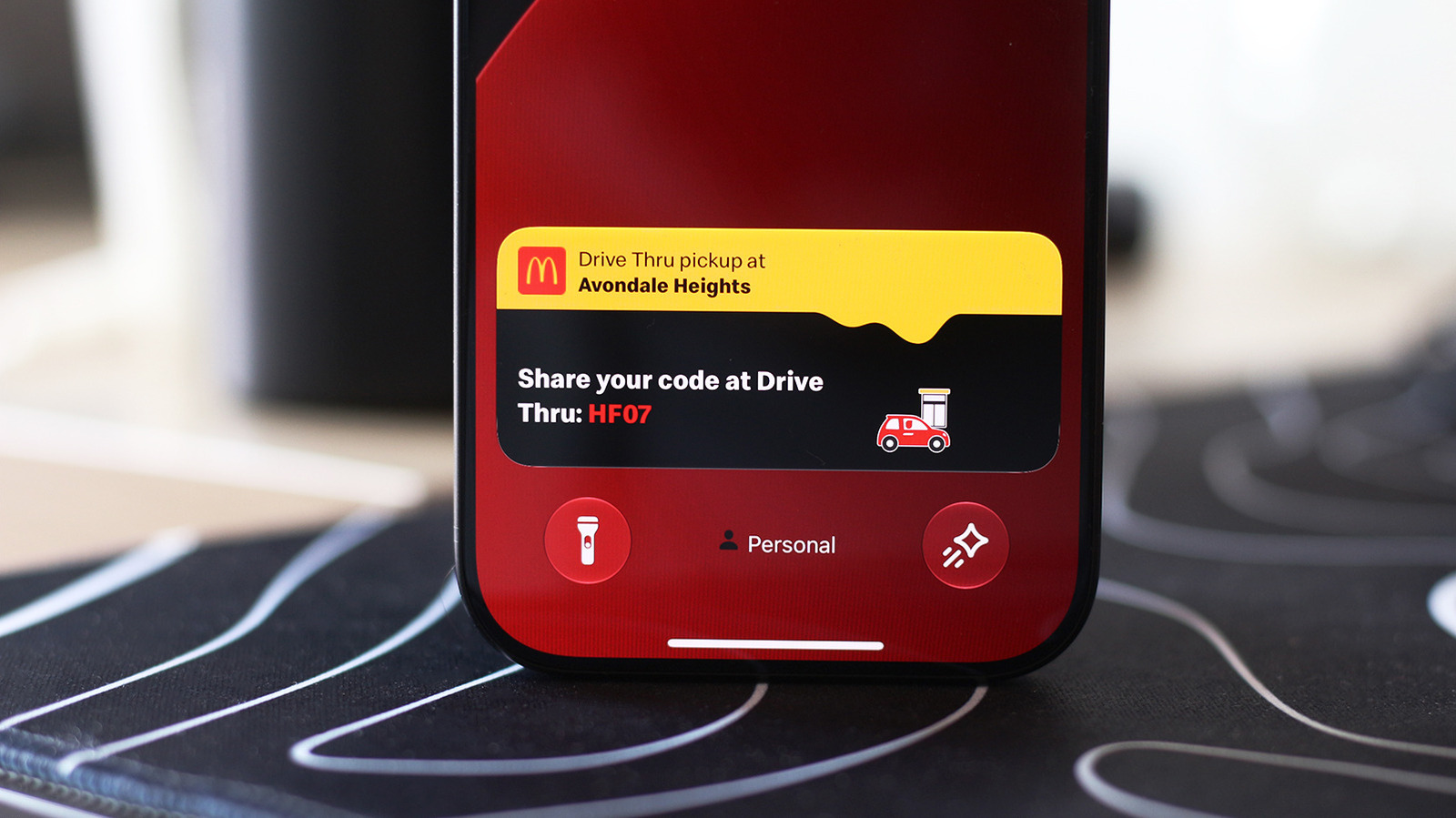
Keep track of important updates without having to open the app every two minutes.
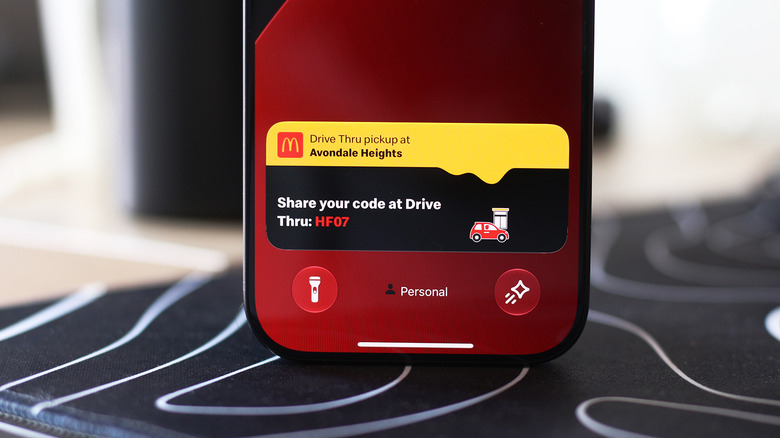
Adnan Ahmed for Engadget
At a time when most Android phones had already switched to tiny hole-punch cutouts to house their front-facing cameras, the iPhone 14 Pro launched with a long pill-shaped cutout. Apple has used this as its standard since then, aside from the budget "e" phones and iPhone Duo, and even made it smaller for the iPhone 18 Pro series.
This is because iPhones pack more than just a camera inside the cutout; there are additional sensors required for Face ID to work. Instead of hiding the pill with cleverly designed wallpapers, Apple leaned into it with the Dynamic Island, using the surrounding area to turn an otherwise awkward design constraint into a useful part of the iOS experience.
Your iPhone's Live Activities show up on the Dynamic Island when using your phone. They display information you might want to keep an eye on without having to constantly switch back to the associated app: timers, navigation directions, music playback and sports scores can be displayed as Live Activities. Many third-party apps like food delivery and flight tracking services have also adapted to use the Dynamic Island.
Live Activities should be enabled by default, but if you don't see them for certain apps, check if they've accidentally been turned off. On your iPhone, navigate to Settings > Apps and select any app that's been giving you trouble. Make sure the Live Activities slider is enabled. Though Live Activities work independently of regular notifications, you might want to also enable notifications for the app if you're not seeing the expected updates.
These activities will also appear on the Lock screen when you're not using your device. To make sure this is enabled, visit Settings > Face ID & Passcode. Confirm your passcode, then scroll down to the Allow Access When Locked section and be sure Live Activities is on.
Using Live Activities on CarPlay
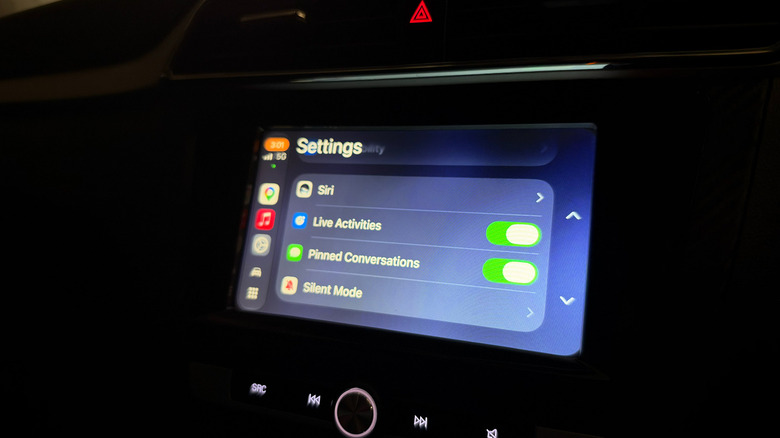
Adnan Ahmed for Engadget
CarPlay makes it easy to access vital info from your iPhone without getting too distracted while driving. As part of this, it can display Live Activities so you can track the status of a food delivery or updates for an upcoming flight.
Live Activities from your iPhone are automatically displayed on the CarPlay Dashboard, the split-screen view to the left of your app list. If you're using an app that covers the entire screen, Live Activities will still be shown as notifications at the bottom of the display. If they become too distracting, you can always turn the feature off in CarPlay or disable Live Activities for specific noisy apps, as above.
In case you're not seeing them, open the Settings app in CarPlay, scroll down and make sure the Live Activities toggle is enabled. You should also confirm the Suggestions in CarPlay (or Suggestions in Dashboard) option is turned on. If they still don't appear, try turning off Driving Focus if it's running.
Besides this, you can add widgets to CarPlay for quick controls and information from apps without having to open them. Widgets live in the leftmost section of the CarPlay Dashboard. Spend a little more time in the Settings app, and you'll discover more ways to customize how CarPlay looks on your car's display.
KioskNews shows a cleaned-up reading view extracted from the publisher’s page — the original always lives on their site, not ours.