How to set up your Sonos speakers using the app
The app experience has improved over the last couple of years.
Vantage_DS/Shutterstock
Sonos makes some of the best smart speakers in the game, yet pairing the company's products with its app hasn't always been a hassle-free process. Back in 2024, you'd have likely been asking, "Why is the Sonos app so broken?" Thankfully, the sins of that notoriously buggy update have since been absolved, and the software is now in a decent place, making setting up a new speaker relatively straightforward.
Below, we'll guide you through how to set up your smart speaker with the official "S2" Sonos app. It doesn't matter if you're looking to connect an older product or one of the company's top-of-the-line Dolby Atmos-capable speakers, as the connection process differs little. Read on for setup tips, how to resolve pairing problems and advice for making your speakers sound better through EQ tweaks and other in-app features.
How to set up a Sonos speaker for the first time
Dave Meikleham for Engadget
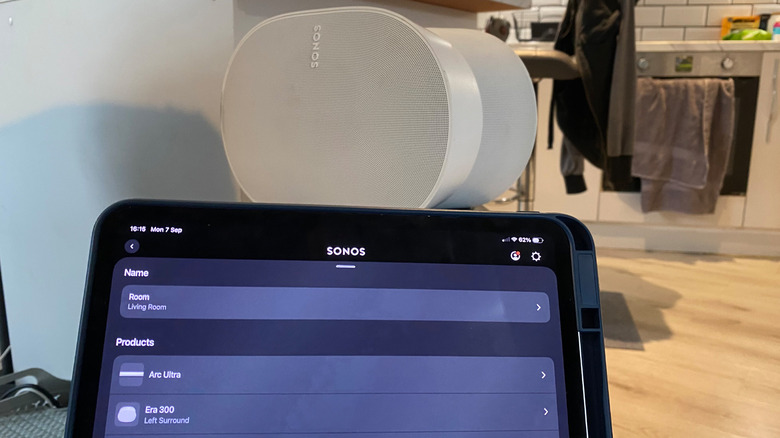
If you're setting up your Sonos speaker for the very first time, you're going to need the Sonos app for your smartphone or tablet. Said software is available on both the App Store and Google Play. Once that's downloaded, create a Sonos account and make sure your speaker and the app are connected to the same network. From here, the process of setting up your smart speaker shouldn't be too daunting.
Whether you're hooking up an old-school Sonos One speaker or are lucky enough to own a high-end Sonos Era 300, the setup process is broadly the same. After you've hooked up your speaker, open the app and select Start a new Sonos system, press Add your speaker, and the app should quickly find your Sonos hardware before guiding you through connecting it to your Wi-Fi network (so have your router's password to hand). You can then assign your speaker to a new room (at the time of writing, Sonos has 22 different preset names, ranging from "bathroom" all the way through to "TV room" — though you can also set a custom moniker).
After you've set up your first Sonos speaker, additional ones are even easier to get going. Just hop over to Settings > Add Speaker or Component to easily pair multiple speakers. It's worth noting, though, that if you're looking to put together a full-blown Sonos surround sound system, your surround speakers will likely have to be the same model (so a pair of Sonos Era 100s rather than mixing an Era 100 with an Era 300, for example). Additionally, you can pair your speaker(s) with services like Amazon Alexa by scrolling down to Add a Voice Assistant from the settings menu.
Why is the Sonos app not connecting to my speakers?
Dave Meikleham for Engadget
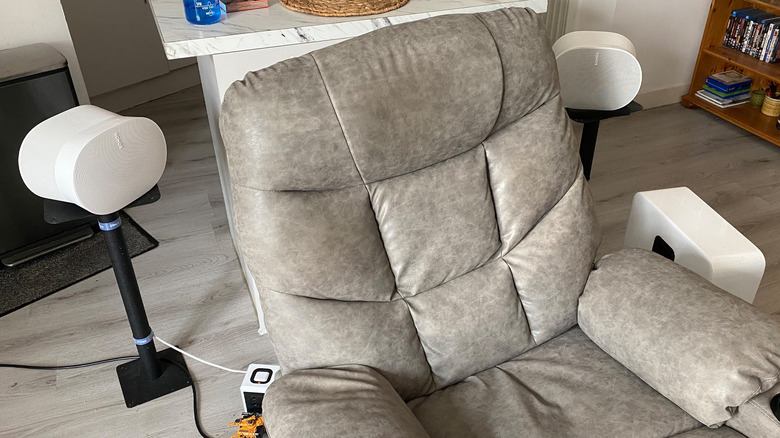
Having trouble getting your Sonos speakers to play nice with the app on your smartphone/tablet? It's most likely a network issue. Ensure your speaker and the Sonos app are on the same Wi-Fi network (connecting one to a guest network will mess with communications between devices). Another problem that can stop speaker pairing is if you've recently changed the password on your router.
VPNs can cause connection issues between your speaker and the app too, so try briefly disabling yours if you're suffering from setup woes. Regular software updates through the app are also recommended to prevent future connection problems. And for Apple users, make sure you've granted the Sonos app permission on either your iPad or iPhone, so that it can find devices on your network.
If the Sonos app still can't find your speaker, it's time for a reset. To reboot your Sonos equipment, simply unplug it, wait for at least ten seconds, connect it back to the power socket, then wait an additional minute or so before trying to pair your speaker with the app. Still facing issues with a "No products found" message in the Sonos app? It's time for a slightly more drastic hardware reset. This should be your last resort, as this process will wipe out any saved EQ settings/TruePlay configurations saved on your speaker.
To perform a factory reset, unplug your speaker, then hold the Bluetooth button as you power it back on. Continue to hold the button until the status light flashes between orange and white. As soon as it flashes green, the reset is complete, and you can try to pair your speaker with the Sonos app again. For older Sonos speakers, you'll want to hold down the Join button instead (identified by a small sideways loop icon).
How do I make my Sonos speakers sound better?
Dave Meikleham for Engadget
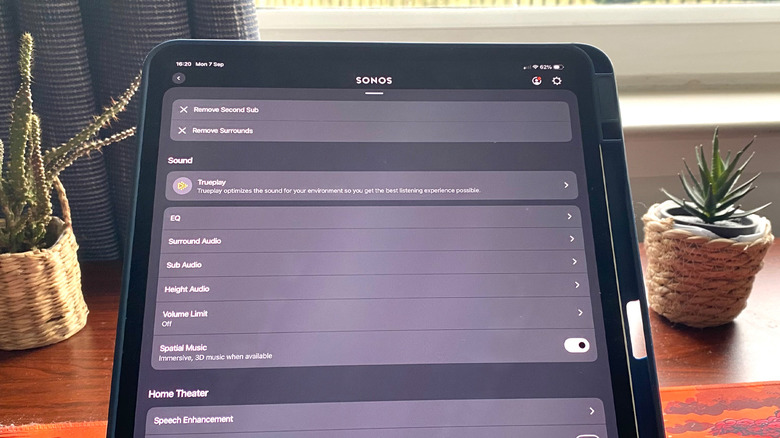
Performing settings tweaks in the Sonos app can make a surprisingly big difference to how your speakers sound. If You've put together a home theater setup, definitely use the app's TruePlay feature. Sonos' room-analyzing feature deploys test tones from your speakers that your smartphone then measures through its mic to calculate the dimensions of your lounge.
As you slowly walk around the perimeter of your entertainment area, TruePlay analyzes these frequencies, making subtle acoustic adjustments to compensate for where your furniture is and where you've placed your speakers in relation to walls. This feature won't make a game-changing difference to how your speakers sound, but it can create a more balanced audio profile.
It's also worth adjusting the EQ of any Sonos speakers you own through the app. Once you navigate to Settings > Your System > Speaker > Sound > EQ, you'll find a wealth of options to tinker with. These span bass and treble levels, surround audio, subwoofer output and more. For those of you who own a spatial audio soundbar like the Sonos Arc Ultra, you can find the best setting and placement for your Dolby Atmos soundbar and tweak height audio settings.
Making minor EQ tweaks — sliders range from -15 to +15 — can make a real difference in clarity levels and bass output. On the latter, take my advice: If you own a Sonos sub, don't set it above +5. I learned that the hard way through some seriously peeved neighbors. There are also slightly more nuanced settings adjustments you can make. Home theater-specific sliders like Night Sound and Speech Enhancement help to boost or reduce noise levels, should you want to be a more considerate neighbor than me or find that voices from your central channel are getting drowned out by effects from your surround sound speakers.
KioskNews shows a cleaned-up reading view extracted from the publisher’s page — the original always lives on their site, not ours.