Here's how to properly test your USB speed


zoff/Shutterstock
The USB spec lies at the heart of our computing world, and we're all stuck with the ports, cables, and accessories to prove it. We pay good money for storage drives and USB hubs with rapid read and write speeds, but the ports we connect them to are just as important. You should know if you're getting your money's worth here, and there are programs you can use to diagnose those rates.
CrystalDiskMark and AmorphousDiskMark for Windows and macOS, respectively, are popular open-source programs for checking storage drives' read and write speeds, but they can also serve as a proxy for determining if your USB connections are running to their intended spec. Connect a drive, open either program, and select it via the drop-down menu. Hitting the first button below All will initiate a sequential read and write test that should give you a good indication of how fast your USB port is. You can then take those transfer rates and see how they compare to what the port (or device) should be capable of.
Windows users can also confirm whether their connected device is running at the port's top supported speed by installing the Windows SDK and opening up a tool called USBView. You can access the tool by heading to Program Files (x86) > Windows Kits > 10 > Debuggers. Pick the folder for your machine's architecture, then open USBView. Select your storage device listed in the left pane and look under the Device Information header next to Device Bus Speed. You won't see a version number there, though, but a somewhat wordy descriptor like SuperSpeed 20. More on that later.
Auditing your USB connection
Engin Subasi/Shutterstock
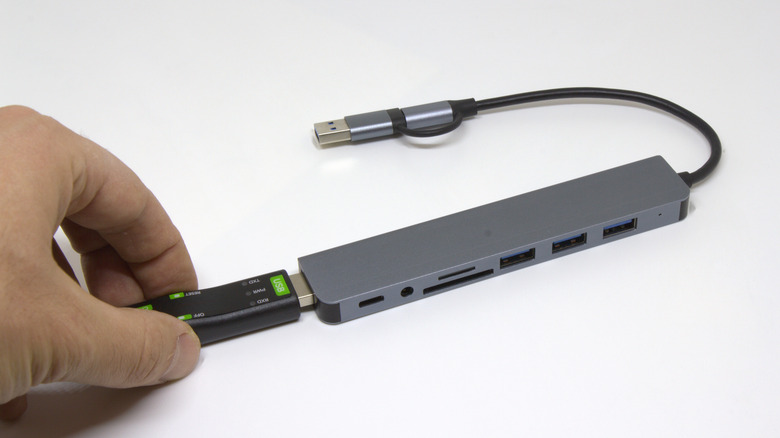
When diagnosing a USB port, use a device (and cable) that meets or exceeds the USB port's capabilities so you can see just how fast the port is. Avoid using a thumb drive, as its performance degrades more quickly during intensive testing. If you're testing a USB hub, connect the hub to the fastest USB port available to eliminate the host computer as the bottleneck.
You may see USB ports with colored shielding to indicate their speed, but these color schemes aren't universal. You can't also rely on the port itself to determine speed, as USB-C doesn't guarantee high speeds. Instead, you should consult your user manual to see which ports are which. Lacking that, USBView is a great tool for figuring out which port has the latest version, but you'll need to translate the long-form name of a USB version into actual version and transfer rate numbers.
Storage diagnostic tools will typically present the results in bytes per second, while the USB spec uses bits per second. One byte consists of eight bits, so be prepared to multiply by eight a few times if you want to audit the on-paper capabilities of several ports. Note that data transfers will rarely hit the maximum theoretical speed, but should still exceed the previous USB version. A USB 3.2 Gen 2 device, for example, may not manage 10 Gbps, but it should still beat the 5 Gbps threshold of 3.2 Gen 1.
USB versions, speeds, and brandings
Jules Wang for Engadget
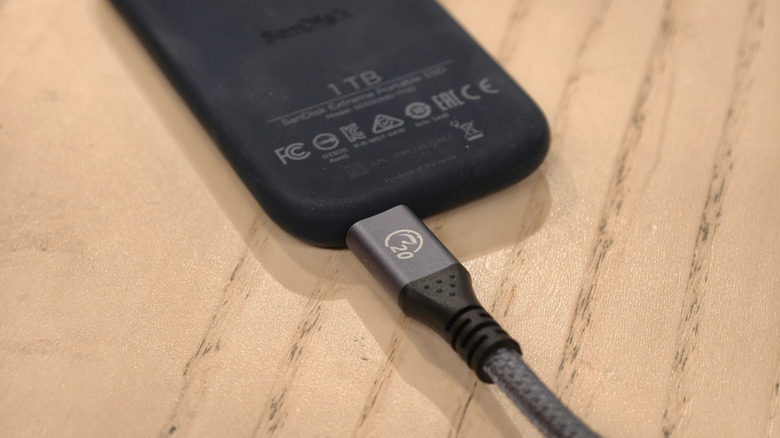
The contemporary floor for many modern low-spec devices is USB 2.0 (Hi-Speed, 480 Mbps). Then we get to the different versions of USB 3.2, some previously labeled 3.0 and 3.1: USB 3.2 Gen 1 (SuperSpeed, 5 Gbps), 3.2 Gen 2 (SuperSpeed+, 10 Gbps) and 3.2 Gen 2x2 (SuperSpeed 20, 20 Gbps). USB 4 comes in three speeds: 20 Gbps, 40 Gbps and 80 Gbps (the latter is technically from USB4 version 2). USB 3.2 Gen 2x2 and USB 4 are exclusive to the Type-C connector, while all others support both Type-C and Type-A. If you're using USBView, these are the names and speeds you'll see listed for each USB port.
Note that USB features backwards compatibility with previous versions, so you're able to get the top speeds allowed for by, say, a USB 2.0 device on a USB4 port. While it is an edge case, it should be noted that the USB 4 spec does not require host devices to support 20Gbps speeds via USB 3.2 Gen 2x2 — some devices do, but otherwise, expect that connection to fall back to 10Gbps on USB 3.2 Gen 2.
Intel's Thunderbolt shares the Type-C connector and, while there are differences, its transfer speeds map to USB4: Thunderbolt 3 and Thunderbolt 4 were rated for 40 Gbps, while Thunderbolt 5 can hit 80 Gbps in both directions or, with the on-demand Bandwidth Boost feature, split at 40 and 120 Gbps. Make sure you have cables that specifically support the Thunderbolt standard you're looking for.
KioskNews shows a cleaned-up reading view extracted from the publisher’s page — the original always lives on their site, not ours.