Improve your Windows 11 experience by changing these settings
Power options, taskbar tweaks and extended clipboards can all make a difference.
Nwz/Shutterstock
Windows 11 is usable out of the box, but you'll have a much better time after customizing some settings. Spending some time in the menus disabling annoying behaviors, automating tedious aspects of PC management and enabling practical features is well worth the investment.
Some important Windows 11 toggles are buried under layers of menus, while others live in spots you might not think to check otherwise. The OS changes frequently, so even if you've organized your PC before, you should still check these if it's been a while.
Set your default apps
Windows keeps track of default apps for every kind of file. If you've installed alternative browsers, image viewers, text editors, PDF readers or similar, you should set them as default. Otherwise, you'll have to right-click and choose your preferred app from the Open with menu every time.
Press Win + I to open Settings, then browse to Apps > Default apps. Choose a program and you'll see a list of all the file types it can open. To change one, click it and select your preferred tool from the window that appears. Browsers are a special case, with a Make [app] your default browser button at the top.
If you'd prefer to choose defaults by file extension, scroll to the bottom of the app list and click Choose defaults by file type. This makes it easy to change what app TXT files open in, for instance.
Enable Clipboard History

khunkornStudio/Shutterstock
Normally, the Windows clipboard can only hold one piece of information. When you cut or copy something, whatever you last clipped is removed. A clipboard manager is a vital productivity tool and the solution to this problem: it keeps track of multiple entries so you don't have to go in a copy-paste circle. It's off by default, so head to Settings > System > Clipboard and enable Clipboard history to start using it. If you have multiple PCs, also consider the Clipboard history across your devices option so what you copy on your laptop is available on your desktop.
Now, when you press Win + V, a window will appear with several of your recently copied items (text and images), allowing you to paste them as you wish. The manager only stores your last 25 cut or copied items, which is not much, but still a big upgrade over a single item. For anything you'll often need, like your address or canned responses, use the Pin icon to keep them in the tool permanently. Under the three-dot menu, the Paste as Text option strips the formatting, which you'll appreciate for Word documents and the like.
If you like this functionality, ClipClip is a great third-party upgrade. It stores many more snippets and has folders for organizing your pinned clips.
Disable Windows ads and other junk
Nwz/Shutterstock
On a fresh install, Windows nags you with all sorts of "suggestions," which are mostly ads for other Microsoft products. You'll need to visit several places to disable them all. First, browse to Settings > Personalization > Start and disable Show recommendations for tips, shortcuts, new apps, and more to prevent apps the company wants you to use from appearing in your Start menu. To declutter the search panel and keep it focused on what's on your computer, move to Privacy & security > Search and disable Show search highlights.
Next, navigate back to Personalization > Lock screen to disable Get fun facts, tips, tricks, and more on your lock screen. Also, change the Personalize your lock screen dropdown away from Windows spotlight, remove any Widgets you don't use, and disable Suggest widgets for your lock screen to remove clutter. Disable all the toggles in Personalization > Device usage to avoid "recommendations" for various ways you might use your PC.
Offers and recommendations
Continuing on, go to Settings > Privacy & security > Recommendations & offers. In this panel, disable Personalized offers and Recommendations and offers in Settings to stop "offers" for other subscriptions. Finally, at System > Notifications, wait a moment for the list to populate under Notifications from apps and other senders. Change Sort by to Name for convenience, then scroll down to find Suggested and disable it. Then, scroll to the bottom, click Additional settings, and disable both checkboxes there.
That should take care of Windows 11's most obnoxious behavior. During this pass, it's also worth opening Settings > Apps > Installed apps and looking for any manufacturer-added bloatware you don't need. Some pre-installed apps can be useful, like those for updating drivers. But those that duplicate Windows functionality or are just free trials for cloud tools or security suites can go.
Enable some smaller helpful features...
If you often need to force-close programs, go to Settings > System > Advanced and enable the End Task option to add a shortcut for terminating processes to the right-click menu for apps on the taskbar.
Choose when to install updates
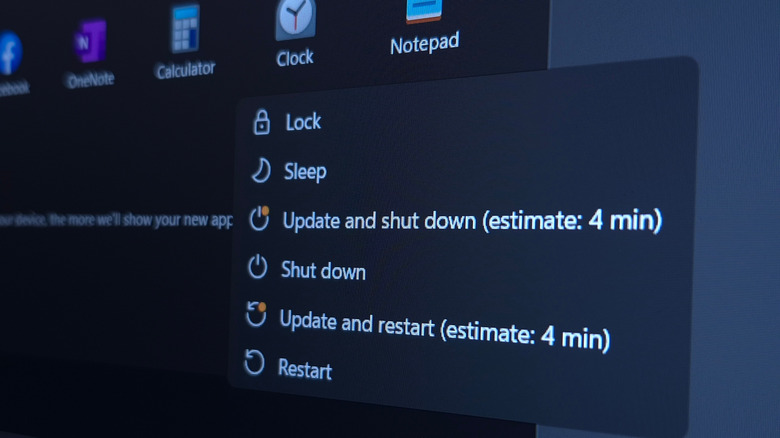
Windows updates are a lot less invasive when you know they're going to happen. You can control this by going to Settings > Windows Update > Advanced options and clicking Active hours. Choose Manually, then pick a start and end time. Windows won't automatically restart your device to install updates during this period.
Reduce eye strain
If you often use your computer at night, you'll appreciate the Night light function located at Settings > System > Display. This makes your display warmer to keep blue light from blinding you when it's dark. It's most convenient to enable Schedule night light and set it to run from Sunset to sunrise; if your schedule is different, you can choose times manually. Adjust the Strength to your liking.
Free up disk space
Your PC can automatically clean itself up when you run low on space; take a look at this under Settings > System > Storage > Storage Sense. You can choose what gets deleted automatically and how often, which saves time compared to making space manually.
Boost performance
To make sure you're getting the best performance from your system (if you don't mind some extra energy usage), browse to Settings > System > Power. Click Power Mode and choose Best performance. If you can't select one here, search for the Control Panel on the Start menu and click Power Options there to adjust it.
Set a PIN
Protecting your login with a PIN is a great option. It prevents you from having to type your (hopefully secure) Microsoft account to log in, and it's unique to your device, so it's less damaging if compromised. Plus, you can use Windows Hello (via a PIN) to unlock supported apps, such as 1Password. Set this up at Settings > Accounts > Sign-in options > PIN (Windows Hello).
...and disable a few, too
Nwz/Shutterstock
Head back to Windows Update settings (Settings > Windows Update > Advanced options) and select Delivery optimization from the lower menu. When Allow downloads from other devices is turned on, Windows will share parts of update data to other devices using a peer-to-peer connection. It's fine to set this to Devices on my local network, but there's no reason to select Devices on the internet and waste your bandwidth.
Another little feature worth disabling is under Settings > System > Multitasking. Disable Title bar window shake and you'll no longer minimize all other apps when you click and shake one. In theory, this is a neat shortcut, but it's too easy to activate by accident while dragging, and having to reopen all other apps is a pain.
Finally, follow our guide to trimming your startup apps so only what you need runs at boot. Many apps set themselves to run at startup without much notice, which leads to apps sitting in the background and wasting resources for your entire session.
KioskNews shows a cleaned-up reading view extracted from the publisher’s page — the original always lives on their site, not ours.