The important iCloud security settings you should be using
iCloud is the key to your digital life, if you're an Apple user. Here’s how to make sure only you can use it.
robert coolen/Shutterstock
If you use Apple devices you also use iCloud, which is the key to your digital life. Here are the security settings you can use to protect iCloud.
Account Protection
iCloud security begins with your Apple Account password. Please don't use passwords like 123456, admin, or 12345678, the world's top three passwords, according to NordPass. Harden your account's security with a mixed alphanumeric passcode including symbols, letters and numbers. While harder to remember, it's also much harder to guess but do avoid using it anywhere else. Open the Passwords app and check for leaked or weak passwords.
Now confirm that Two-Factor Authentication is enabled. (Settings > [Your Name] > Sign-In & Security). This should be on by default. While you are in there, review your trusted email and phone numbers, removing any you no longer use.
A feature called Stolen Device Protection helps stop thieves taking over your Apple Account even if they get hold of your passcode. iOS decides which locations are familiar, such as home and work. When your device is not in one of those locations it will require Face or Touch ID authorization for tasks. It also applies a security delay, so changing critical settings cannot happen without two successful biometric scans and a one hour wait. Enable this in Settings > Face ID & Passcode > Stolen Device Protection.
Tools for account recovery
Hadrian/Shutterstock
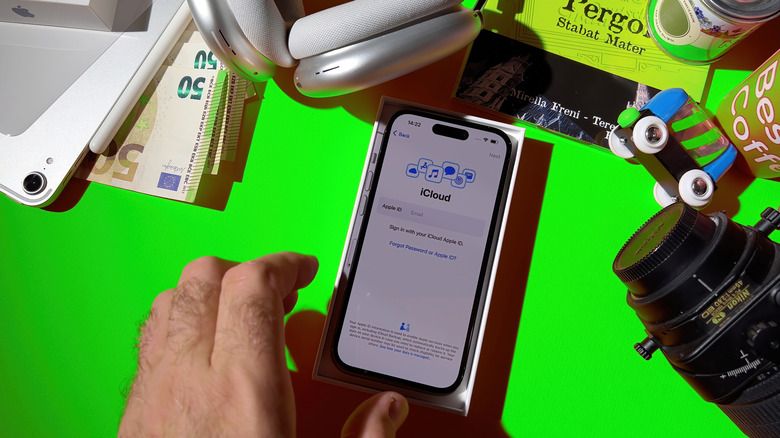
What happens if you are hacked and locked out of your Apple Account? Protect yourself using tools found in Settings > [Your Name] > Sign-In & Security:
Recovery Contacts: Add up to five people you trust to help you regain access to your account. They can generate a code from their Apple device which you use to help get back in.
Recovery Key: This 28-character key replaces Apple's own account recovery process. It's highly secure, but if you lose both the key and your trusted devices you risk being permanently locked out.
Legacy Contact: If you die, your Legacy Contact can access your data. While they must provide a death certificate, it means Photos, videos, notes, documents and other memories stay with someone you trust, rather than disappearing.
Protection for your data
Apple encrypts all iCloud data in transit, but not all of it is encrypted once stored. Information that is always encrypted and Apple cannot access includes: passwords, health, Safari history and payments. Apple can decrypt everything else, including iCloud Drive, Photos, Notes, and more. Available everywhere except the UK, Apple's Advanced Data Protection, (ADP) will encrypt everything except Mail, Contacts, and Calendar, so Apple cannot decrypt it. ADP requires you have a Recovery Contact or Recovery Key as once it is in place; Apple cannot help you decrypt your data.
Protecting your privacy
Stockinq/Shutterstock
If you use Safari, iCloud Private Relay hides your IP address and location from the sites you browse and stops your ISP seeing where you go. It's similar to a VPN, but not a replacement.
Hide My Email helps keep spam out of your account. It works automatically with iCloud+, so when filling in a form or using Sign in With Apple, tap Hide My Email to use a random, forwarded address instead of your real one. Create, manage, or delete these in Settings > [Your Name] > iCloud > Hide My Email.
You are the last line of defense
You can use FIDO-certified physical security keys instead of a code for two-factor authentication of your Apple Account and iCloud. This advanced security feature requires both the physical key (or another trusted device already signed into your account) and your account password to gain access. As with all the toughest security protections, you may be permanently locked out of your account if you lose your trusted devices and security keys.
As with all security measures, you are the final line of defense. Apple will never ask you for a verification code, so never share one. Never use your Apple Account password on pages reached using a link and run Safety Check (Settings > Privacy & Security > Safety Check) to monitor who has access to your information — if you see something unfamiliar, tap Emergency Reset to stop sharing with everyone.
KioskNews shows a cleaned-up reading view extracted from the publisher’s page — the original always lives on their site, not ours.