This built-in Windows tool can diagnose your PC's battery health

It's a bit hidden, but it's easy to find if you know where to look.

Pocketlight/Getty Images
The health and performance of a laptop's internal components are things that are important to keep a close eye on over its lifespan. A laptop's longevity is permanently linked to the status of its battery.
If you have a laptop, the battery is one that you may want to pay particularly close attention to. A failing or struggling battery will have some significant negative impacts on your laptop's performance, in addition to eventually being the thing that stops it from booting altogether.
Thankfully, there's a nifty, little-known Windows tool that can help you diagnose your laptop battery and its condition, as well as help you to determine when it may be time for you to look at a potential replacement. Perhaps more than any other type of computer out there, laptops are exceptionally difficult to diagnose sometimes, but this built-in tool can help make your life a little bit easier.
What is Powercfg and what does it do?

Whitetea/Getty Images
In addition to its many other built-in diagnostic tools, Windows offers one that is going to be quite handy if you happen to have a laptop. It's called Powercfg, and it's one of the most powerful utilities that you can use to help figure out what's going on with your laptop's battery.
To put it simply, Powercfg will allow you to monitor and maintain the energy and systems of your computer. If you're running it on a desktop computer, it will be beneficial in allowing you to monitor the energy efficiency of your PC, as well as alter certain sleep and hibernation states.
With a laptop, however, Powercfg becomes a much more powerful and comprehensive administration utility. Though it has its uses on PC, you'll be able to feel the impact of what it can do much more clearly when you run it on a laptop.
How to run Powercfg and keep tabs on your laptop's battery
Rokas Tenys/Shutterstock
If you've been noticing your laptop acting a bit strange lately, then Powercfg may be where you want to look first. The warning signs of a dying laptop battery range from something as subtle as slower charging than normal to the more severe — like a complete, random shutdown out of nowhere. You may also notice that the laptop itself starts to bulge, indicating a swollen battery with parts that are slowly breaking down.
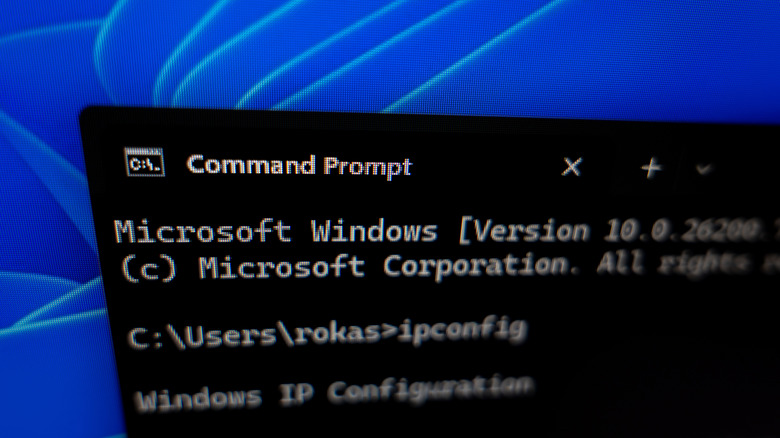
Running Powercfg is fairly easy even for someone who isn't a computer expert. You only need to know how to type and how to open the Terminal window as an administrator. Begin by pressing Win+X, then clicking Terminal (Admin). The window that opens is where you'll type commands to engage with Powercfg. You can also use Command Prompt, which you invoke by pressing Win+R, typing cmd in the window that appears and pressing Enter.
To start with, one of the most helpful commands to use is powercfg /batteryreport. Type that exact line into Terminal and press Enter. This will give you a complete rundown of your laptop's current status as an HTML report that will save to your computer's files. The Terminal will tell you where to locate the file. You ideally want full charge capacity to be as close to design capacity as possible, which is what the laptop was built for. A bit of wiggle room is fine, but it's worth keeping an eye on if you think your battery isn't doing so great. Anything below 40 percent needs to be replaced, according to Dell.
Powercfg /energy will run a check on your battery and the laptop's efficiency. It lasts 60 seconds and also saves as an HTML report that you can open from the location indicated. This particular command will tell you which apps and devices may need to be reconfigured due to power drain on the battery. These two commands really go a long way in allowing you to self-diagnose battery trouble, and if you discover that the battery is severely damaged or causing issues with the laptop, it's most likely time to replace it with a new one.
KioskNews shows a cleaned-up reading view extracted from the publisher’s page — the original always lives on their site, not ours.