NVIDIA DLSS 4.5 has presets you should know about
NVIDIA
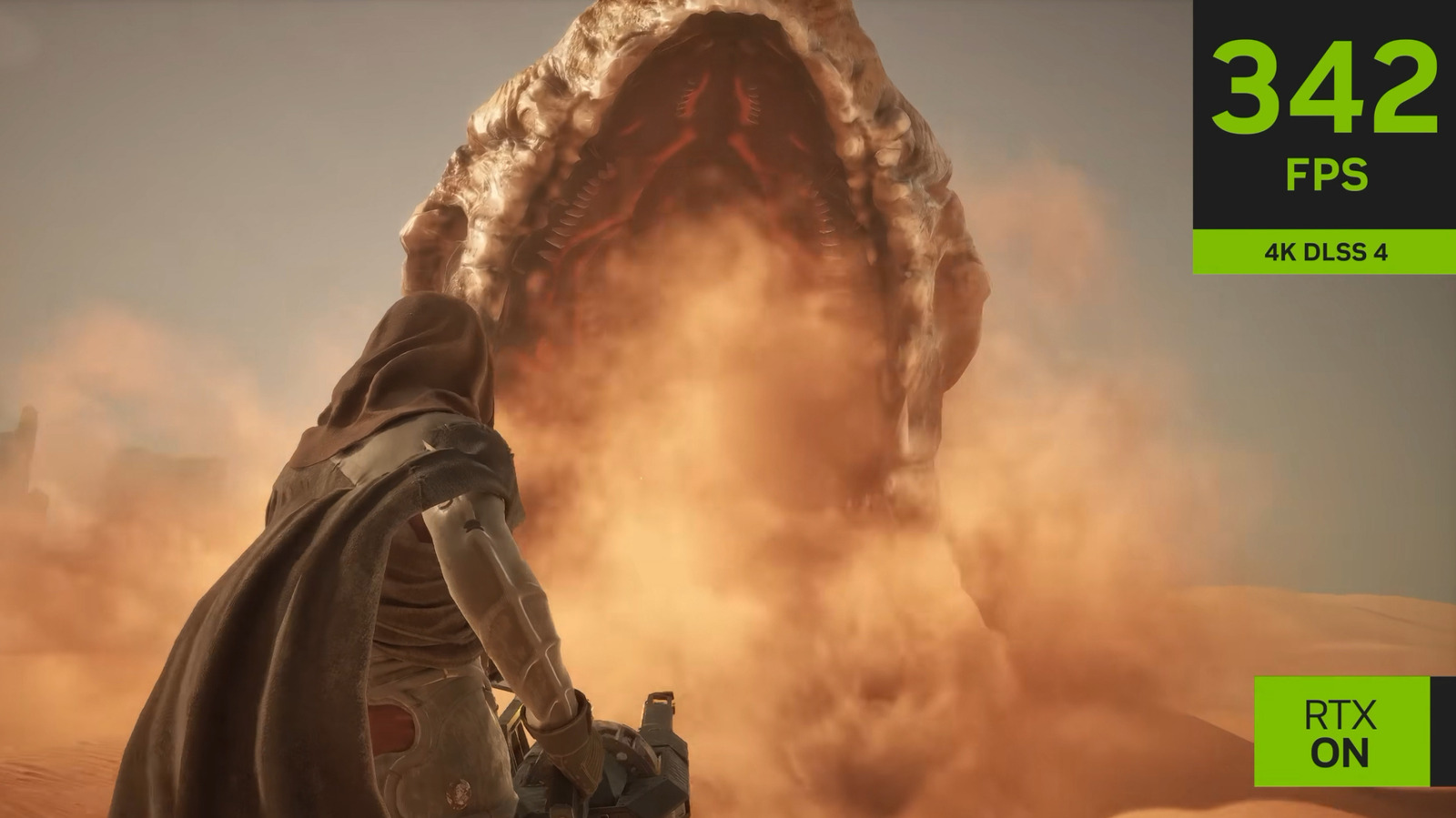
Like it or lump it, there's no getting away from upscalers if you're a PC gamer who loves modern AAA titles. For those on the NVIDIA side of the divide, the company's Deep Learning Super Sampling tech is increasingly needed if you want to run graphically demanding games at high frame rates with ray tracing whacked all the way up. If you regularly deploy DLSS 4.5 in games, there are tweaks you can make through the NVIDIA app to squeeze better performance and cleaner visuals from your favorite titles.
The internet remains very upset about NVIDIA's DLSS 5, and rightfully so. Thankfully, DLSS 4.5 is focused purely on delivering the best balance between image quality and performance, not needlessly yassifying in-game character models. We'll run you through DLSS 4.5's K, L, and M presets, how they compare to each other, and what hardware is best suited to each. We'll also touch on in-app tweaks you can make to reduce visual glitches that may occur if you enable frame generation.
Which DLSS 4.5 preset is better: K, L, or M?
NVIDIA
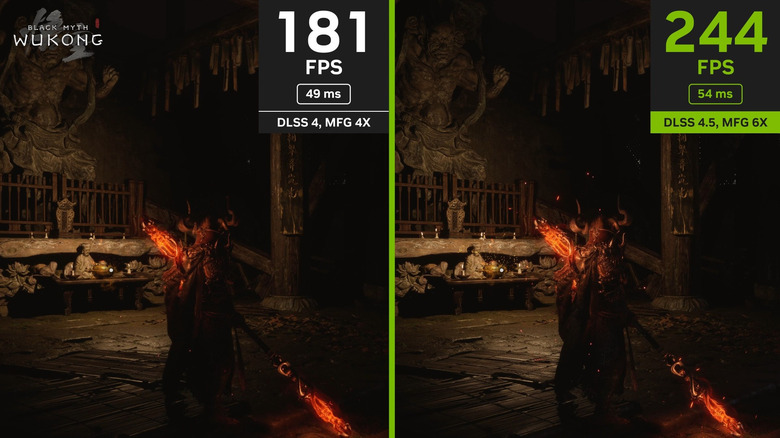
There's no real "best" preset, per se. It's more a case of judging what the most suitable option is for striking the right balance between visual quality and performance, which ties into how powerful your GPU is. To switch between DLSS 4.5's various presets via the app, go to Graphics > Global Settings > DLSS Override – Model Presets.
First up, preset K has been designed to deliver the best image quality, so it should be the go-to for folks who own the highest-end gaming PCs (more on that shortly). If you're gaming on more modest hardware, presets M and L have been tailored towards DLSS 4.5 Performance and Ultra Performance modes respectively. If you're playing on, say, an RTX 4070, opting for preset M should deliver attractive results without hitting your frame rates too hard. Upscaling from an internal resolution of 1080p, this option produces results that can look really pleasing on a 4K screen thanks to strong image stability.
Gamers who want to play the best PC games on either RTX 30 or 20 Series cards would be better off selecting preset L, especially if the title in question has ray tracing. Sure, the image won't be quite as stable as M, meaning you're likely to encounter ghosting issues when the camera is moving around quickly in games. Still, preset L can deliver convincingly high resolution results on 1440p and 4K monitors. That's impressive, considering DLSS 4.5 is upscaling from an internal 720p resolution.
In short, if you own bleeding edge PC components, preset K will produce the most eye-arousing results. The performance-focused M is great for mid-range gaming PCs and does a good job upscaling from 1080p. For aging rigs, preset L delivers the most performance bang for your buck and looks pretty decent doing so.
Which DLSS 4.5 preset is best for 4K?
NVIDIA
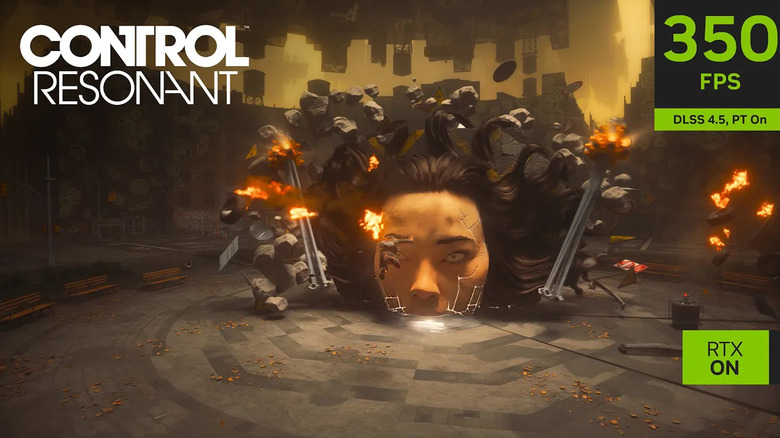
Whether you own a 4K monitor or have your PC hooked up to your main living room TV like I do, playing AAA games on a beefy rig in Ultra HD is pretty glorious. Provided your GPU and CPU are up to the task, DLSS 4.5's preset K is best placed to deliver eye-rubbing 2160p results. Though preset M does a commendable job upscaling from 1080p, the higher baseline resolutions that K is working with produces image quality that's closer to native 4K output.
Once you choose K from the NVIDIA app's model presets menu, you can further tailor the visual experience you're hoping to obtain by hopping to "DLSS Override – Super Resolution Mode". Here, you're best choosing either DLAA, Quality or Balanced to hit a high level of image quality. However, since DLAA outputs at 100% resolution, you really need an expensive 50 Series GPU with this option if you want to avoid tanking frame rates in demanding modern games.
The Quality and Balanced options are obviously less taxing than rendering games at native output. The former upscales from 1440p (that's around 66.7% of a native 4K image), while the latter scales from a baseline 2227 x 1253 pixels (about 58% of 4K). You can also set a custom input resolution from this sub menu. Whenever possible, I go with DLAA, as it provides the best form of anti-aliasing to all but eliminate most in-game jaggies. That said, I do own an RTX 5090. For most folks with decent GPUs, pairing preset K with Balanced mode will provide strong performance with image quality that should look great on most 4K displays.
Which DLSS 4.5 preset works best with frame generation?
NVIDIA
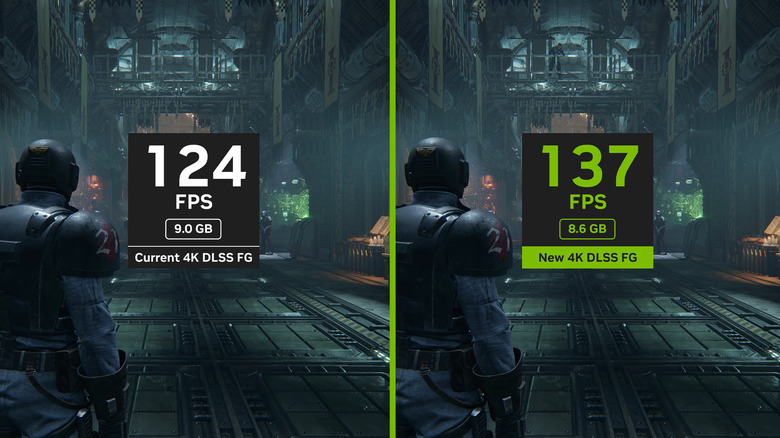
Team Green's Multi Frame Generation tech is capable of delivering hugely impressive FPS numbers... with a couple of caveats. Though you can run the likes of Cyberpunk 2077 at over 200 FPS with full path tracing when the x6 multiplier is enabled, latency can increase significantly, while visual glitches may also occur. To reduce the latter issue, it's best to tweak settings in the Frame Generation tab of the DLSS Override – Model Presets section.
Not to be confused with the previously mentioned K, L, and M presets, frame generation has its own unique options to help smooth out image quality. By default, the app chooses the "Use 3D app setting", while also placing an asterisk next to the Recommended preset with the disclaimer this option should provide the best balance between optimal quality and performance in most cases. You also have the choice of presets A and B. In most instances, it's the latter you should go with.
However you feel about NVIDIA's DLSS 4.5 Multi Frame Generation tech and its AI-assisted frames, it is capable of delivering game-changing performance in titles that push path-tracing hard, such as Resident Evil Requiem. However, the frame gen preset you choose can have a substantial impact on what you see onscreen. In my experience, choosing the older A preset can cause obvious visual bugs.
In the case of Requiem or 007 First Light, this most commonly manifests as a distracting shimmering effect around 2D elements, like onscreen icons. When I've encountered these ugly issues, swapping from preset A to the more recent B variant has generally cleaned up these problems completely, or at least made them less visible. Not all games that support MFG are compatible with preset B though, so if you're experiencing issues, it's occasionally worth testing out preset A.
KioskNews shows a cleaned-up reading view extracted from the publisher’s page — the original always lives on their site, not ours.