One problem with your iPhone's Always-On Display can easily be fixed
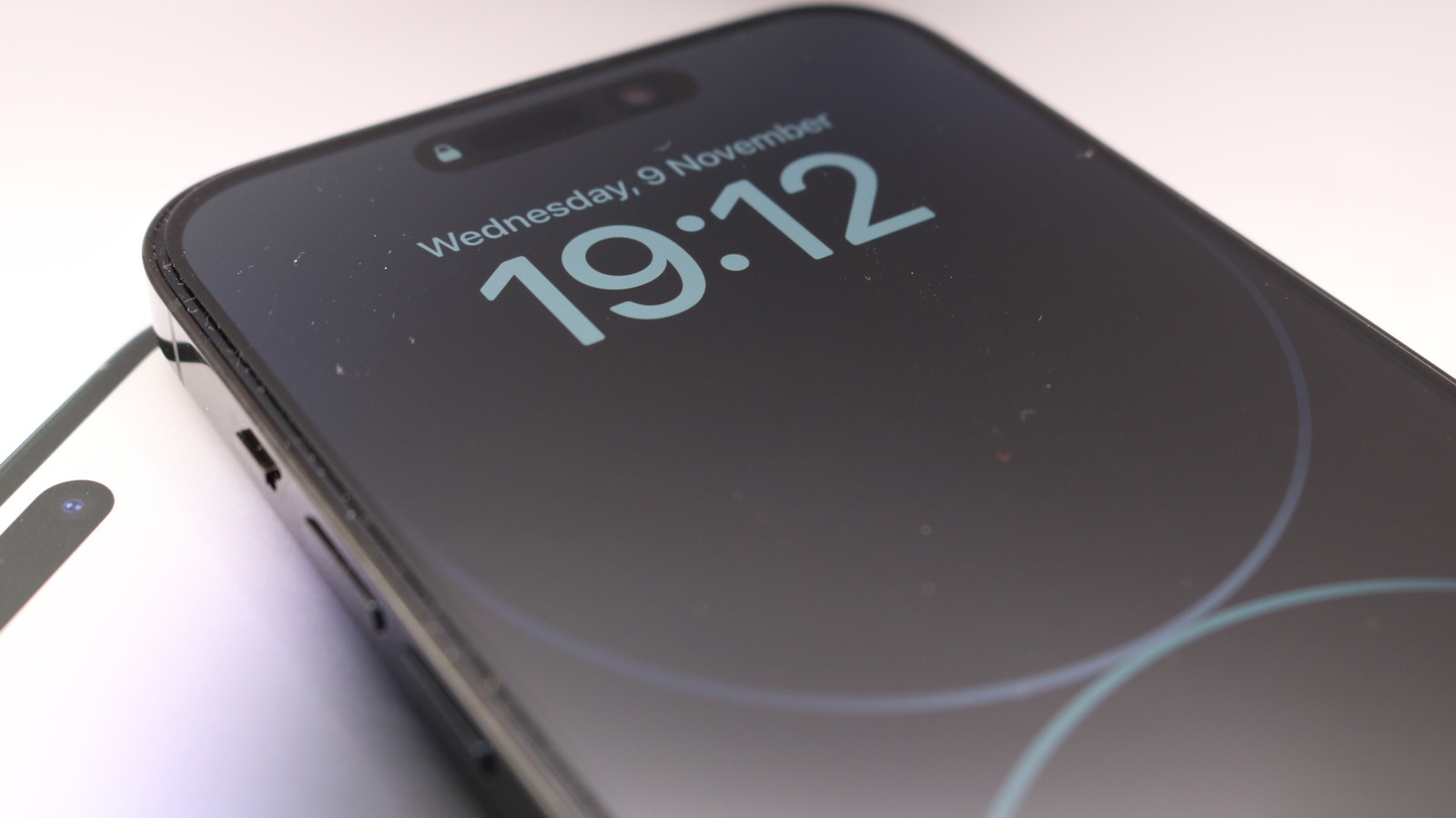
If your Always-On Display doesn't always stay on, these are the likely causes.
boyudon/Shutterstock
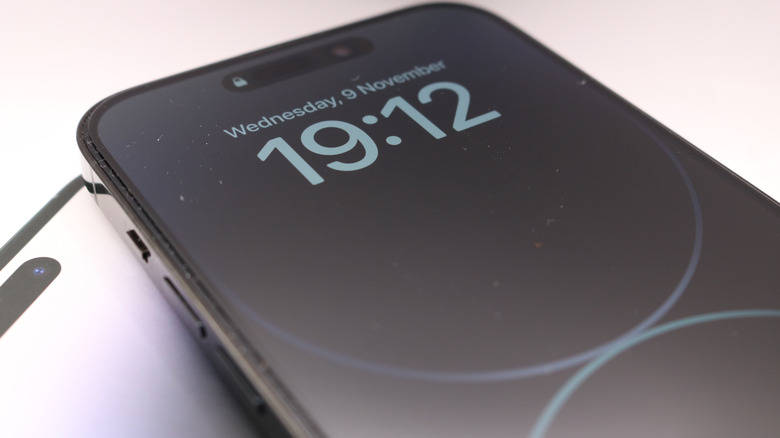
The iPhone's Always-On Display is a slick feature that lets you see important information at a glance without unlocking your phone. It keeps your customized Lock Screen dimmed but still visible, so you can quickly check the time, your notifications or other widgets. It's not a feature loved by every iPhone user, depending on the level of privacy you prefer and if you're OK with its impact on battery. But for many, it's a simple way to avoid picking up your phone every time you want to check something.
If you want to utilize Always-On Display but your Lock Screen continues to fully turn off, there are several potential causes, thankfully paired with easy solutions. First, note that not all iPhones are capable of the Always-On Display feature; the following models are:
-
iPhone 14 Pro and 14 Pro Max
-
iPhone 15 Pro and 15 Pro Max
-
iPhone 16 Pro and 16 Pro Max
-
iPhone 17, 17 Pro and 17 Pro Max
-
iPhone Air
-
iPhone 18 Pro and 18 Pro Max
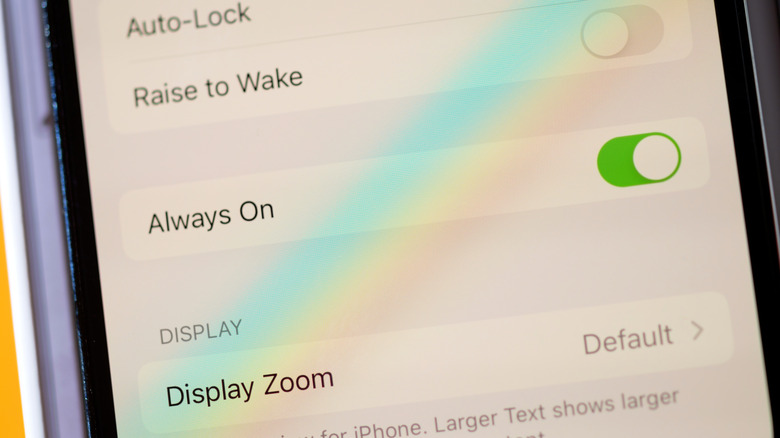
The Always-On Display is enabled by default, but you can toggle it by going to Settings > Display & Brightness > Always On Display. Make sure it's enabled before continuing.
Why Always-On Display keeps turning off
Hadrian/Shutterstock
Some situations that cause Always-On Display to turn off are bound to happen throughout the day, but they're largely instances where you don't want to use the screen anyway. If your iPhone is face-down, obstructed from view, or not near a paired Apple Watch (typically because you've left the room), the feature will turn off. Make sure you've cleaned your iPhone's front-facing camera so it can see you clearly. It may also shut off if you don't interact with your phone for long periods.
Other situations can be a bit more disruptive, but are still understandable: the display will turn off when connecting your iPhone to a CarPlay session to minimize driver distractions, and while using the Continuity Camera (presumably to conserve battery).
While those causes of Always-On going dark can't be adjusted, two other common causes can: Low Power Mode and Focus modes. You can use the Control Center toggle to toggle Low Power Mode, or on an iPhone 15 and later:
-
Open Settings.
-
Select Battery > Power Mode.
-
Turn Low Power Mode off.
On an iPhone 14 or older, the setting is found under the main Battery menu. On newer models, it may also be worth switching off Adaptive Power in the same Power Mode menu, as this can automatically switch Low Power Mode back on when you fall below 20 percent battery. It's up to whether you value the convenience of AOD or maximum battery life more.
Other Always-On Display fixes to try
By design, Always-On Display will not work while your iPhone is in Sleep Focus mode. To make sure Sleep Focus is off:
-
Open Control Center.
-
Tap Focus, then choose Sleep if it appears selected.
It's possible for the Health app to automatically turn on Sleep Focus at your set bedtime. To disable this:
-
Open Control Center and tap Focus.
-
Tap the three dots next to Sleep, then select Settings.
-
Scroll down to the section labeled Schedule and select Next Schedule.
-
Turn the toggle next to Schedule off, or choose Schedule and Options to adjust your schedule if preferred.
Other iPhone Focus modes let you select whether you want AOD to stay enabled. To toggle this:
-
Open your desired Focus Mode's settings using the steps above.
-
Scroll down to Focus Filters and select Add Filter
-
Under System Filters, select Always On Display and make sure it's turned on.
Failing this, it's worth toggling the Raise to Wake feature under Settings > Display & Brightness if your phone's screen is waking up too aggressively when you touch it to check the Always-On Display. Otherwise, restart your iPhone to clear up any temporary hiccups.
KioskNews shows a cleaned-up reading view extracted from the publisher’s page — the original always lives on their site, not ours.