How to get Spotify's best audio quality


metamorworks/Shutterstock
Some people complain that the quality of music streaming isn't good enough but then don't realise they can adjust settings to improve their audio output. While your speakers or headphones play a huge part in how you hear music through Spotify, options in the app and on your device are important too.
If you've never explored Spotify's audio settings, or it's been a while since you have, take some time to customize them. Spotify Premium users, in particular, have several ways to make their music sound even better.
The most important: adjusting audio quality
Rawpixel/Getty Images
The most logical place to start is with the audio quality selector itself, since that directly controls what Spotify sends to your device. To find it on iPhone or Android, open the Spotify app, tap your profile picture at the top-left and choose Settings and privacy. Next, select Media Quality.
On desktop, click the three-dot button at the top-left and choose Edit > Preferences, then scroll down to the Audio quality section. On mobile, you can set the quality independently for both Wi-Fi and Cellular, but on desktop there's only one selector. You can't change the quality in Spotify's web player, so use the desktop app for best results.
All Spotify users can choose from Low, Normal and High, with Premium subscribers also having access to Very high and Lossless. You'll see the bitrate and approximate amount of data usage per hour for each. Automatic adjusts based on your connection strength; for the best quality, disable the separate Auto-adjust toggle so Spotify doesn't modify it as you listen.
Further down the page, you'll see a Download quality section that offers the same options for offline files. If you've previously downloaded music and have since changed the quality, tap Download here to re-download everything to match the new setting. If you have limited mobile data but ample space on your phone, downloading music at High or Very high quality is a great plan. Then, you can shuffle your downloaded Liked Songs to enjoy high-quality CarPlay audio while driving.
Understanding Lossless quality
Shyrix/Getty Images
Lossless delivers CD-quality audio using compression that doesn't delete any information. However, your listening setup could render this quality irrelevant. Bluetooth can't carry true lossless signals, so there's no point in selecting this quality while you're using earbuds or Bluetooth speakers.
On your phone, you'll need wired headphones to enjoy lossless music. In theory, your phone's built-in speakers can play lossless audio, but you won't be able to appreciate it that way. Any pair of USB-C earbuds can carry a lossless signal, though using a more powerful DAC (digital-to-analog converter) provides a better experience. Wired speakers connected to your computer will support lossless audio, and Spotify also works on other devices that support high-definition sound. If you have a Wi-Fi-enabled speaker that works with Spotify Connect, it should support lossless playback since Wi-Fi isn't subject to the same bandwidth limitations as Bluetooth.
Other options, like the Spotify app on your smart TV, may have lossless quality available depending on the model. If they don't offer a quality selector of their own, start playing music on them, then open the app on your phone to control the other device via Spotify Connect. At the bottom-left of the Now Playing screen, tap the name of your desired listening device, then hit it again at the top of the Connect list. This shows you the current quality; tap Change quality settings to adjust it. A LG C1 TV and PS5, for example, are able to play 16-bit lossless Spotify audio through the eARC connection to a soundbar. They can't play full 24-bit quality, but the difference is likely negligible in most cases.
This brings up an important point: even if your setup can transmit lossless audio, the rest of your hardware could prevent you from being able to tell the difference. A $10 pair of earbuds lacks the audio fidelity for you to distinguish between a high-quality lossy and lossless stream, so you'll need quality headphones or in-ear monitors.
Your environment matters, too. Even though CarPlay and Android Auto can transmit lossless audio, you can't appreciate the difference with stock car speakers and noise from the road.
Other Spotify settings that affect audio quality
em113/Shutterstock
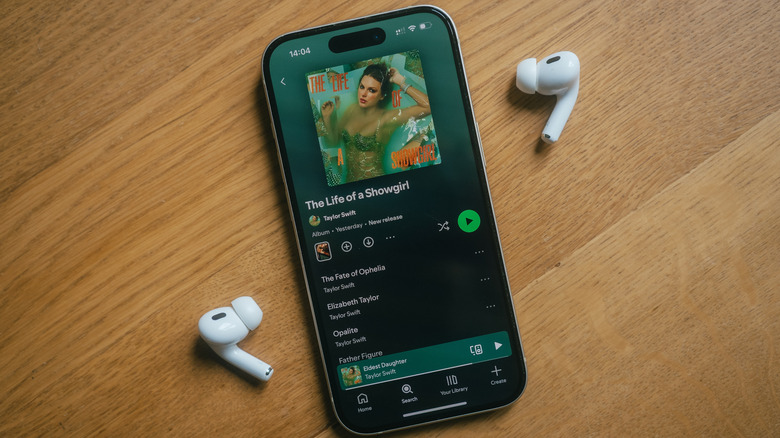
Outside the direct quality settings, there are other options that can improve Spotify's sound output. Under Spotify's Settings, visit Playback > Equalizer to pick a preset or manually adjust the frequencies on your own. This can make a difference, though take care not to have multiple layers of EQ applied. Your phone might have its own EQ settings, plus Spotify's and then potentially a third for your speakers or headphones.
In the same menu, you might want to disable Volume normalization. This establishes a baseline volume for all music so you don't have to keep turning it up or down. Having it on shouldn't affect audio quality unless you choose Loud, though some people swear audio sounds better with this turned off. Try both and see what you think. While you're here, also make sure Mono audio is disabled unless you need it for accessibility.
While not directly related to audio quality, you might also want to change the Track transitions options on the same page. The Crossfade option will cut off song endings if it's set to a long mix period, for instance. Finally, if you aren't concerned about your mobile data plan, it's worth visiting the Data-saving and offline menu in Settings. For the best quality, make sure Data saver is turned off, as this lowers streaming quality when you're not on Wi-Fi.
Choosing the right audio quality balance in Spotify depends on your environment, audio equipment and the circumstances. When you're at home in a quiet room using high-end speakers, you can appreciate lossless quality. But when you're using Bluetooth earbuds walking around a loud city, a lower streaming quality saves mobile data by not wasting bandwidth on music you can't fully appreciate anyway.
Plus, everyone's hearing is different. Some people can't tell the difference between a high-quality lossy stream and lossless. Online resources like ABX's High Fidelity Test can illustrate if you're able to tell the difference.
KioskNews shows a cleaned-up reading view extracted from the publisher’s page — the original always lives on their site, not ours.